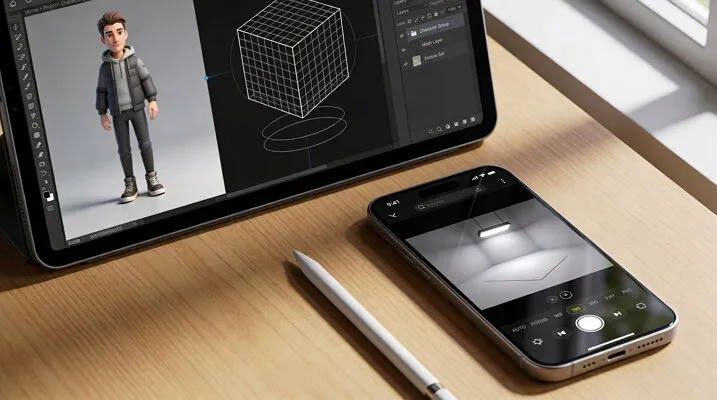
People want to create fun videos but often feel frustrated by complex tools. Along with that, finding simple tools that work well on mobile devices can feel difficult. When it comes to making 3D animations, people do not have a clue about using the right mobile application. In this guide, we bring some of the finest options in 3D animation apps for iPad, which will help you create some top-notch animations.
Part 1. 5 Easy-to-Use 3D Animation Apps for iPad & iPhone
We'll start off by discussing some of the finest apps for iOS users that can be used to create 3D animations. Look into all the provided options and find the right suit for your needs:
1. MagicLight AI
MagicLight AI is a powerful 3D animation iPhone app that generates full videos from text scripts using advanced AI. While offering unique AI models, including Claude Opus 4.6, Gemini 3, GPT-5, and many more, it features a lot of options. You can also select from different style models based on different AI models to influence a specific 3D animation design.
From setting a duration of up to 50 minutes to selecting 11 different languages for your video, there is quite a lot that can be done across this AI app. You can even adjust camera angles and motion to create cinematic 3D animation scenes and export them after preview. With a clear storyboard offering a preview of all generated scenes, it gets easier to create the best animated version of your ideas.
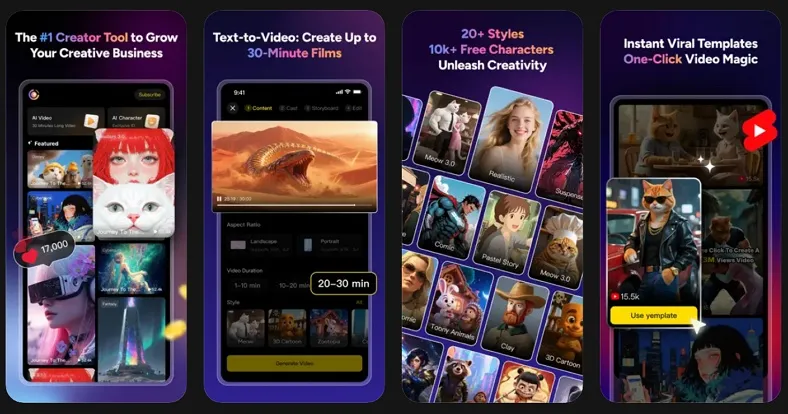
Key Features
- Voice Sync: It automatically syncs voice with lips and expressions for realistic talking animation results.
- Prompt Enhance: You can also improve your text prompts using AI to get better video results quickly.
- Lighting Effects: MagicLight AI even controls lighting in scenes to improve mood, brightness, and visual quality.
User Rating: 4.5/5
2. Nomad Sculpt
This AI animated app unwraps UVs using the facial groups to control the seams and texture flow. During editing, Nomad Sculpt allows saving and loading brush presets to reuse custom settings anytime during sculpting. Along with this, users can import external 3D models in common formats to continue editing inside this 3D animation iPhone app.
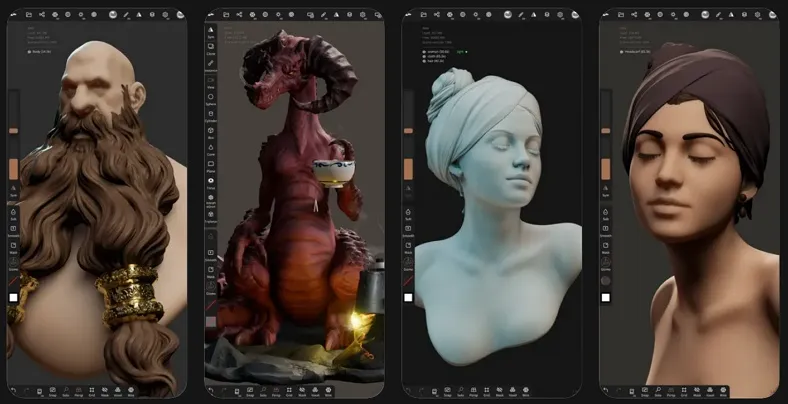
Pros
- It uses matcap mode to simplify sculpting visualization without complex lighting calculations.
- You can export models in various formats, such as glTF or PLY, for other 3D applications.
- Dynamic topology adds polygons only where needed during sculpting for better performance.
Cons
- Heavy mesh and high-poly models may reduce performance on older iPad and iPhone devices.
- Users report minor bugs and occasional glitches affecting brushes, gizmos, and layer management.
User Rating: 4.8/5
Pricing Plan
Quad Remesher: $15.99
3. Shapeyard
This 3D animation app for iPhone creates models using an SDF-style polygon-free workflow for intuitive 3D modelling. Users can use its 20 primitives, including box, tube, and cylinder, to model quickly. After creating 3D objects, it allows saving models in OBJ format with textures for compatibility with game engines.
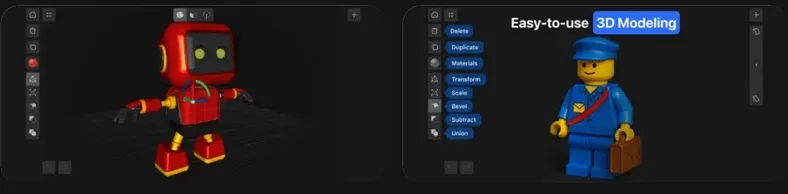
Pros
- A full construction history allows making changes without damaging previously modelled parts.
- You can rotate individual shapes precisely for alignment or creative composition in scenes.
- Separating paint layers allows experimenting with color and roughness.
Cons
- Most auto-generated topology reduces fine control over edge loops and detailed meshes.
- Lacks advanced sculpting, rigging, UV, and animation tools for professional pipelines.
User Rating: 4.5/5
Pricing Plans
- Pro Version: $19.99/month
- Lifetime Access: $99.99
4. ZBrush for iPad
ZBrush also helps generate 3D models quickly by scanning real-life objects using the photogrammetry feature. It has over 200 default brushes and thousands of user-created brushes available for iPad. This iPad 3D animation app can enhance control over edge flow and low-poly mesh creation for animation-ready models.
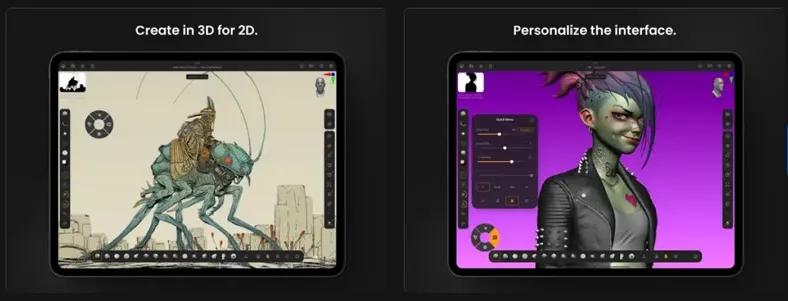
Pros
- ZBrush supports painting and texturing in high resolution for professional-grade textures.
- The app is also available in 8 different languages, including English and German.
- You can adjust the triangle density to control 3D model detail and smoothness.
Cons
- Its modifier key emulation on iPad is cumbersome and unintuitive at times.
- Some high-poly meshes demand significant device memory and fast storage for smooth performance.
User Rating: 3.8/5
Pricing Plans
- Monthly: $9.99
- Yearly: $89.99
5. Magic Poser
Magic Poser is another 3D animation app iOS, which includes 50+ hand presets and sliders for quick and realistic hand posing. While making 3D animation, you can choose from 100+ hairstyles and clothing for better character customization. It even allows you to control depth and positioning to create realistic spatial relationships in scenes.
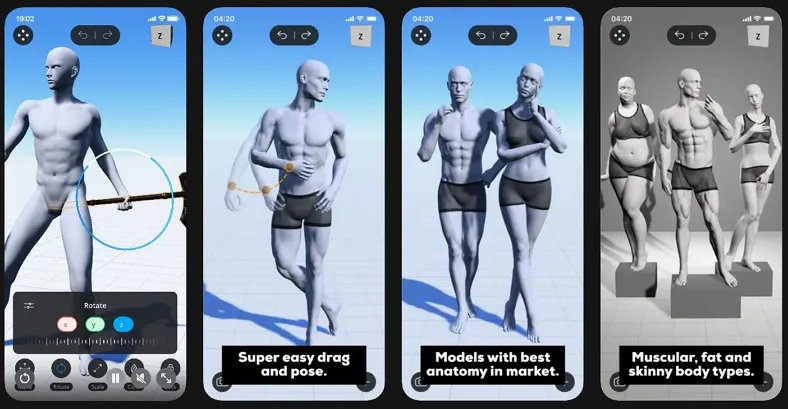
Pros
- You can create full scenes quickly without needing complex modelling or animation skills.
- It supports multiple lights and camera angles for cinematic scene creation.
- Support for export options includes PNG and OBJ for flexible use in projects.
Cons
- Some lack facial expression editing and detailed character customization options currently.
- Collision issues cause characters to pass through furniture during posing sometimes.
User Rating: 3.8/5
Pricing Plans
- Master Version (Monthly): $14.99
- Pro Version (Monthly): $9.99
Part 2. Key Features to Look for in 3D Animation Apps
Many beginners want a simple 3D animation iPad app to create smooth videos easily. When selecting one, below are some important features that help you choose the right animation app:
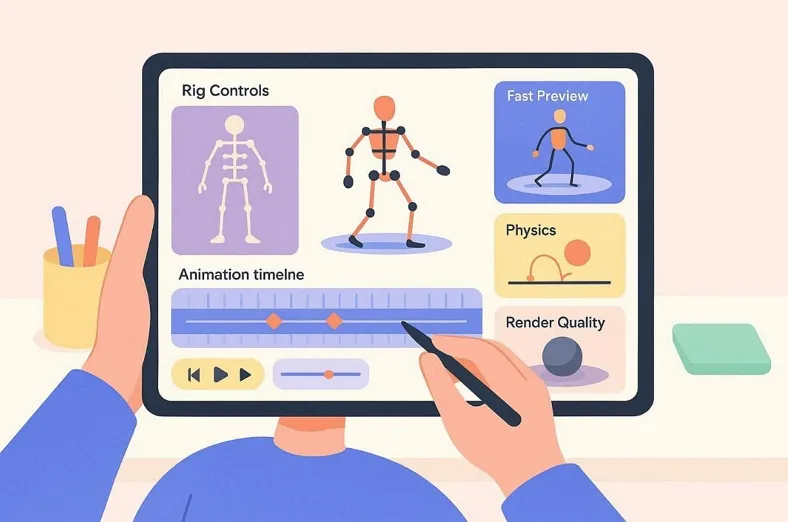
- Rig Controls: Rig tools help you add bones and move character parts smoothly. They make posing easy, so characters move naturally without looking stiff.
- Animation Timeline: A timeline helps you control motion step by step using key points. As a result, you can adjust speed and movement to create smooth animations easily.
- Physics Effects: Some apps include simple physics like gravity, cloth, or bouncing effects. These effects make movements look more real and less stiff during animation.
- Render Quality: Rendering shows the final look with lights, colors, and shadows clearly. So, good apps provide clean and sharp output without taking too much time.
- Preview Speed: Fast preview lets you watch changes instantly without waiting too long. This helps you fix mistakes quickly and improve your animation faster.
Part 3. Which is the Best 3D Animation App for iOS to Try Today?
In the previous sections, you have explored various 3D animation software for iPad, and choosing the right one can be difficult. Thus, review the comparison table below to help you choose the best app easily:
| Features | MagicLight AI | Nomad Sculpt | Shapeyard | ZBrush for iPad | Magic Poser |
| Animation Type | AI video animation | 3D sculpting only | 3D modelling only | Advanced sculpting | Pose-based scenes |
| Character Animation | AI animated characters | Static sculpt models | Static shape models | Sculpt only models | Pose characters only |
| AI Features | 9 AI powerful models + several Style Models | No AI features | No AI features | Limited smart tools | No AI tools |
| Scene Creation | Full cinematic scenes | Object-based sculpting | Basic scene setup | Detailed sculpt scenes | Multi-character scenes |
| Output Options | Video + 3D animation export | 3D file export only | OBJ/STL export | 3D model export | PNG/OBJ export |
The discussion above has given us a clear direction on how MagicLight AI turns out to be the best 3D animation app. While it offers a simpler set of options, the AI-induced operations make it easier for beginners to generate unique 3D animations. This sets MagicLight AI apart from others, which will be explained more in the form of the steps provided below:
Step 1. Access the App to Create a Video
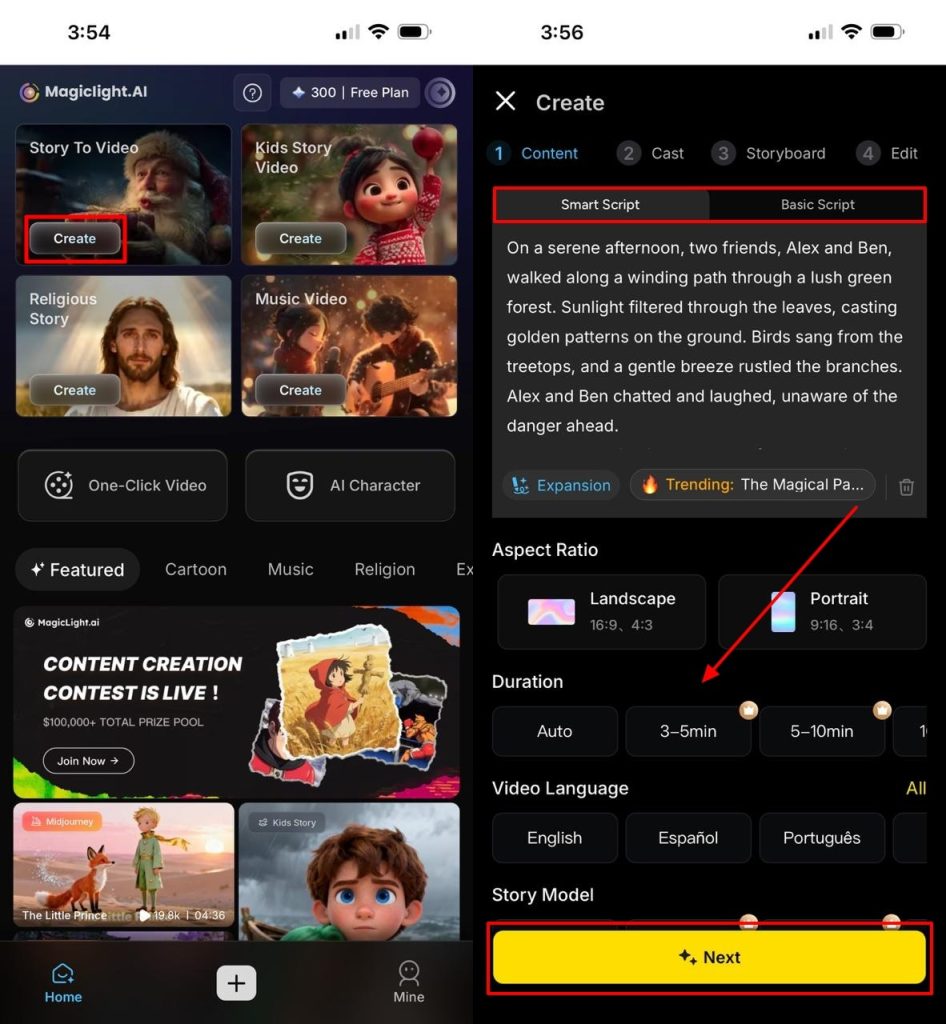
To start with generating a 3D animation, navigate to the Story to Video section and tap Create. On the following screen, provide your prompt within the Smart Script or Basic Script section. Furthermore, add in other details, including Aspect Ratio, Duration, Video Language, Story Model, Project Style, and Style Model, before tapping Next.
Step 2. View Project Draft and Continue
In the following screen, you’ll find a complete Synopsis of your video project along with other important details. Upon verifying, select the Next option to continue with the process.
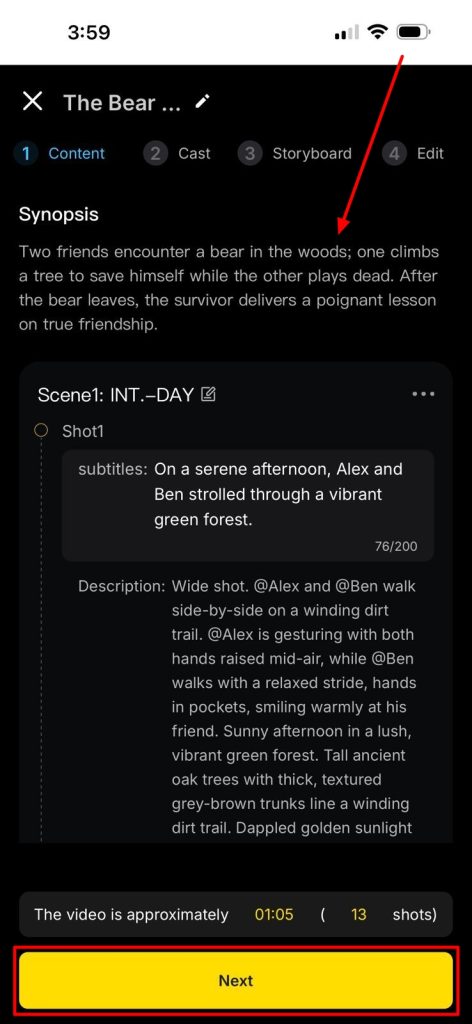
Step 3. Confirm Characters for 3D Animation
On the next screen, you’ll have to recognize the characters that are important for your video project. Upon confirmation, tap the Next Step button to generate your 3D animation.
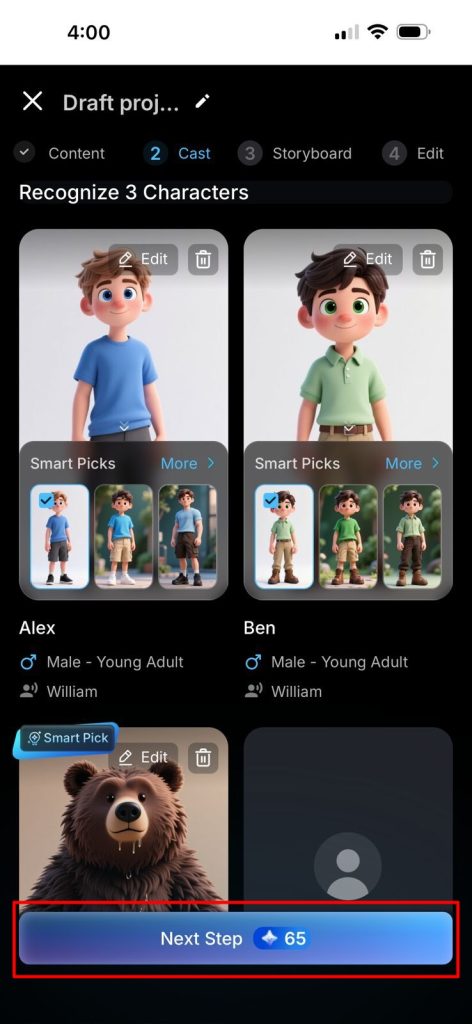
Step 4. Edit Storyboard Frames and Animate
With a complete storyboard on the front, you can find all appropriate options, including selecting the Speaker and Effect Settings for each frame. Upon satisfaction, you can tap Next and choose Animate All across the pop-up that appears. Confirm your selection and choose Next, along with choosing your desired AI model.
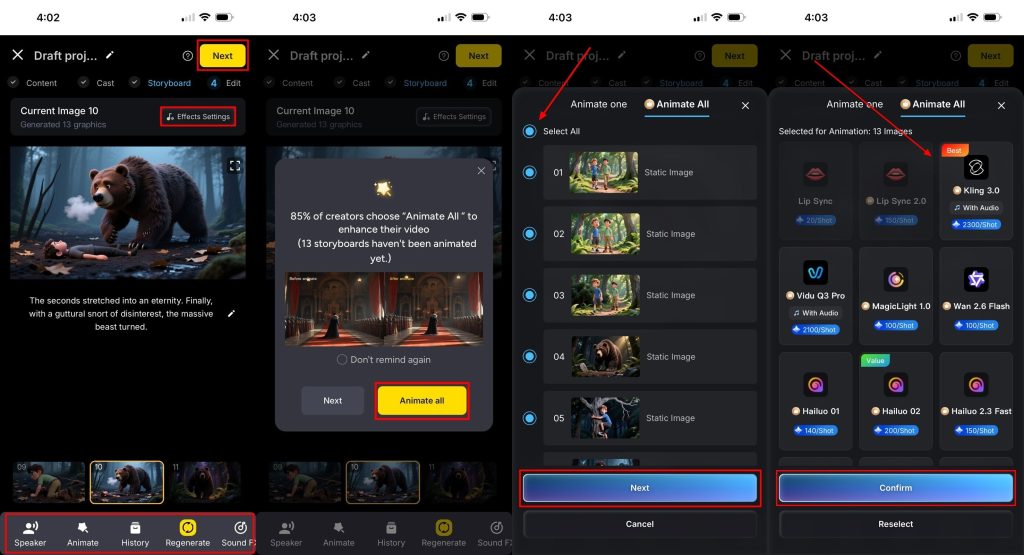
Step 5. Make Final Edits and Generate
Continuing further, select your appropriate Subtitle design and choose the right Music for your animated video before tapping Generate. Verify the Video Ratio and Video Export Resolution before selecting OK. Once the 3D animated video is generated, choose the download button and save the results.
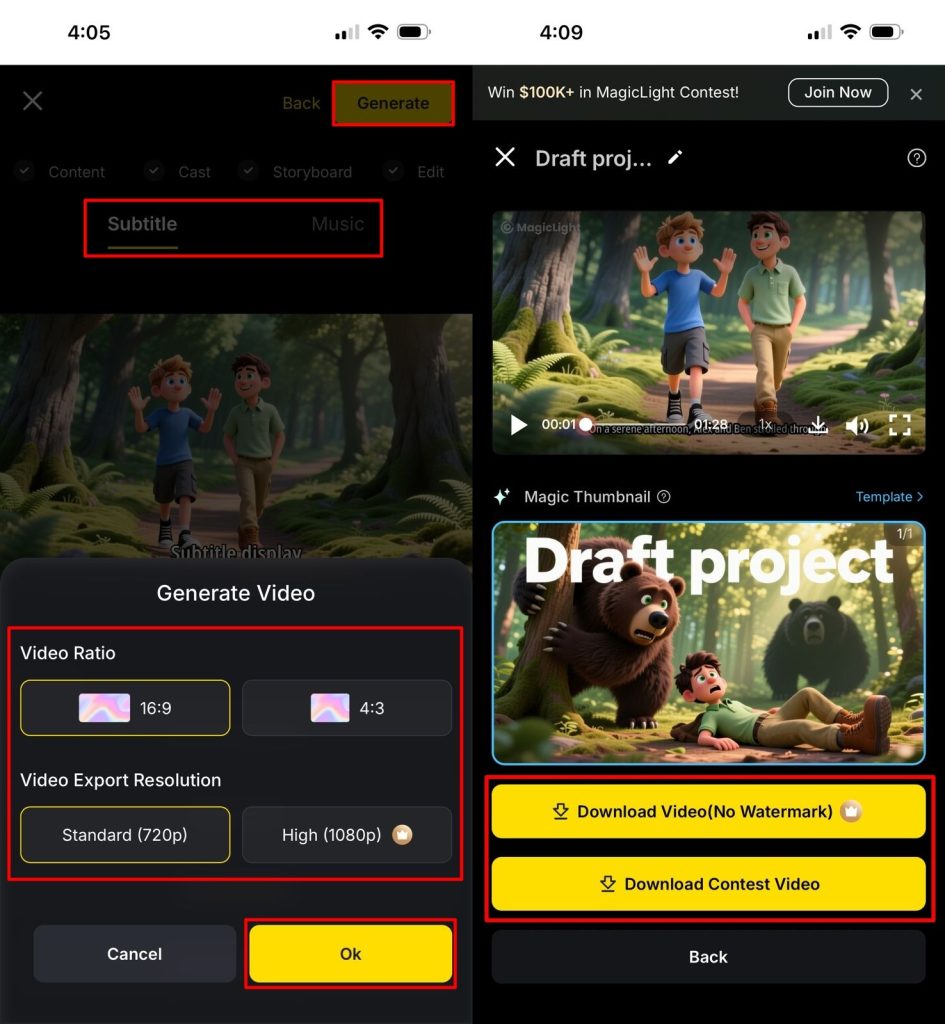
Conclusion
Picking the right app helps you create amazing videos on a mobile device. You can turn your creative ideas into real stories by using the best 3D animation apps for iPad. Yet every artist needs a friendly way to start their work without complex problems. Therefore, you should try the MagicLight AI app for the best results.
Frequently Asked Questions
1. What is the best 3D animation app for iPad?
MagicLight AI is the top choice for creating 3D animation videos on iPad. It uses AI models to help you make videos fast without any confusion. You can add scenes, characters, and lights easily for realistic animations quickly.
2. Can I do professional 3D animation on iOS?
Modern iPads and iPhones can handle basic to mid-level 3D animation tasks efficiently. Still, you can use advanced tools to build characters and scenes on your small screen.
3. Which apps let me make 3D animations on iPad?
Nomad Sculpt and MagicLight AI are among the best options that you can have with your tablet. Each program offers different tools to help you build or move your digital characters.
4. What is the easiest 3D animation app for iPhone?
The MagicLight AI app is the simplest choice for making fast videos today. It uses clever systems to handle the hard work while you just provide ideas. Even a beginner can learn how to use this friendly tool in one minute.
5. What is the best animation app for iPad?
There are many apps that offer animation video generation for iPad users; however, most fail to offer quality. Among many options, MagicLight AI is a great iOS application designed for quick AI-influenced animated videos.
![15 Top Cartoon Characters of All Time [New List]](https://blog-new.magiclight.ai/wp-2/wp-content/uploads/top-cartoon-characters-300x168.webp)
![9 Best AI Video Generation Models in 2026 [Easy Selection]](https://blog-new.magiclight.ai/wp-2/wp-content/uploads/best-ai-video-generation-models-300x168.webp)