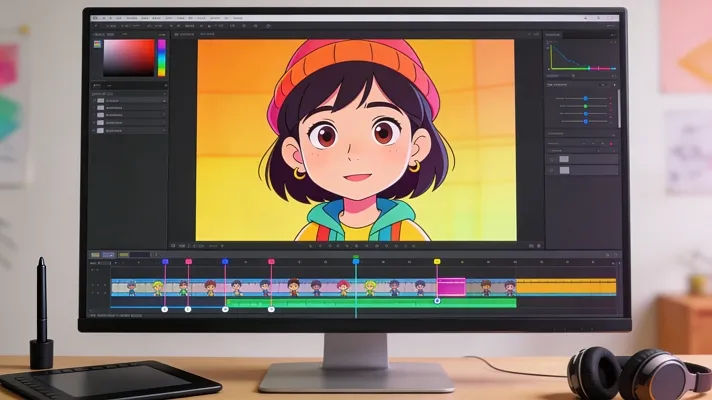
Making 2D animation is much easier now than it used to be. You no longer need costly programs to start learning, creating, or testing ideas. Many free 2D animation software now offer useful tools for beginners, students and everyday creators. This guide looks at the best free software for 2D animation available today. You can easily compare features, understand their strengths and pick the right option for your project needs.
Part 1. Best Free 2D Animation Softwares for PC (Top Picks)
To pick the best free 2D animation software according to your needs, review the options below:
1. Magiclight.AI
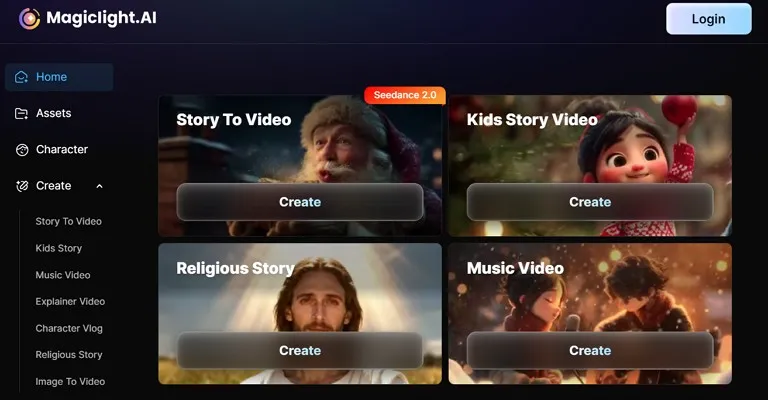
This entry is a little different from traditional drawing programs. Magiclight.AI presents itself as an AI video platform with nine different tools, including the AI Animation Generator. For users who want faster output, it can help turn ideas or scripts into animated videos without a frame-by-frame workflow.
The site also says people can try it for free and create long videos up to 50 minutes, depending on plan limits. That makes it different from the best 2D animation free software built for frame-by-frame art.
Key Features
- Builds editable storyboards with scene setup, action flow, and dialogue controls for smoother video planning.
- Keeps the same cast voice and personality across longer videos for better story consistency.
- Lets users choose from more than 20 visual styles for different animated video looks.
- Syncs mouth movement with speech across more than 30 languages for more natural video delivery.
Pros
- Good for quick video creation from simple text ideas.
- The free plan helps new users test the platform easily.
- Several video tools stay available inside one dashboard.
Con
- It does not work like a classic hand-drawn animation app.
Platform Support: Web, Android, iOS
2. Pencil2D
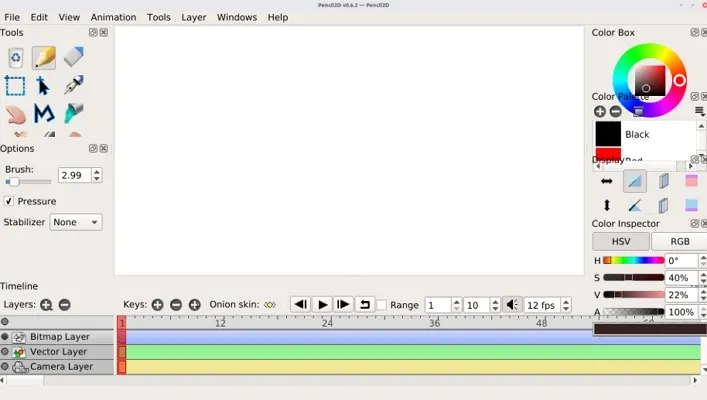
This tool is a simple choice for people who want traditional 2D animation. It supports both raster and vector modes, which helps artists handle different creative tasks. Moreover, the tool stays lightweight, so it feels more comfortable on less powerful computers. This makes it a strong pick for anyone seeking “animation 2D free software” with simple controls.
Key Features
- Provides timeline-based animation tools for building scenes frame by frame.
- Includes onion skin support to help users track motion between nearby frames.
- It offers sketching and coloring tools inside one consistent creative workspace.
Pros
- An open source license allows free commercial use.
- Cross-platform support works well across major desktop systems.
Cons
- Limited to teams that need advanced production features.
- Not ideal for large-scale studio animation pipelines.
Platform Support: Windows, macOS, Linux, and FreeBSD.
3. OpenToonz
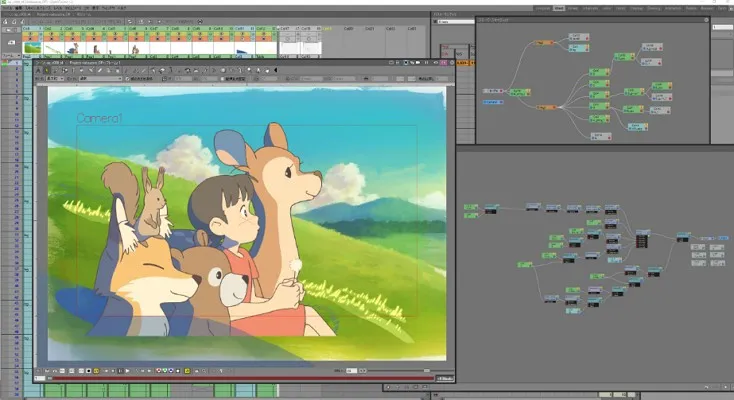
OpenToonz serves artists who need stronger production control across complex scenes and longer animation workflows. It handles professional-style tasks without pushing users toward paid software or closed ecosystems. The program also supports serious project planning through tools shaped around studio-oriented demands. That makes it useful free software animation 2D for creators who expect room to grow.
Key Features
- Offers both Xsheet and timeline views for organizing shots and timing choices.
- It includes node-based effects compositing for layered visual adjustments inside scenes.
- Provides a specialized scanning tool for handling hand-drawn material efficiently.
Pros
- Stronger workflow options suit demanding animation projects well.
- Commercial use remains possible without extra licensing costs.
Cons
- The interface can feel heavy during early learning stages.
- Setup often takes longer than lighter beginner programs.
Platform Support: Windows, macOS, Linux.
4. Krita
A strong mix of painting and animation tools gives this program wider creative value. It suits artists who want to sketch, illustrate, and animate within one flexible workspace. The layout supports detailed artwork while still offering useful controls for timing and motion. That makes Krita dependable free software for 2D animation for users who care about visual quality.
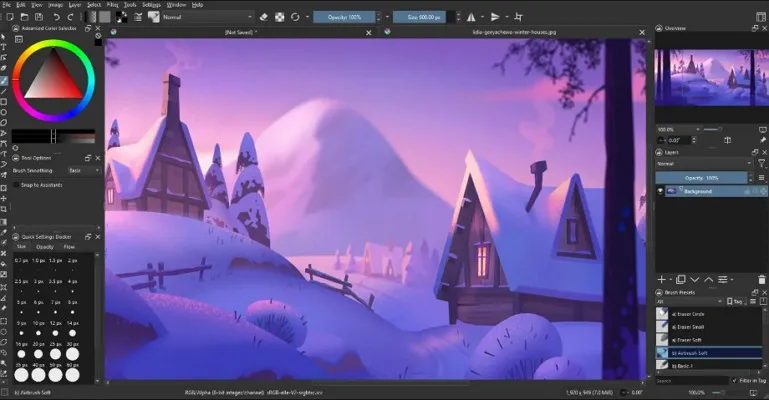
Key Features
- Supports audio import, timeline scrubbing, and frame playback for animation review.
- Allows onion skinning and tweening to refine motion between nearby frames.
- It exports finished work to video files or image sequences after editing.
Pros
- Excellent brush tools benefit artists with detailed visual styles.
- Large timelines support longer animation projects quite comfortably.
Cons
- The broad toolset may overwhelm users focused only on animation.
- Pure animators may prefer software with fewer painting features.
Platform Support: Windows, macOS, Linux.
5. Wick Editor
Wick Editor suits creators who want animation mixed with interactivity rather than traditional film workflows. It feels closer to multimedia authoring, which opens different possibilities for web-based projects. The tool fits users who want scenes, motion, and playable elements in one place. That gives software animation 2D free extra appeal for creators building interactive stories or experiments.
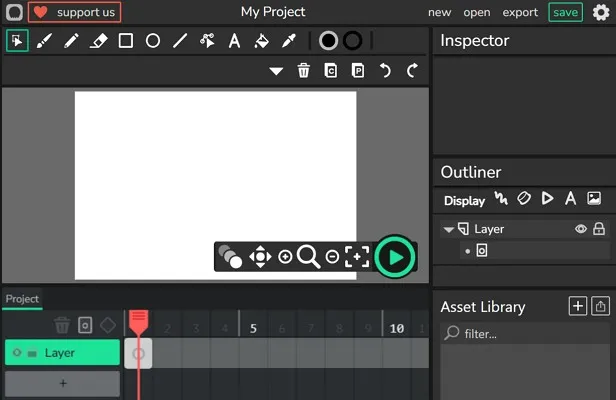
Key Features
- Create animations, games, and multimedia projects inside one browser-based editor.
- Run projects through web browsers for wider access across different devices.
- Use the open source framework for flexible community-driven development.
Pros
- Great choice for interactive storytelling and simple web games.
- Browser access removes installation hurdles for many users.
Cons
- Less focused on hand-drawn production than classic animation tools.
- Desktop workflow details feel less direct than browser use.
Platform Support: Web browser
Part 2. How to Choose the Best 2D Free Animation Software
A side-by-side view makes it easier to spot which tool fits your work style. The comparison table below helps narrow down the best 2D animation free software options:
| Tool | Best Use | Standout Point | Drawback | Platform |
| Magiclight.AI | Fast animated videos | AI storyboards, styles, lip sync | Not hand-drawn animation | Web, Android, iOS |
| Pencil2D | Beginner 2D practice | Simple frame-by-frame workflow | Fewer advanced production tools | Windows, macOS, Linux, FreeBSD |
| OpenToonz | Serious animation projects | Xsheet, compositing, scanning tools | Harder for beginners | Windows, macOS, Linux |
| Krita | Drawing plus animation | Strong brushes and timeline tools | May feel too broad for some users | Windows, macOS, Linux |
| Wick Editor | Interactive web projects | Animation with games and multimedia | Less focused on hand-drawn work | Web browser |
Magiclight.AI makes the most sense for people who care more about speed than manual drawing. It can turn a script, story, or image into a finished animated video, which saves a lot of time compared with frame-by-frame work. Features like storyboard editing, style selection, consistent characters, and lip sync also make the process easier for beginners and more practical for educators, marketers, and content creators.
Now that the differences are easier to see, the next step is to look at the process. The guide below shows how to create animated content with Magiclight.AI step by step:
Step 1. Set Up the Project Basics
Upon accessing Story to Video section, start by choosing the Aspect Ratio that fits your video format, such as landscape or portrait. Then select the Video Language, pick the Story Model, choose a visual style, set the duration, and click Next to continue.
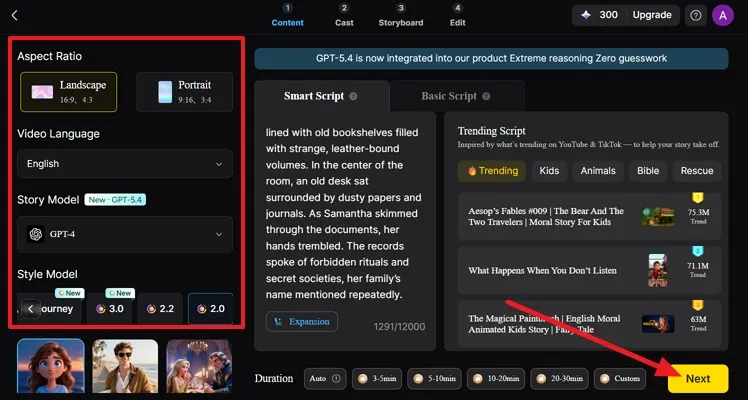
Step 2. Review the Script and Scene Breakdown
Now, check the generated synopsis and scene layout on the next screen carefully. Read through each shot line, make small edits if needed, and then press Next once the structure looks ready.
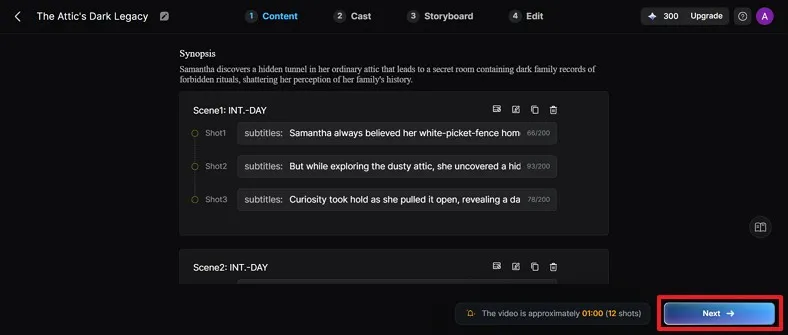
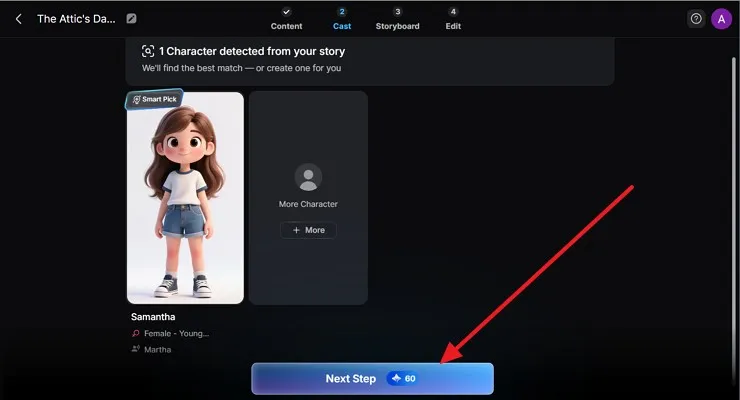
Step 3. Confirm the Character Selection
Afterwards, move to the cast section and review the detected character for your story. Choose the suggested character or add another one if needed, and select Next Step to continue.
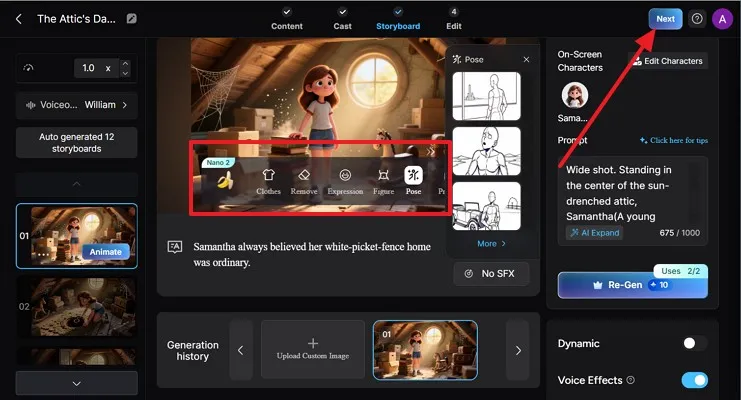
Step 4. Edit Storyboards and Generate Visuals
Next, open the storyboard screen and review each generated scene one by one. Adjust pose, expression, figure, clothes, or prompt details where needed, use Re-Gen if a shot needs improvement, and click Next after the storyboard looks right.
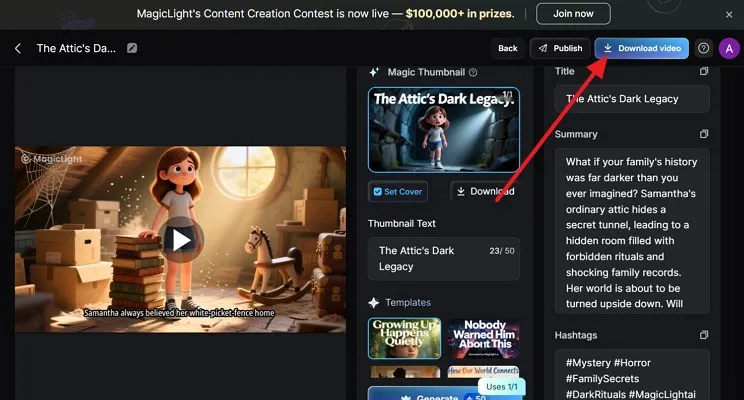
Step 5. Finalize and Download the Video
Lastly, review the preview, title, summary, hashtags, and thumbnail settings. Once everything looks complete, press the Download video button to save the finished animation.
Conclusion
To conclude, the right tool depends on how you want to create and how fast. Some users need frame-by-frame control, while others want quicker results. If you want the best 2D free animation software for speed, simplicity, and faster video creation, Magiclight.AI stands out as a practical choice.
Frequently Asked Questions
1. What is the best free 2D animation software?
Magiclight.AI is the best choice for users who want faster animation results. It turns ideas into videos quickly without requiring frame-by-frame drawing.
2. Which free software is best for beginners?
Magiclight.AI suits beginners because the workflow feels simple, clear, and less overwhelming. It saves time and helps new users create videos with fewer steps.
3. Can I use free 2D animation tools for professional animation?
Yes, free 2D animation tools can support professional animation when features match project needs. OpenToonz and Krita are strong examples of more advanced creative production work.
4. Is there free 2D animation software for PC?
Yes, several free programs work well on PCs for animation projects today. Pencil2D, OpenToonz, and Krita all support desktop users across major systems well.
5. Which 2D animation software is free?
Platforms like Pencil2D, OpenToonz, and Krita provide a free 2D animation service to its users, with basic functions. This helps them create progressive 2D animations that can then lead them into professional generation.
![15 Top Cartoon Characters of All Time [New List]](https://blog-new.magiclight.ai/wp-2/wp-content/uploads/top-cartoon-characters-300x168.webp)
![9 Best AI Video Generation Models in 2026 [Easy Selection]](https://blog-new.magiclight.ai/wp-2/wp-content/uploads/best-ai-video-generation-models-300x168.webp)