Music videos no longer begin with a full studio, a rented camera, and days of editing. Today, creators can shape striking visuals from lyrics, references, and rough ideas, then refine them into polished, ready-to-share pieces.
If you have been wondering how to make AI music video content that matches your sound, this guide breaks the process into clear steps. From planning scenes to choosing tools and polishing the final cut, you will learn how to turn a simple track into a visual story.
Part 1. 5 Best Tools for Making AI Music Videos
Below are 5 standout tools that make creating AI music videos easier and more creative in 2026:
1. Magiclight.AI
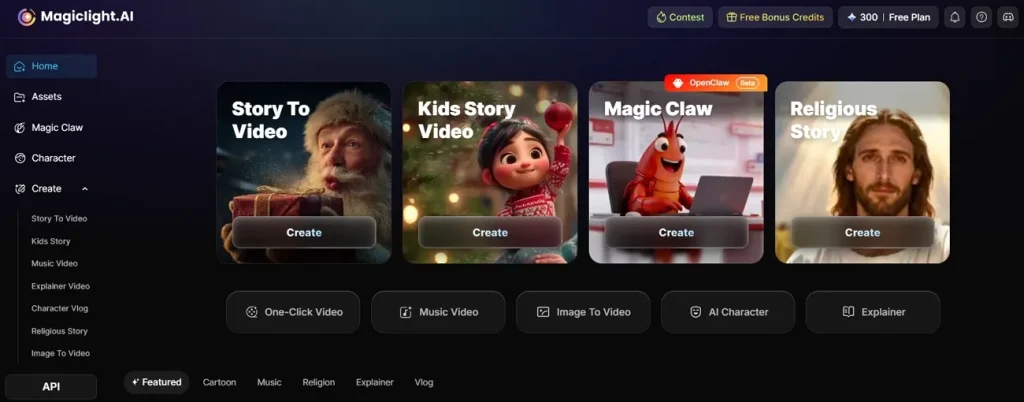
Magiclight.AI turns music video creation into a guided creative workflow instead of a messy editing process. You can generate songs, choose genres, select styles, and build scenes from storyboard previews. Its music mode supports vertical and widescreen formats, multilingual inputs, character setup, and polished exports. That makes the tool feel practical for creators who want speed without losing visual control.
If you are learning how to make AI music videos, Magiclight.AI gives you a clearer structure. Unlike typical generators, it combines music creation, storyboarding, Nano scene adjustments, animation, subtitles, and covers. It also stands out with consistent characters, automated storytelling, and a complete production pipeline. From first concept to final download, the workflow stays connected, editable, and much easier to manage.
Pros
- Includes 16 subtitle settings for a cleaner music video presentation.
- Offers 21 cover templates for stronger release-ready visuals.
- Offers an export resolution up to 720p/1080p.
Con
- Background music options are unavailable inside the music video mode.
2. Freebeat
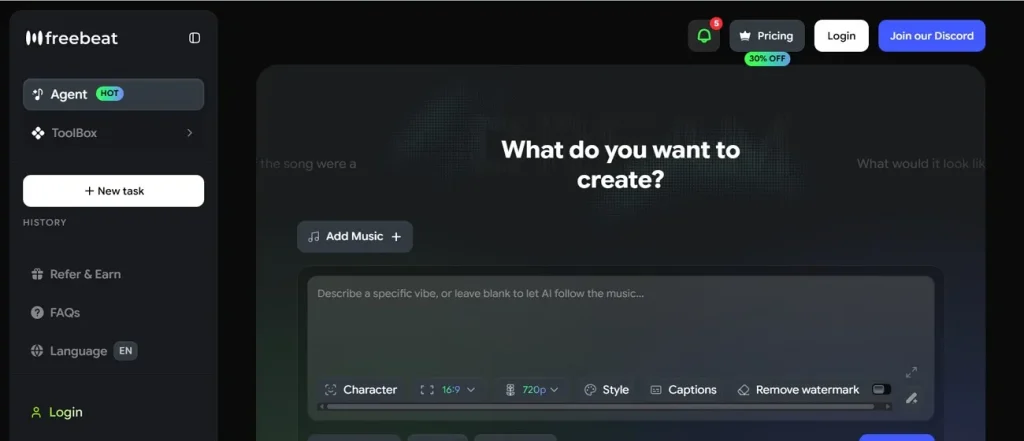
For artists chasing quick visuals, Freebeat turns tracks into synced videos with very little setup. It accepts song links or uploads, then builds scenes around rhythm and mood. That makes “how to make an AI music video” feel simpler for first-time creators. Freebeat works best when fast output matters more than deep manual scene direction.
Pros
- A free plan is available for basic video creation.
- Supports 16:9, 9:16, and 1:1 exports.
Cons
- Export quality currently stops at 1080p resolution.
- Faster generation and expanded capabilities need higher plans.
3. Neural Frames
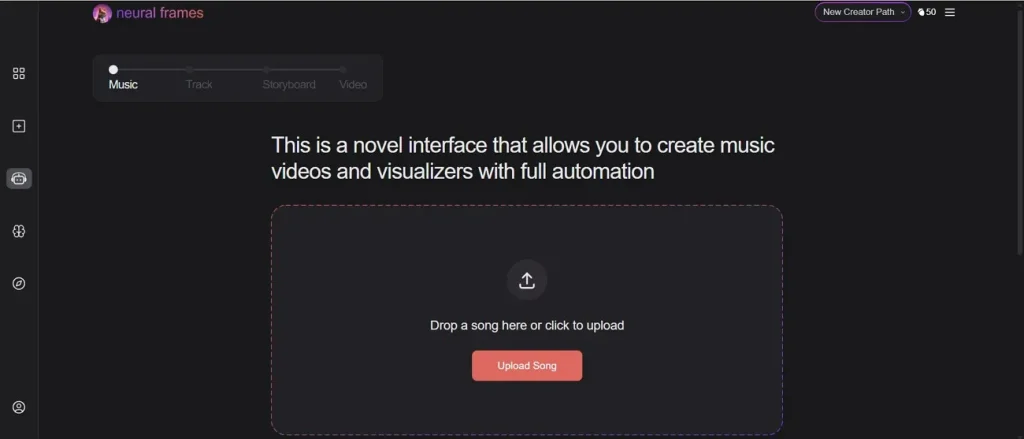
Built more like a visual instrument, this option gives artists frame-by-frame control over motion. Its Autopilot can draft videos quickly, while audio-reactive tools follow rhythm and mood closely. For creators exploring how to make AI music videos, that balance feels unusually flexible. It suits musicians who value experimentation, timing precision, and stronger aesthetic authorship overall.
Pros
- Includes 4K upscaling without extra export charges.
- Combines Kling, Seedance, and Runway inside one workflow.
Cons
- Paid plans range from $19 to $99 monthly.
- Some subscriptions may still require additional credit top-ups.
4. Runway Gen-4
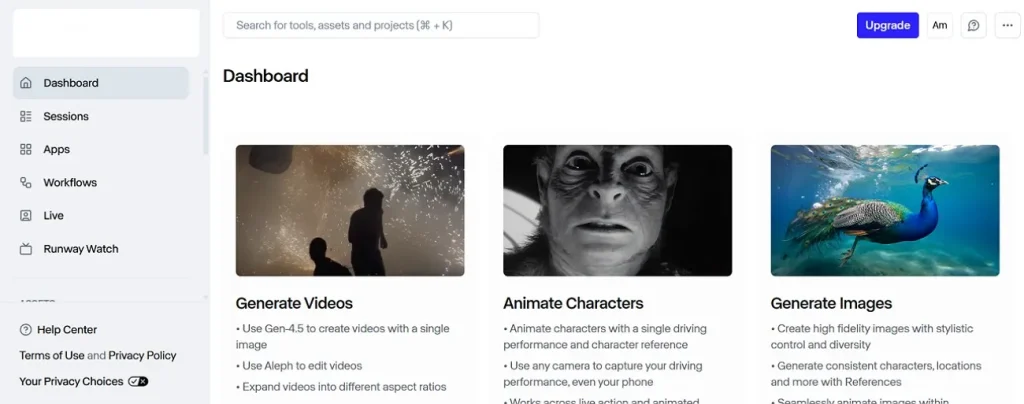
When polished, cinematic shots matter most; this model pushes consistency further than many rivals. A single reference image can guide characters across changing locations, lighting, and treatments. For editors asking how to make an AI-generated music video, that reliability helps. It feels strongest inside broader production workflows where generated scenes support ambitious post-production choices.
Pros
- Available on both web and iOS applications.
- Supports 16:9, 9:16, 1:1, and 4:3 outputs.
Cons
- Gen-4 video generation requires an input image.
- Standard clips are limited to five or ten seconds.
5. Pika Art
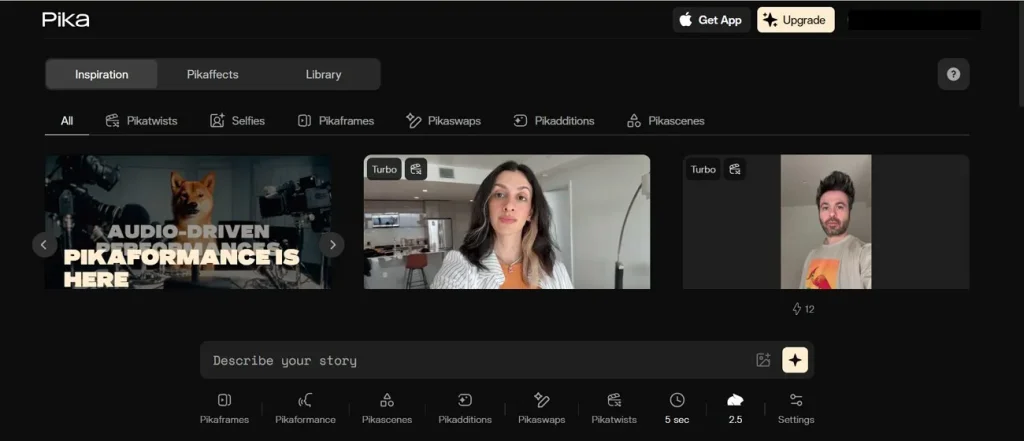
Sometimes a music concept needs playful motion fast, not a long production timeline. Pika fits that need by turning prompts into short, polished clips with flexible formats. For creators exploring how to make an AI-generated music video, it feels approachable. Its strength lies in quick experiments, visual effects, and web-friendly creation across multiple plans.
Pros
- Downloads are watermark-free, even on the free Basic plan.
- Commercial use is included across all listed subscription tiers.
Cons
- Basic users get only 80 monthly video credits.
- Full Pikaffects access requires Standard plans or higher.
The following table gives you a quick glance at all the tools discussed to help you choose the best for your requirements:
| Tool | Best For | Prominent Feature | Limitation |
| Magiclight.AI | Full workflow | All-in-one creation | No background music include in music video mode |
| Freebeat | Fast videos | Easy to use | Limited advanced control |
| Neural Frames | Creative control | Audio-reactive visuals | Higher cost |
| Runway Gen-4 | Cinematic clips | Strong visual consistency | Very short clips |
| Pika Art | Quick effects | Watermark-free downloads | Limited free credits |
Among all 5 tools, MagicLight.AI stands out as the most complete option for AI music video creation. While other platforms focus more on speed, effects, short clips, or advanced control, MagicLight.AI supports the full workflow in one place. That makes it the strongest overall recommendation for creators who want a smoother process from idea to final video.
Part 2. How to Make an AI Music Video from Scratch
Before learning how to make an AI music video from scratch, here are the reasons Magiclight.AI stands out:
- Music Creation: Magiclight.AI generates music from your input and chosen genre, reducing early production friction. It also includes 15 prebuilt songs for faster concept testing and creative direction.
- Scene Planning: Auto-generated storyboard previews help creators review structure before committing time to full rendering. Each prompt stays editable and regenerable, making revisions easier during music video development.
- Nano Control: Nano adjustments refine clothing, expressions, body type, and poses with better shot precision. That adds more control than simple one-shot prompts during scene-by-scene visual refinement workflows.
- Format Flexibility: The music video mode supports 16:9 and 9:16 outputs for different platforms easily. It also offers 11 languages and 9 models for broader creative flexibility overall.
- Polish Tools: 16 subtitle settings help music videos look cleaner across different viewing contexts overall. 21 cover templates strengthen packaging when creators need polished, release-ready presentation assets fast.
- Workflow Depth: Magiclight.AI supports editing, publishing, and downloading without forcing creators to constantly switch between separate tools. The product also highlights consistent characters and automated storytelling across a complete pipeline.
Now that the strengths are clear, adhere to the steps below to try the Magiclight.AI music video feature:
Step 1. Access the Music Video Feature to Continue
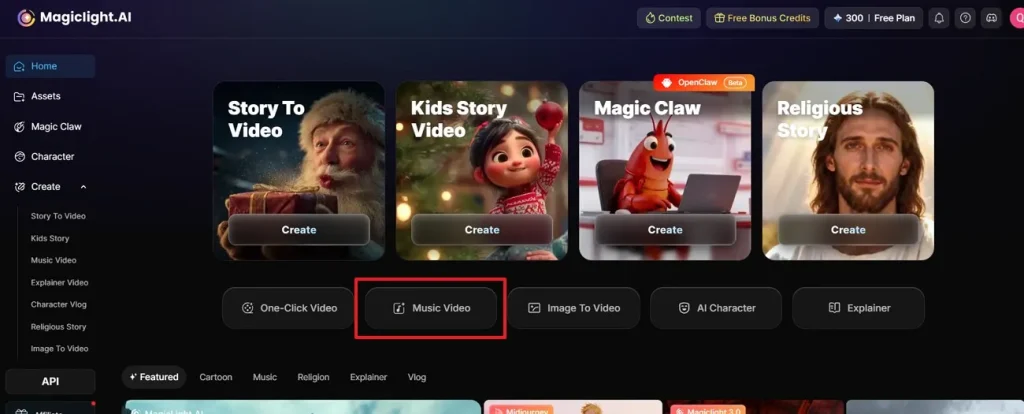
First, go to the Magiclight.AI dashboard and click Music Video from the home screen. This opens the dedicated music-to-video workflow instead of the standard story video mode.
Step 2. Create Your Song with Magiclight AI
Afterwards, press Create Music to start building the audio for your project. You can begin with a fresh track before moving into the visual creation steps.
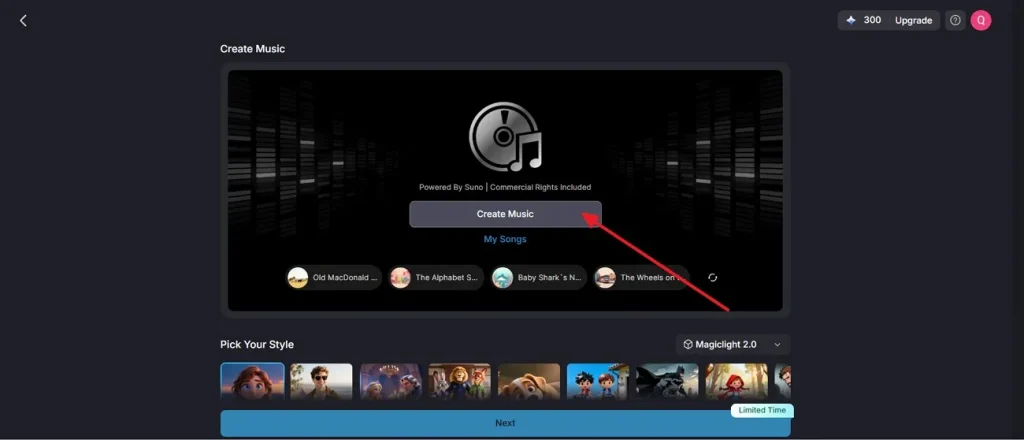
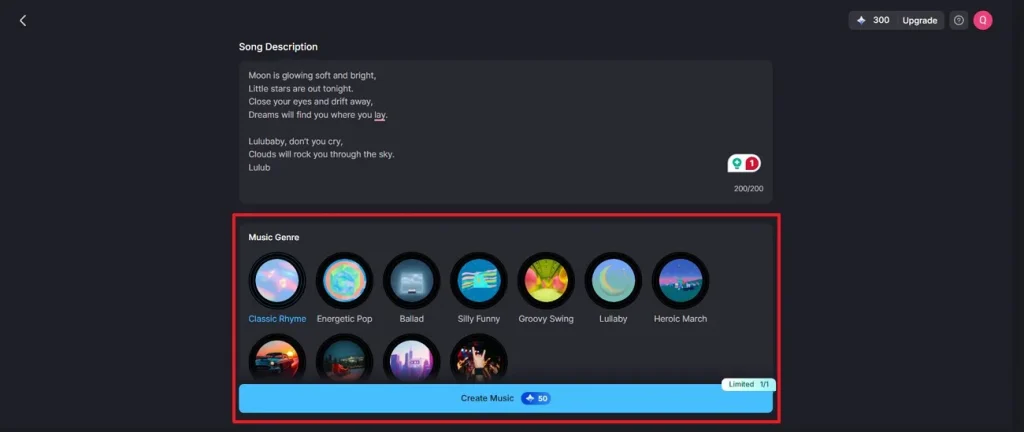
Step 3. Define Lyric Input and Genre Parameters
Then, enter your lyrics or song description inside the prompt field. After that, select the most suitable Music Genre preset and generate the track.
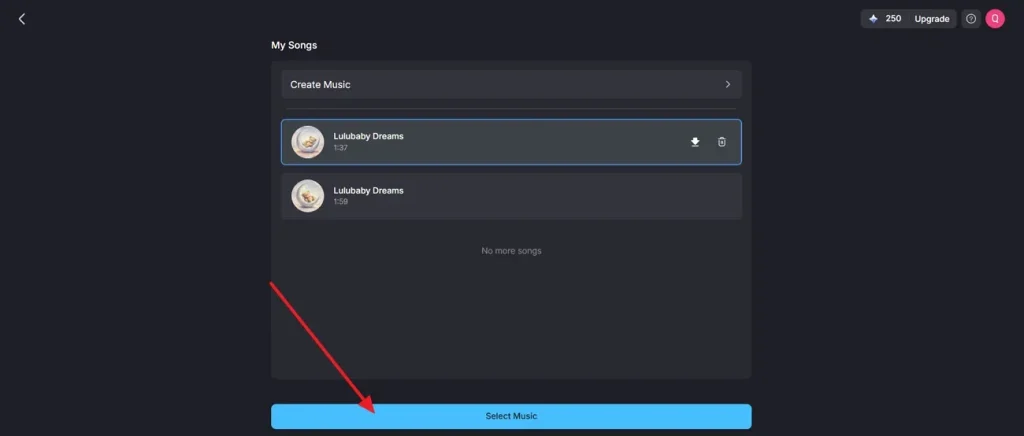
Step 4. Select and Bind the Generated Audio Asset
Once the music is ready, open My Songs and review the available outputs. Then choose the preferred version and click Select Music to attach it to the project.
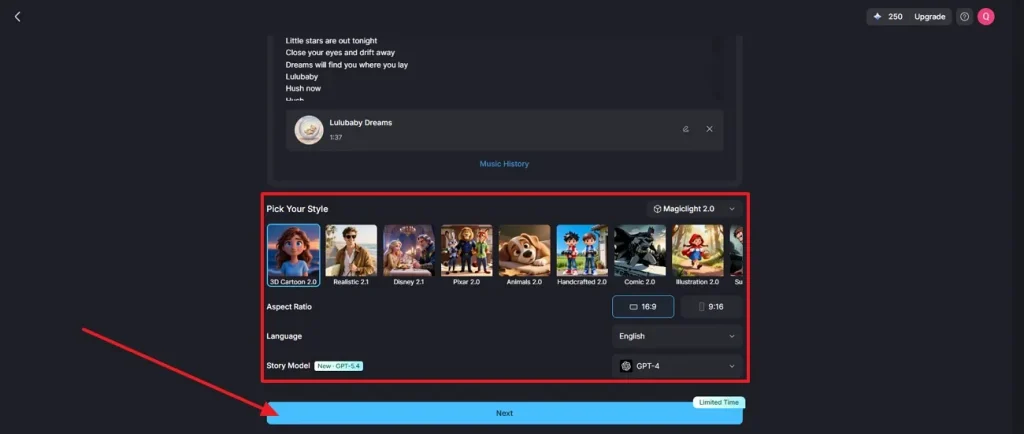
Step 5. Configure Visual Style and Output Settings
After that, choose the visual model, art style, aspect ratio, language, and story model. Once those generation settings are finalized, press Next to proceed.
Step 6. Validate Character Detection and Cast Assignment
Now, review the detected character setup and confirm the assigned cast element. If needed, add another character before selecting Next Step to continue.
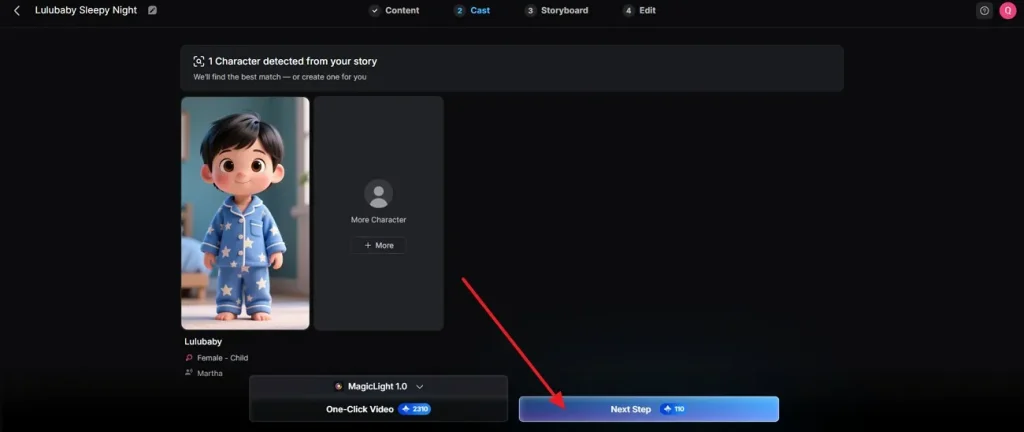
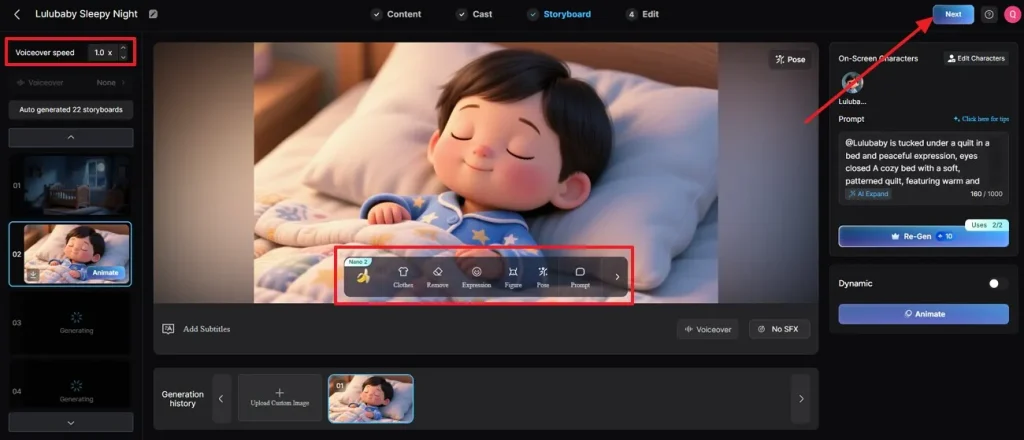
Step 7. Refine Storyboard Parameters and Advance to Editing
Finally, adjust the storyboard using prompt edits, pose tools, expressions, voiceover speed, and animation controls. When the sequence looks ready, choose Next to move into the final edit stage to download the finalized video.
Conclusion
To conclude, creating strong visuals no longer requires a full studio or an expert editing team. Once you understand how to make an AI music video, the process becomes far more flexible, creative, and manageable. The right platform helps you move from lyrics to polished scenes with less friction. To keep that workflow smooth and professional, Magiclight.AI is well worth exploring next.
FAQs on How to Make an AI Music Video
1. Can I make AI music videos for free without editing skills?
Yes, many tools offer free plans, and beginners can create videos without editing experience. Magiclight.AI helps simplify music, visuals, and story steps through a guided workflow for newcomers.
2. How long does it take to create an AI music video?
A simple AI music video can take minutes, while detailed projects may take longer. Timing depends on song length, scene complexity, revisions, rendering speed, and export settings chosen.
3. Which AI tool is best for making music videos automatically?
Magiclight.AI is a strong choice because it combines music creation with a visual workflow well. That makes automatic music video production feel more connected, organized, and beginner-friendly overall.
4. How to make AI music videos using text-to-video tools?
Start with lyrics or prompts, then generate scenes that match mood, pacing, and theme. After that, refine characters, transitions, and timing until the final video feels cohesive throughout.
5. Is it legal to make AI-generated music videos?
Yes, but legality depends on your music rights, source material, and platform rules overall. Always use licensed audio, safe visuals, and original prompts to avoid copyright problems later.

![How to Make Storytelling Videos [2026 Guide]](https://blog-new.magiclight.ai/wp-2/wp-content/uploads/how-to-make-storytelling-videos-300x168.webp)
![5 Best AI Video Generator for Animation [2026 List]](https://blog-new.magiclight.ai/wp-2/wp-content/uploads/ai-video-generators-for-animation-300x168.jpg)