


Creating short cinematic clips with AI now feels more practical for everyday creators and beginners. This guide explains how to make a Sora AI video without confusing jargon or wasted steps. You will learn how to shape prompts, scenes, timing, and visual consistency more confidently.
From planning your idea to refining the final output, each stage becomes easier for first-time users. The steps focus on clarity, strong results, and choices that suit real content goals. Whether you make intros, stories, or promos, this walkthrough helps you start smoothly today.
Part 1. How to Make a Sora AI Video on Desktop
On desktop, Sora works through a web editor built for short, editable clips. That makes how to make a video on Sora AI easier to understand, because you can start with a simple prompt and review different variations. Unlike traditional video editors, Sora begins with generation first and refinement second, which creates a faster workflow.
This approach helps beginners avoid overcomplicating the process while still building polished videos with clearer scene progression and stronger continuity. You can then improve each draft with re-cut, remix, blend, loop, and storyboard tools using the steps below.
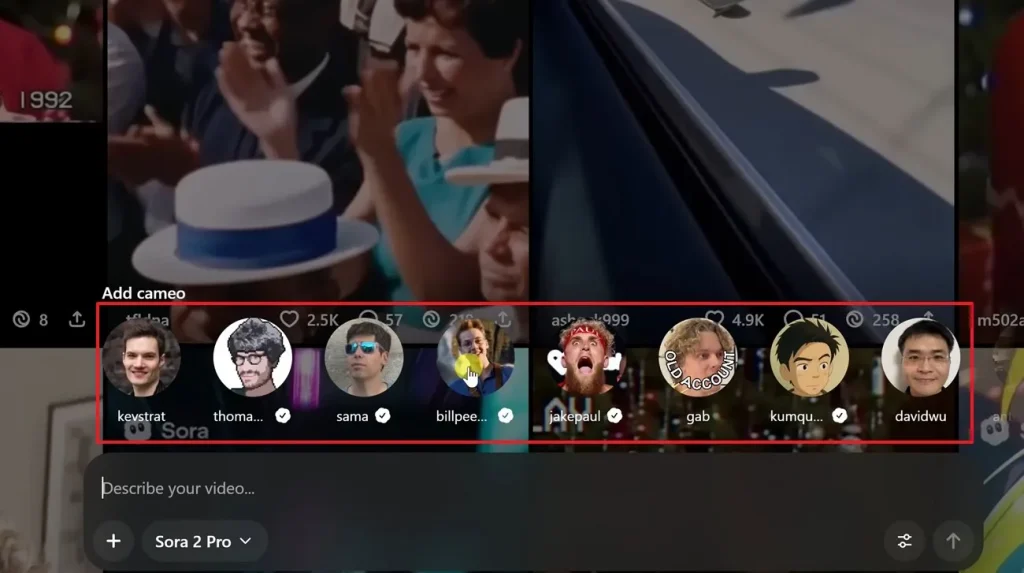
Step 1. Upon accessing the Sora on the desktop, open the prompt box and check the row labelled Add cameo. Then select a cameo profile if needed and confirm the video model, such as Sora 2 Pro, before writing your prompt.
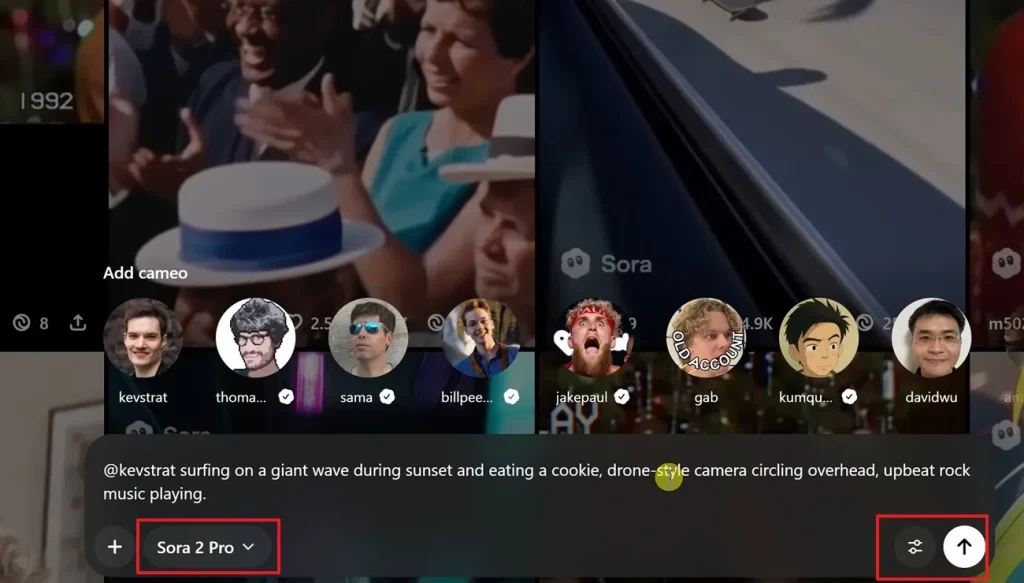
Step 2. Afterwards, type a clear text prompt in the input box, and include the cameo handle if you want that reference used in the video. Next, adjust settings with the control icon if needed, then click the Arrow button to generate your Sora AI video.
Part 2. How to Make a Sora AI Video on iPhone/Android
OpenAI has stated that the Sora web and app experience will shut down on April 26, 2026. On top of that, mobile access is still restricted in some regions because the Sora app and Sora 2 only rolled out in selected countries. As a result, many creators may lose access completely or continue facing restrictions when trying to use Sora on iPhone or Android devices.
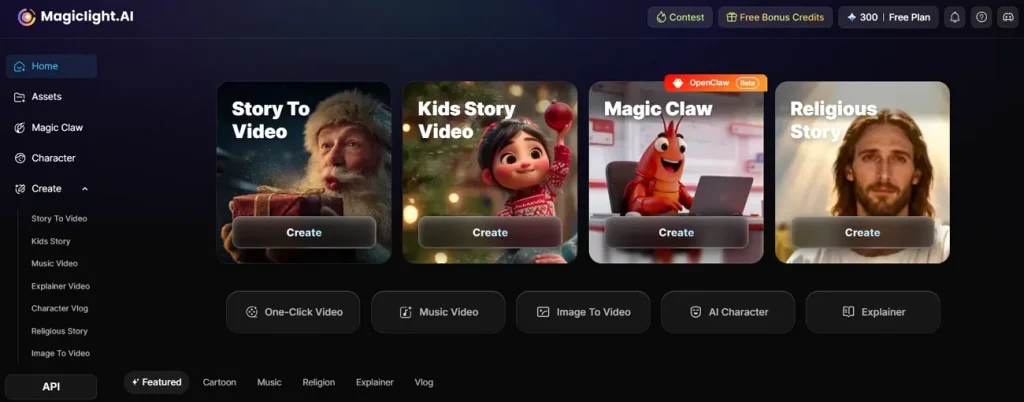
In that situation, MagicLight.AI is a practical alternative because it integrates Sora 2 into a broader creation workflow. Its desktop and mobile platform promotes Sora 2 support along with script, scene, and longer video tools. With different options ranging from Story-to-Video, Image-to-Video, and Text-to-Video, Magiclight.AI helps users create videos up to 50 minutes in length.
Part 3. How to Make Sora Videos Longer
Making longer clips in Sora requires careful planning, steady prompts, and a clear sequence structure. The tips below explain how to make a video with Sora AI feel smoother overall:
- Base Clip: Start with a clear, short clip that establishes motion, subject focus, and mood. A stronger opening gives every later extension better structure, continuity, and control overall.
- Prompt Match: Repeat the same character details, location, lighting, color mood, and camera style throughout. Consistent prompts make each continuation feel connected instead of visually drifting apart later.
- Small Extensions: Extend clips gradually so motion, framing, and scene logic stay more stable overall. Short additions usually preserve quality better than forcing one long generation attempt alone.
- Scene Sections: Break the sequence into opening, action, reaction, transition, and ending shot sections clearly. This structure helps longer videos feel organized, cinematic, and easier to refine later.
- Clip Stitching: Combine clips with matching subjects, angles, pacing, and movement for smoother flow overall. Good stitching reduces abrupt changes and makes separate generations feel naturally connected.
- Smart Trimming: Trim awkward frames, repeated motions, and weak transitions before joining everything together smoothly. Cleaner edits make the final sequence tighter, clearer, and more professional-looking overall.
Part 4. How to Make a Sora Video of Yourself
Creating a Sora video of yourself needs more setup than a normal prompt-based clip. These tips explain how to make a video with Sora AI using your recorded face and voice safely.
- Character Setup: Use Sora’s personal character feature first, because selfie uploads cannot create realistic self-videos correctly alone. This step matters when learning how to make a video on Sora AI featuring yourself.
- Clean Capture: Record in bright, even lighting so Sora reads your face, voice, and expressions more accurately. A quiet background also helps how to make a Sora 2 AI video look convincing.
- Full Visibility: Keep your full face visible, remove tinted glasses, and avoid filters during the source recording. Missing angles usually weaken how to make a video with Sora AI for identity consistency.
- Prompt Detail: Describe your action, setting, camera movement, mood, and audio instead of using vague compliments alone. Specific direction improves how to make a Sora AI video starring yourself with believable motion.
- Privacy Control: Start with only-you permissions while testing, then widen access after confirming the character looks right. This keeps experiments safer and prevents unwanted reuse before your likeness settings feel fully comfortable.
- Retake Often: If results feel wrong, improve the capture first instead of endlessly rewriting complicated prompts again. That approach strengthens how to make a Sora 2 AI video more than prompt stuffing.
- Consent Rules: Do not treat someone else’s likeness like a casual prompt, because consent rules still apply. For anyone asking how to make a video with Sora AI, permissions always matter first.
- Short Scenes: Begin with one simple scene, then extend or stitch clips after identity consistency becomes stable. This workflow shows how to make a Sora AI video polished without forcing difficult scenes.
Conclusion
Learning how to make a Sora AI video becomes easier when you break the process into simple steps, from prompts and cameos to mobile creation and longer scene planning. With steady prompts, clean structure, and careful edits, beginners can build smoother, more polished results faster. For more flexible long-form workflows, MagicLight AI is a natural next option for creators today.



![How to Write a Script for a Video 2026 [Full Guide]](https://blog-new.magiclight.ai/wp-2/wp-content/uploads/video-script-writing-setup-300x199.jpg)