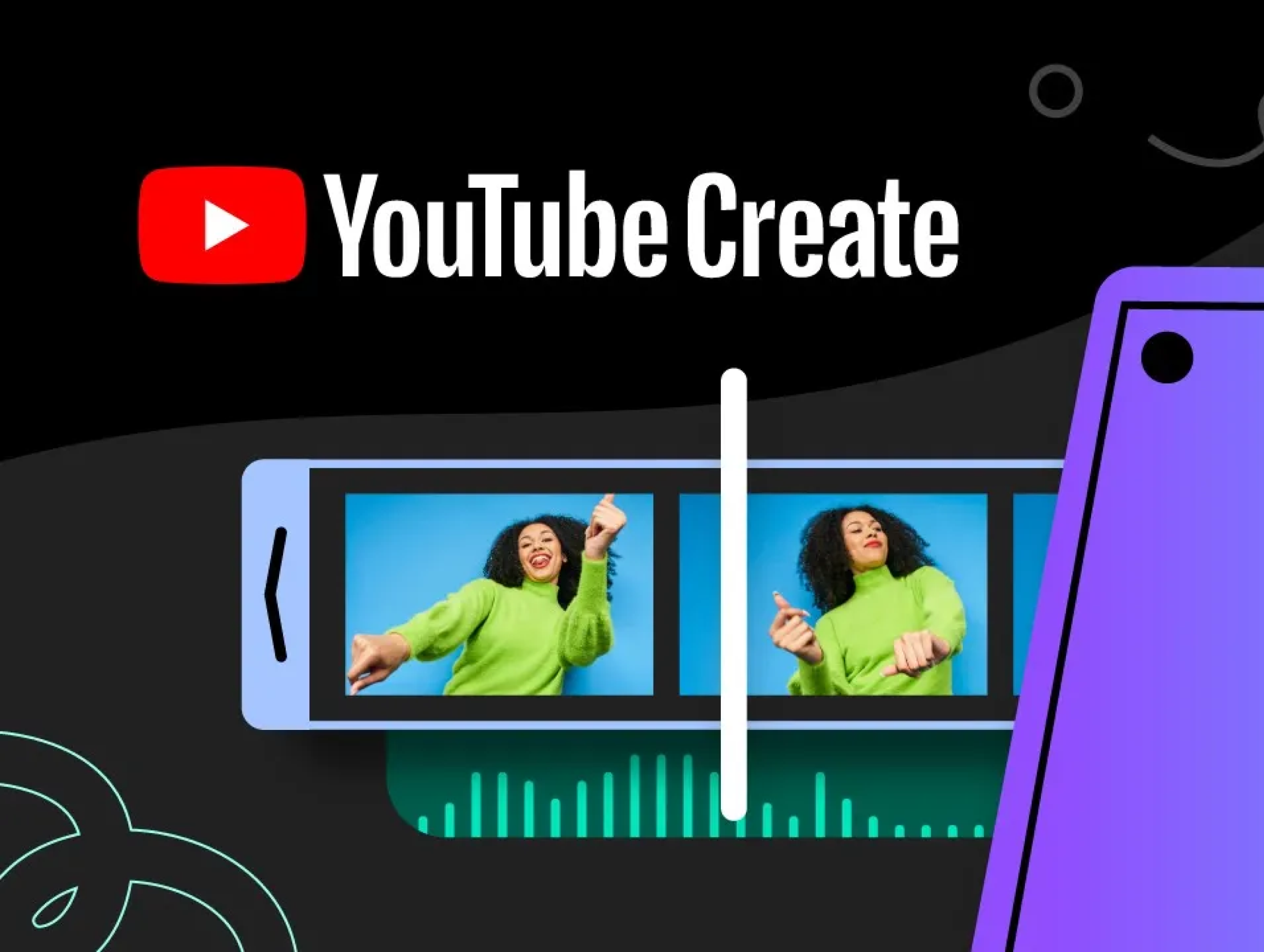
In 2026, the barrier to becoming a professional creator has effectively vanished. You no longer need a high-end desktop setup to produce content that looks and feels like it was made in a studio. With the YouTube Create app, the entire production pipeline—from the first cut to final publishing—is available right on your mobile device.
If you are ready to move from viewer to creator, this guide will walk you through the essential steps to editing your very first video with precision and style.
Step 1: Set Up Your Creative Workspace
Before you begin cutting footage, you need to establish a project. The YouTube Create app is designed to handle both standard widescreen videos and vertical Shorts seamlessly.
- Sign In: Use your Google account to log into the app, which links directly to your YouTube channel for easy uploading later.
- Start a New Project: Tap the plus (+) button to begin a new project and import your media from your device’s gallery.
- Project Management: You can revisit or manage your projects at any time from the main dashboard to keep your work organized.
Step 2: Mastering the "Rough Cut"
The secret to a professional video is tight pacing. This starts with the "rough cut," where you trim away the "dead air" at the beginning and end of your clips.
- Trimming & Splitting: Use the split tool to cut a single clip into multiple parts, allowing you to delete mistakes or rearrange the order of your story.
- Visual Consistency: You can apply filters and effects to ensure that clips filmed in different lighting conditions look uniform and professional.
- Using Templates: If you're feeling stuck, you can create videos with templates to get a head start on a high-quality layout.
Step 3: Enhance with Text and Visual Elements
Once your story is structured, it is time to add layers that provide context and keep viewers engaged.
- Dynamic Text: You can add text and captions to emphasize key points or provide titles, customizing fonts and colors to match your personal brand.
- Animations: Use the apply and animate elements tool to make your text or stickers move on the screen, which is particularly effective for "call to action" buttons.
- Creative Overlays: Customize your videos by adding stickers and GIFs to add personality to your edit.
Step 4: Sound Design and Accessibility
Audio is often more important than video quality. A viewer might tolerate a grainy image, but they will rarely stick around for bad sound.
- Adding Audio: You can add and edit audio by browsing a library of royalty-free music and sound effects directly within the app.
- Voiceovers: Record a voiceover directly onto your timeline to narrate your video or explain complex topics.
- Automatic Captions: Use the app to enhance your videos with captions automatically, making them watchable even when the sound is muted.
Step 5: Preview and Publish
Before you share your work with the world, take a moment to review the final product.
- Preview Your Work: Preview your video in full-screen mode to check for any missed frames or audio imbalances.
- Direct Publishing: Once satisfied, you can publish your videos directly to your YouTube channel.
- Troubleshooting: If you encounter errors, you can troubleshoot upload errors to ensure your content reaches your audience.
By following this workflow, you aren't just making a video, you are building a repeatable process for your channel's growth.