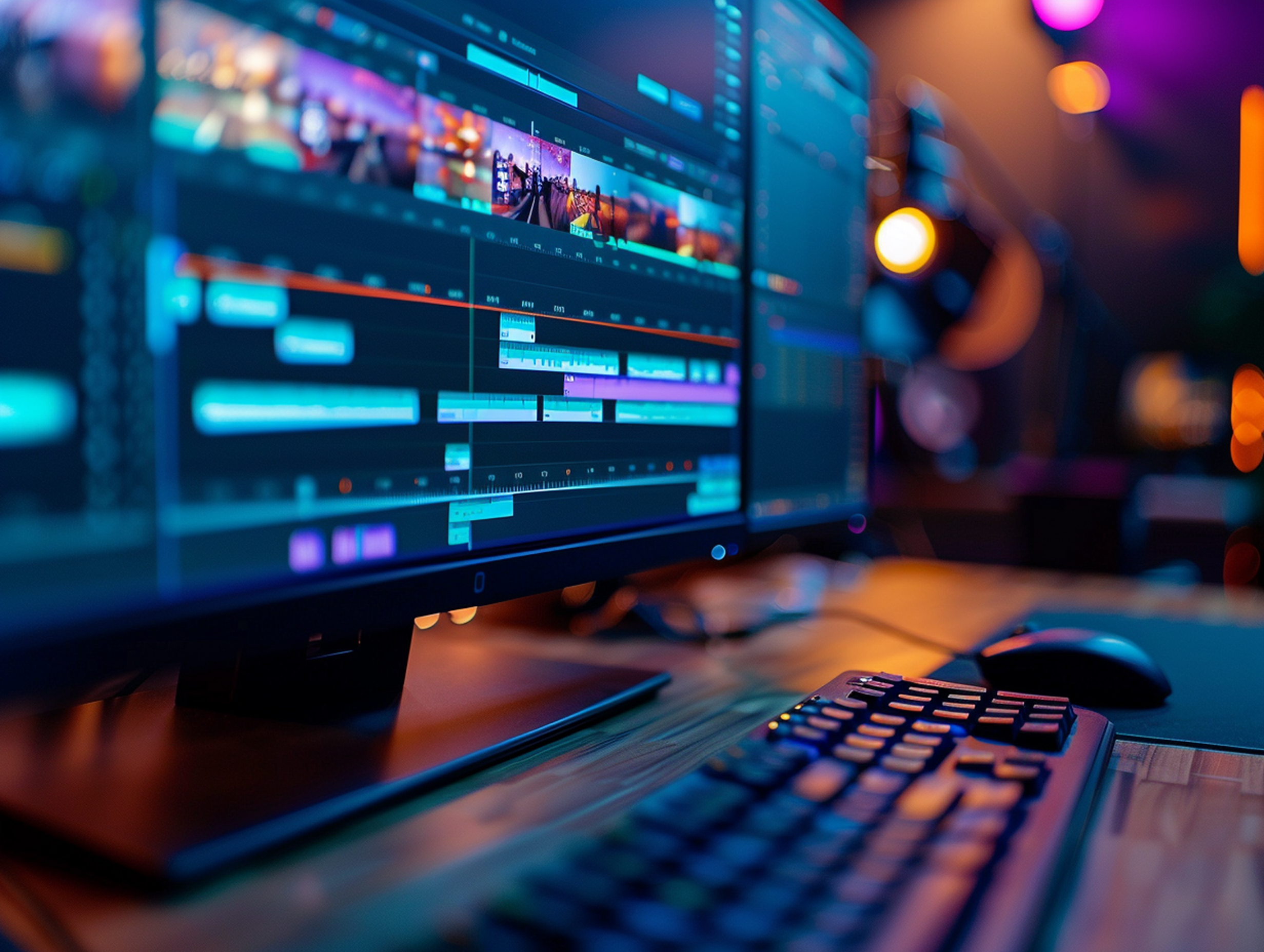
Once you have the basic vision for your project, the next step is understanding how to navigate the specific editing tools that will bring your first YouTube video to life. The YouTube Create app is designed to simplify complex post-production tasks, allowing you to focus on storytelling rather than technical troubleshooting.
This guide breaks down the full toolset you will use to edit, polish, and publish your first video in 2026.
Core Editing and Clip Management
The foundation of your first video is how you arrange and refine your raw footage. These tools are the "bread and butter" of the editing process.
- Importing Media: You can start or manage a project by importing videos, photos, or even GIFs from your phone’s gallery to the timeline.
- Splitting and Trimming: These allow you to cut out "ums," "ahs," or mistakes, ensuring your first video is tight and engaging.
- Rearranging Clips: You can tap and hold clips on the timeline to change their order, which is essential for establishing the narrative flow of your edit.
Visual Polish and Creative Effects
To make your first video look like it was edited by a professional, you can use built-in visual enhancement tools.
- Filters and Effects: You can apply filters, effects, and color correction to change the mood of your footage or fix lighting issues in your early recordings.
- Editing with Templates: If you aren't sure how to time your cuts, you can create videos with templates that provide a pre-set structure for your project.
- AI Visuals: In 2026, you can create with AI to generate unique stickers or backgrounds that make your first video stand out from the crowd.
Adding Context with Text and Elements
Text is a powerful tool for reinforcing your message and helping viewers follow along with your first edit.
- Overlaying Text: You can add text to your videos to create titles, call-outs, or end-screens.
- Animating Graphics: To add energy, you can apply and animate elements like arrows, "Subscribe" buttons, or stickers.
- General Customization: The app allows you to customize your videos with a wide array of stickers and emojis to add personality to your first upload.
Soundtrack and Voiceover Tools
Great audio can save an average video, but poor audio will ruin a great one. These tools ensure your first video sounds professional.
- Soundtrack Library: You can add and edit audio using thousands of royalty-free tracks directly within the app.
- Voiceover Recording: Use this to narrate over your clips, which is perfect for tutorials or commentary-style videos.
- Automatic Captions: To ensure everyone can enjoy your content, enhance your videos with captions that are automatically generated and synced to your voice.
Exporting and Going Live
The final step of the editing process is getting your finished work onto your YouTube channel.
- Reviewing the Edit: Always preview, upload, or save your video one last time to catch any small glitches.
- Publishing: You can publish your videos directly to YouTube, setting your title and description without leaving the app.
- Handling Errors: If anything goes wrong, you can troubleshoot upload errors using the app’s built-in support documentation.
Mastering the technical side of the YouTube Create app is the most significant hurdle to clearing your first upload. By familiarizing yourself with these core editing and audio tools, you can transform a collection of raw clips into a professional, cohesive story. Remember that every great creator started with a first edit; the tools in this app are simply here to ensure that your first video looks as polished as your hundredth.