After you have mastered the basic cuts, the final step is to apply a "professional polish." In 2026, the difference between a beginner edit and a viral success often comes down to how you use advanced features like Magiclight’s script-to-video generator and intentional sound design.
This guide will show you how to use the high-end features of the YouTube Create app to ensure your first YouTube video leaves a lasting impression.
Use AI to fill the gaps in your first video edit
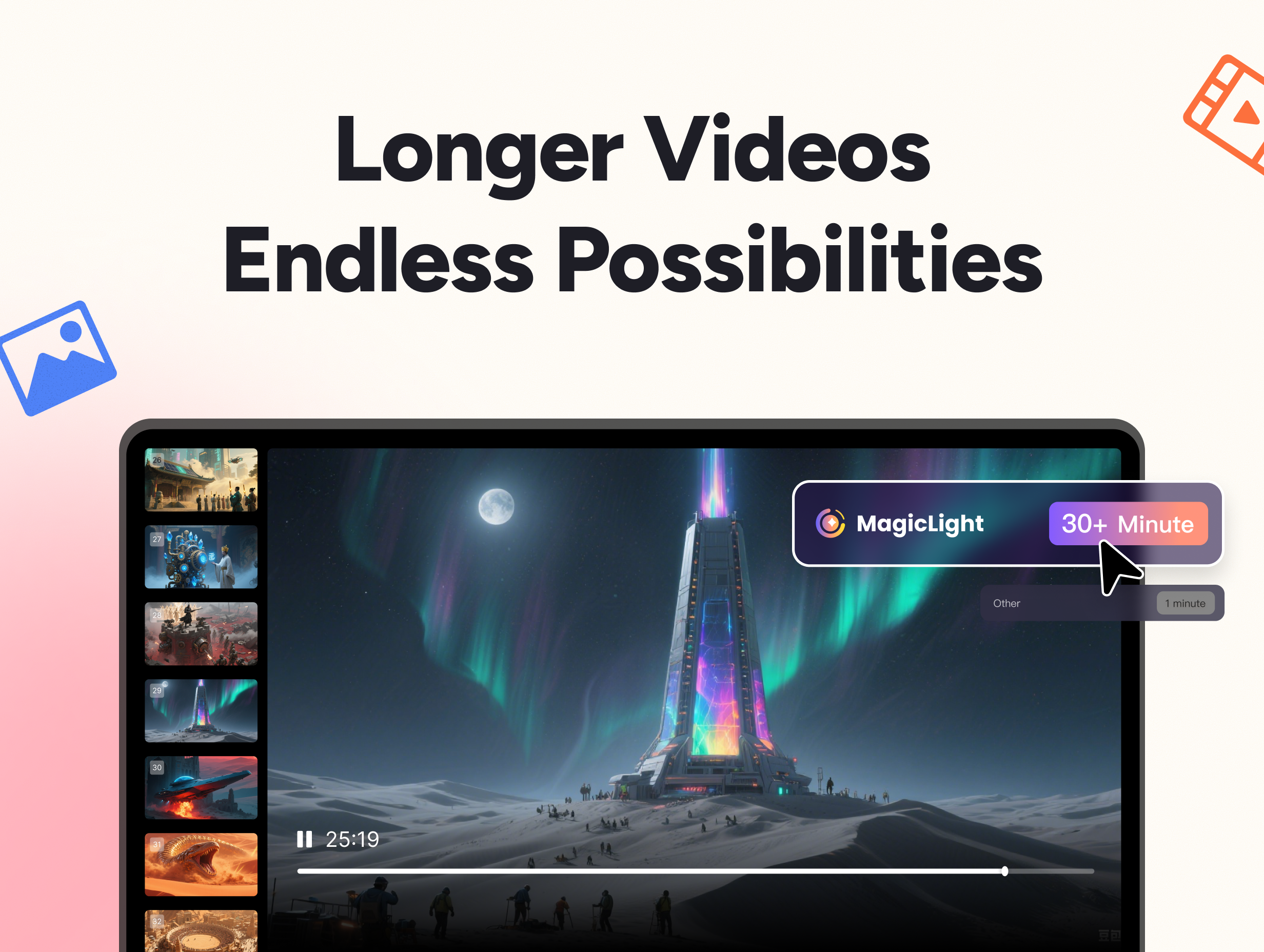
One of the biggest challenges for new creators is not having enough "B-roll"—the extra footage that plays while you are talking. Instead of leaving a static shot on screen, you can use MagicLight to maintain visual interest.
- Generative Media: Use Magiclight's AI story builder to generate unique clips that match your script exactly, ensuring there is never a dull moment in your first video.
- Visual Flair: Use AI-generated effects to add stylization to your clips that would normally require hours of manual work in desktop software.
- Character Consistency: If your video features a digital host, MagicLight’s character profiles ensure your protagonist looks the same in every shot—a key hallmark of pro content.
Create an immersive soundscape and improve accessibility
Pro-level editing isn't just about what people see; it’s about what they hear. To make your first YouTube video stand out, you need to layer your audio professionally.
- Audio Cleanup: Use the app's cleanup feature to remove background noise. Once the voice is clear, add and edit audio to find a royalty-free background track that fits your energy.
- AI Lip-Syncing: For the most professional results, use MagicLight's AI lip-sync tool to ensure your characters' speech perfectly matches your high-quality narration.
- On-Screen Text: Beyond sound, you must enhance your videos with captions. This is essential for viewers watching on social media without headphones.
Master retention with animated elements and stickers
"Retention" is the key metric for YouTube success. To keep people from clicking away, you need to give them a reason to keep watching every few seconds.
- Call-to-Action Animations: Don't just ask people to subscribe; apply and animate elements like a sliding button to prompt action visually.
- Emphasizing Points: Use stickers and emojis to emphasize a joke or a tip. These small visual "pops" reset the viewer's attention span.
- Text Hierarchy: Use animated text overlays to highlight key takeaways so that even if a viewer is skimming, they still get the value of your first video.
Final review: The "Export" checklist for your first video
Before you hit publish, do a final walkthrough of your timeline.
- Check for "Black Frames": Ensure there are no accidental gaps between your clips. Use the preview tool to watch the video from start to finish.
- Balance Your Levels: Make sure your background music isn't drowning out your voiceover.
- Optimize for Mobile: Since most viewers are on phones, ensure your text is large enough to be read on a small screen.
Polishing your first YouTube video is about respecting your viewer's time. By combining the accessibility of the YouTube Create app with the advanced AI power of MagicLight, you can bypass the "beginner phase" and start your channel with a professional standard. Now that your edit is polished, the only thing left to do is upload and start planning your next project.