
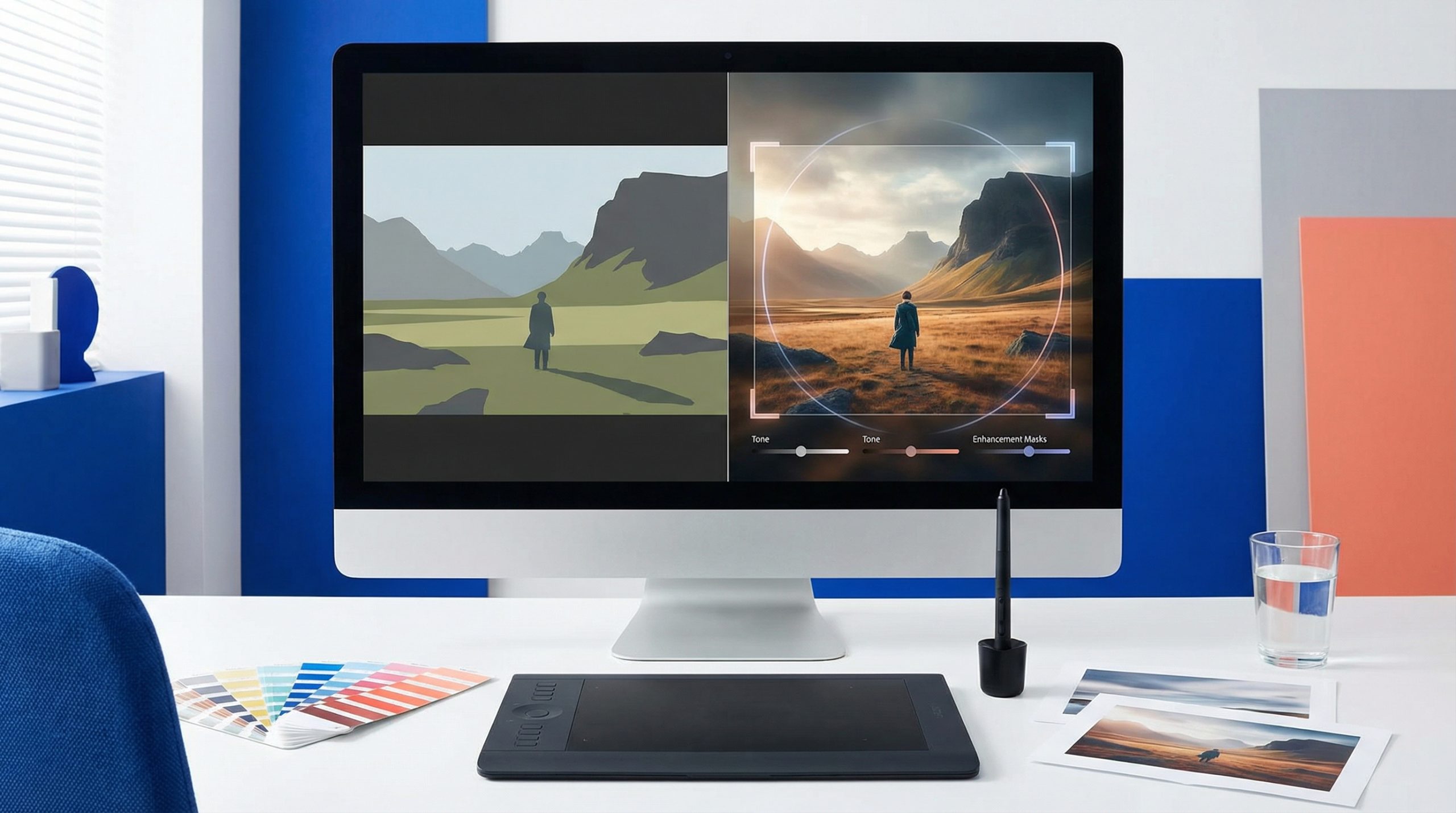
Creating a stunning piece of AI imagery is only the first step. Often, raw AI renders can feel slightly flat, overly perfect, or synthetically colored. If you want your AI art to blend seamlessly into a highly curated social feed, you need to post-process it.
Fortunately, you do not need expensive desktop software to color-grade your work. The native editing suite inside Instagram offers a surprisingly robust set of tools to "humanize" your AI imagery right before you hit publish. Here is how to use Instagram's built-in adjustments to take your AI render from a raw generation to a polished masterpiece.
Setting the Frame and Perspective
AI generators do not always respect traditional photographic composition rules. Before tweaking any colors on Instagram, you should fix the framing.
Once you upload your AI imagery from your phone's library, you can crop the image to improve its composition. Instagram allows you to reposition the artwork within the frame and zoom in using a slider to highlight specific details of the AI render.
Additionally, if the architectural lines in your AI imagery look distorted, you can adjust the horizontal and vertical perspective to correct the alignment.
Color Grading for Realism
The quickest way to make an AI render look less synthetic is through intentional color grading. Instagram provides several granular controls to adjust the mood of your image:
- Warmth: AI imagery can sometimes skew toward harsh, cool tones. Shifting the warmth slider toward the orange end can give portraits or landscapes a much more natural, sunlit feel.
- Brightness and Contrast: Use these sliders to fix lighting inconsistencies, ensuring the bright spots pop and the dark areas provide grounding shadows.
- Saturation: If the AI render feels too cartoonish, decreasing the saturation slightly can yield a more cinematic, muted look.
- Color Tints: For a stylized aesthetic, you can overlay specific colors (like cyan, yellow, or purple) directly into the highlights or shadows of your AI imagery.
Enhancing Detail and Depth
Generative AI sometimes struggles with realistic depth of field or textural clarity. Instagram's editing tools allow you to artificially introduce these photographic elements.
- Structure and Sharpen: If your AI imagery looks slightly soft or blurry, adding structure will bring out the surface textures, while the sharpen tool provides overall crispness.
- Tilt Shift: This is an excellent tool for fixing AI renders that lack depth. It allows you to blur the foreground or background, forcing the viewer's eye onto the main subject.
- Vignette: Darkening the edges of your AI imagery can help draw attention away from the borders and focus the viewer directly on the center.
- Fade: If you want to disguise the "digital" origin of your AI render, adding a fade gives the image an aged, analog photography aesthetic.
The Final Polish and Comparison
If you prefer a faster workflow, you can simply apply pre-made filters to your AI imagery. Instagram allows you to select a filter and then use a slider to reduce its overall strength, preventing the effect from looking overwhelmingly heavy.
As you make these adjustments, small grey dots will appear under the specific tools you have used, helping you keep track of your edits. Before finalizing the post, you can press and hold the image to compare your edited version with the original raw AI render. This ensures you have enhanced the artwork without losing its original essence.