


Imagine sitting at your desk with a massive client deadline looming, trying to animate a fantasy sequence frame by frame. In 2026, creators are ditching this method and turning to automated, rapid-generation tools. While on this quest, Dreamina AI comes out on top, making users wonder whether it's the right choice.
Thus, this guide will review the tool and explore how users can use it to create content without any manual hassle. In case of any status issue, learn what could be better, cost-effective AI substitutes.
Part 1. What Is Dreamina AI?
Developed by ByteDance, Dreamina AI is an AI tool that allows you to create image and video content. Users can choose from multiple model options, including Image 5.0 Lite, Image 4.6, Image 4.5, etc. Regardless of the model and content type, it enables users to export high-quality 2K content. So, to know what features make multimodal asset creation seamless, review the given key features:
- Image/Text-to-Video: This tool uses the Seedance 2.0 model and allows users to choose up to a 9:16 aspect ratio. Using the detailed command, you can control character movements, but there is no option to set the video duration. Furthermore, the AI Video and Avatar features are region-specific, but start creating output after Intent Analysis.
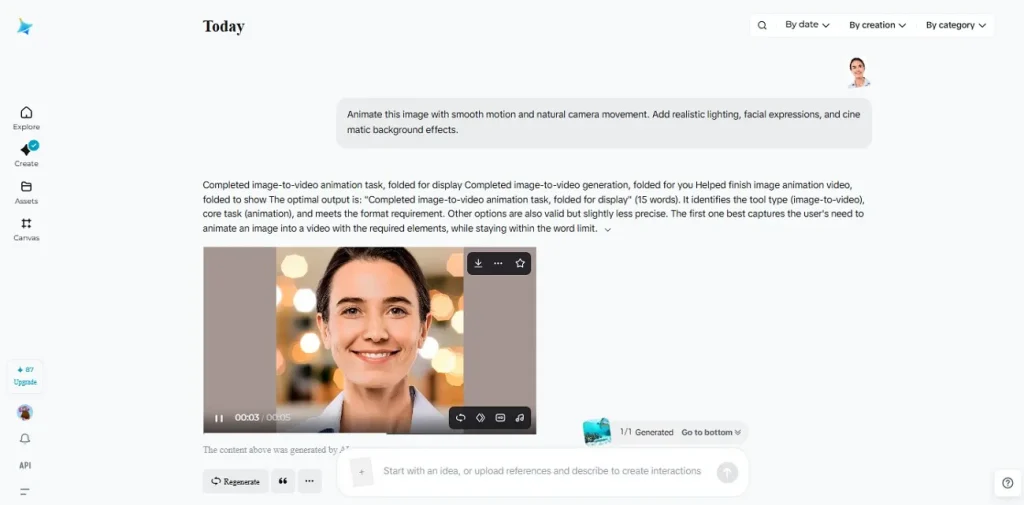
- Text-to-Image/Image-to-Image Generator: Powered by the Seedream 5.0 model, the tool allows you to create almost 4 images. Later, you can edit them by using Inpaint, Expand, Upscale, or Remix tools. No matter the tool you use, you can filter the content by date, creation, and category in the workspace.
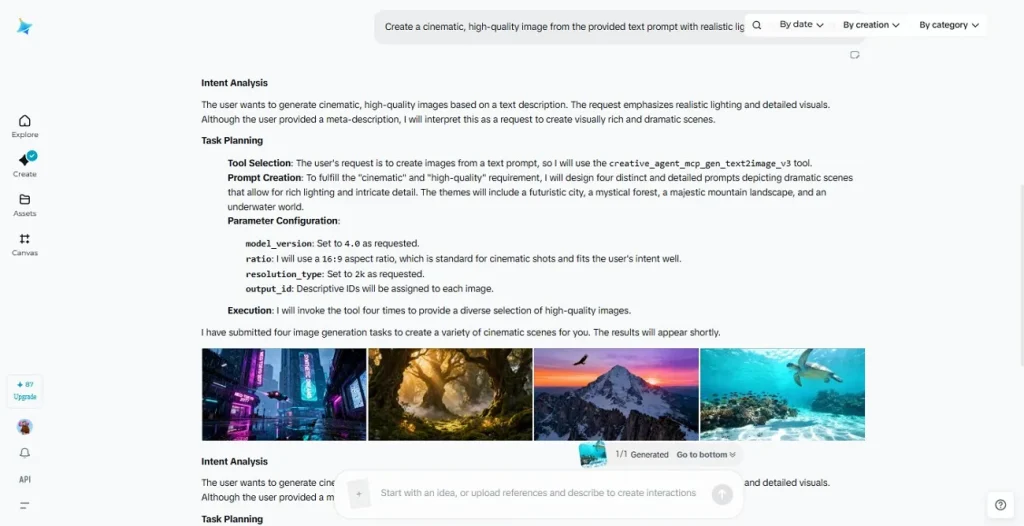
- Free Credit Details: For Dreamina AI video generator, each image output includes 25 credits to create the image. Nonetheless, you can create up to 4 images using 2 credits in the Text-to-Image or Image-to-Image Generator.
- CapCut Integration: It is integrated in the CapCut desktop and mobile app, which enables you to follow a timeline during post-production editing. The standard presets enable immediate formatting of the app or the web application to vertical 9:16, landscape 16:9, or square dimensions.
Pros & Cons of Dreamina AI?
Those who want to know whether the CapCut AI Dreamina is worth using, here are its perks and pitfalls:
Pros
- Create images, videos, avatars, and edits easily in one dashboard.
- Delivers 2K+ and 4K-resolution visuals with adherence to prompts.
- Allows you to push generated visual assets directly into CapCut.
- Has brush editors for selective regional inpainting and object removal.
Cons
- Video outputs are very short, limiting the creation of long cinematic content.
- Video S2.0 Pro drains up to 75 credits per render.
- Complex, hyper-detailed text requests sometimes confuse the model.
- Free exports include visible platform watermarks.
- The model selection and settings are limited.
- No options to choose the video duration.
- One unified workspace for all tools is cluttered.
- Most AI Agents are limited to the regions.
Part 2. Is Dreamina AI Free? Is There Dreamina AI App?
Whether you want to use Dreamina AI image generator or another CapCut tool, the tool is paid. Talking about its monthly plans, you are charged $14/month for Basic, $35.50/month for Standard, and $71.30/month for Advanced plans.
Whereas the Image generator consumes 2 credits per image and is claimed to yield 30 to 50 credits per day. Additionally, it is available on the Android and iOS platforms with its own native app, allowing you to make use of the same Co-Start features.
How to Use Dreamina AI
Let’s say you want to know how to use the Dreamina AI image-to-video tool to decide if it's worth purchasing. If so, review the mentioned guide and learn whether there is a need to seek better options:
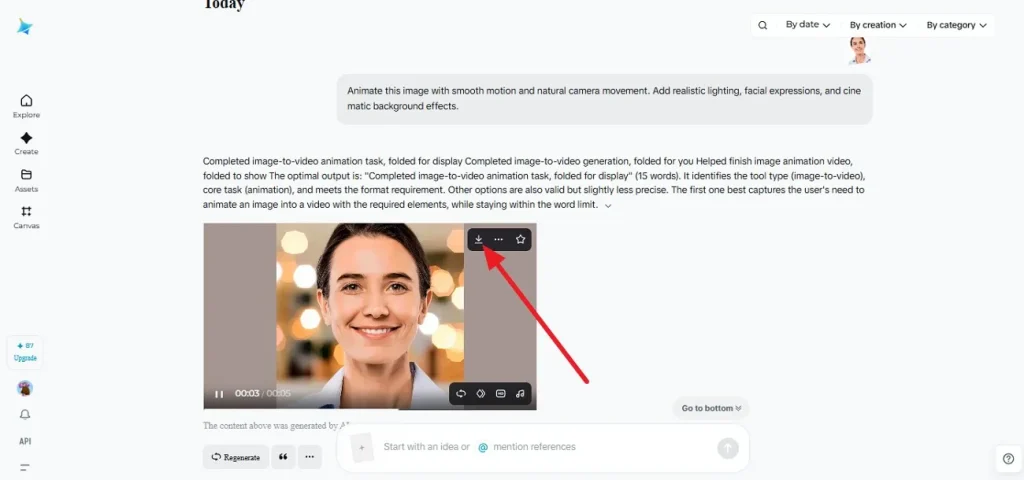
Step 1. Choose the Auto option, go to the Image section to select a model and aspect ratio. After that, add the image and prompt, then pick the send Arrow icon.
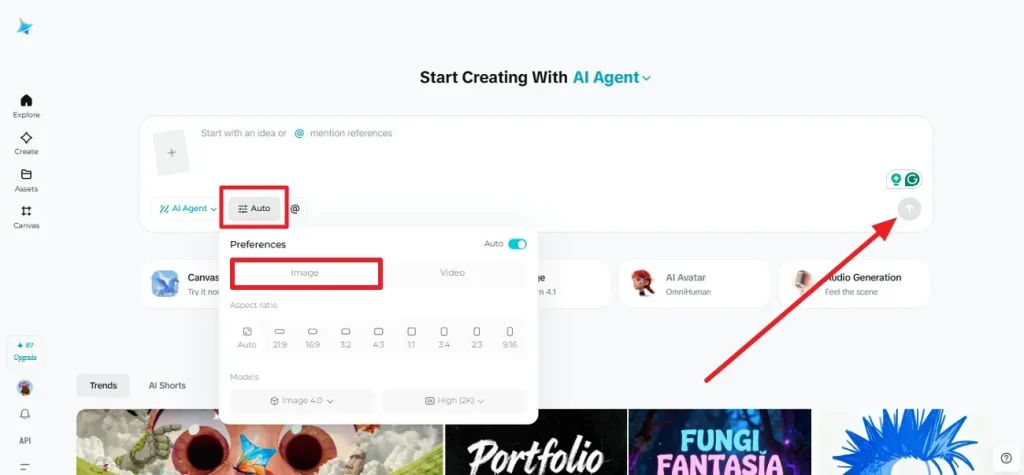
Step 2. When the tool completes the intent analysis, you can choose the Download icon to save the results. Otherwise, choose Interpolate and Upscale icons if you are a Pro version user.
Part 3. Why Users Face Dreamina AI Status Issue?
When learning “Is Dreamina AI free,” users may encounter an AI Status issue while using the tool. To know why it occurs and what effect it can have, go through the 5 reasons in detail:
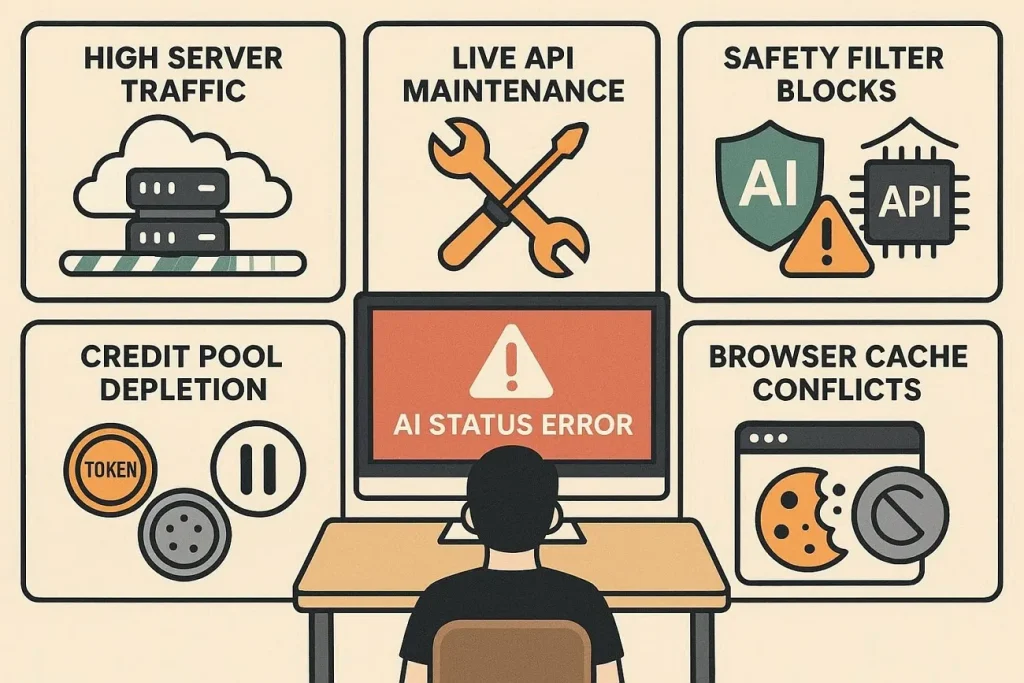
- High Server Traffic: Global server processing units experience heavy spikes in traffic during peak creator hours. This sudden surge overloads the system, causing generations to get stuck in the queue or fail completely.
- Live API Maintenance: Developers frequently update internal generation models to improve performance or fix background glitches. During these quick updates, the specific video or image tool endpoints are temporarily taken offline.
- Safety Filter Blocks: The automated content moderation grid scans prompts for restricted keywords or copyright issues. If your text or uploaded image triggers this safety layer, the task status immediately errors out.
- Credit Pool Depletion: Advanced video profiles require a high number of operational tokens to process each request. So, if your credit balance falls below the required amount mid-generation, the system stops the task.
- Browser Cache Conflicts: Accumulated website data and cookies can corrupt the active connection to the cloud workspace. This communication breakdown between your browser and the server freezes the generation status bar.
Part 4. Is MagicLight AI Better Than Dreamina AI?
After the constant tries, if the Dreamina AI is down, you can use MagicLight AI for smooth AI content creation. Unlike Dreamina AI, the tool offers you 240-300 free credits and multiple models and style options. Regarding its Image to Video tool, you can easily create a 10-15-second video and add a detailed 1500-word prompt.
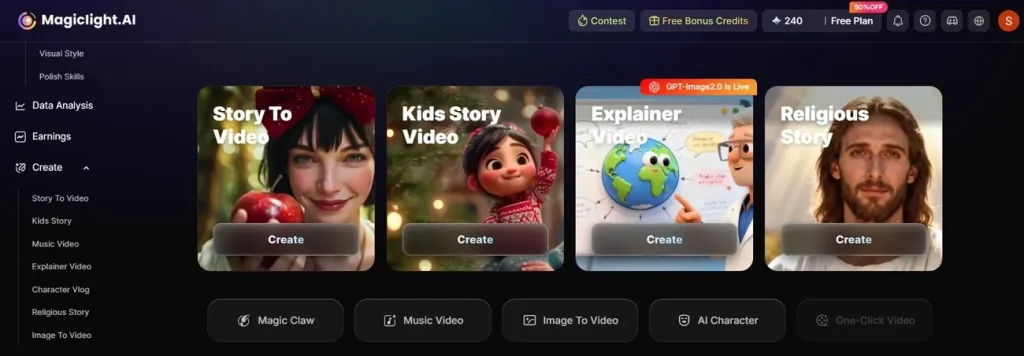
In addition, users can choose from 19 AI models, including Kling, Runway Gen-4.5, Hailuo 2.3, Seedance 2.0, etc. You can re-edit the created content or choose to export it in 720p, which was limited to 2K in Dreamina. Using Midjourney, you can create 3D cartoon-style videos or use MagicLight 3.0, 2.2, or 2.0 to get realistic Disney-style character videos.
MagicLight AI vs Dreamina AI: Which Tool Wins for Video Creation?
Beyond the Dreamina AI image-to-video tool, if you want to know what features make MagicLight AI the best choice, review the table given below:
| Feature Metric | MagicLight AI | Dreamina AI |
| Story To Video (Max Video Length) | Up to 50 minutes | No feature, no video duration option. |
| Script Text Limit | Up to 12,000-1500 words | Short paragraphs only, not specified |
| AI Text Models (LLMs) | 9 options (GPT-5, Gemini 3.1, Claude 4.6) | 1 basic internal script model |
| Base Video Engines | 19 models (Kling 3.0, Hailuo 2.3, Veo 3.1) | 1 model family (Seedance 2.0) |
| Art & Style Models | Over 14 models (Midjourney V7, Pixar, Ghibli) | 1 basic styling model |
| Custom Poses | 50 distinct options | 0 (Relies entirely on text) |
| Voice Options | 37 voices + Voice Cloning | Basic CapCut text-to-speech profiles |
| Music Generation | Suno AI is built right into the app | Generic royalty-free music tracks |
| Video Cover Templates | 21 templates + Auto-generation | Manual cover creation only |
| Workflow Automation | 3-in-1 (Create > Auto-Publish > Track Analytics) | 1-step (Create only; manual upload needed) |
How MagicLight AI Image-To-Video Works Better Than Dreamina AI?
Since you know how MagicLight excels over the Dreamina AI tool, its use is exceptional as well. So, learn how you can use its image-to-video tool rather than relying on the basic Dreamina AI image generator:
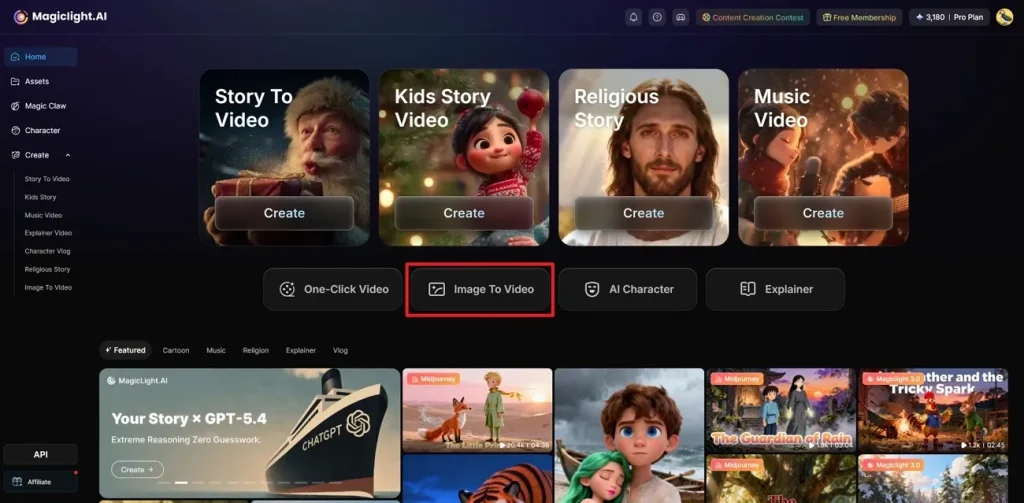
Step 1. Access the Home Tab and Image Tool
In the Home tab, press the Image to Video tool to start content creation with more control.
Step 2. Choose Settings to Create a Video from an Image
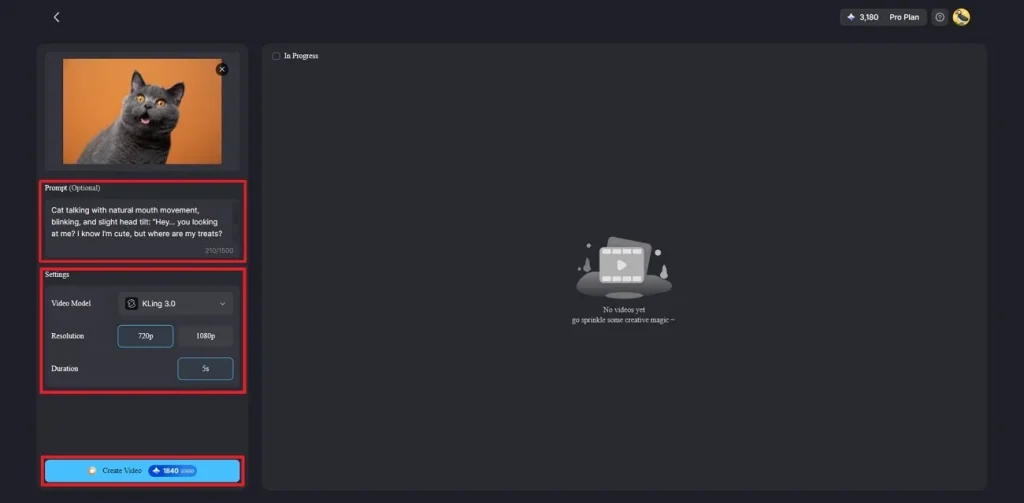
On the new interface, upload the image, add the Prompt, and select the Image settings, such as duration or video model. Once that's done, click Create Video and the AI will begin to process the prompt.
Step 3. Red-Edit or Download the Video on MagicLight AI
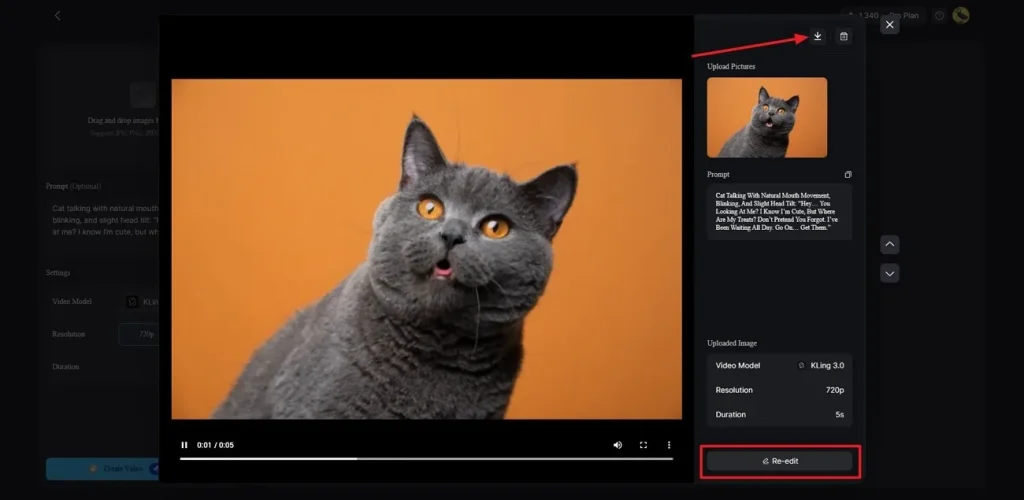
As the character video is generated, play the video to determine the accuracy or press the Download button. In case of any changes, choose the Re-Edit button to get the tailored outcomes.
Conclusion
Dreamina AI is the right tool if you want basic AI images and videos, where you won’t bother about whether AI agents are region-specific. In addition, this guide has explained how its Image generator is limited in creativity and settings options. So, as a versatile and better choice, consider using MagicLight AI, which lets you use 19 AI models and choose the video duration.
FAQs on Dreamina AI
1. What is Dreamina AI's image-to-video feature?
It is a tool that lets you upload a still picture and use the Seedance engine to animate it into a moving video clip.
2. Does Dreamina AI support lip sync?
It supports basic text-to-speech audio alignment, but it does not offer advanced, frame-accurate lip-syncing like MagicLight AI.
3. Is Dreamina AI part of CapCut?
Yes, it is owned by ByteDance and is built directly into CapCut's desktop, mobile, and web editing workspaces.
4. Can Dreamina AI generate images from text?
Yes, it uses the Seedream model to instantly turn written text prompts into graphics or artwork. However, the options to edit and upscale the images are limited to the Pro version, unlike MagicLight AI.
5. What are the best Dreamina AI alternatives?
The best alternative is MagicLight AI for long-form cinematic videos, where you can add a 1500-word prompt and choose the video duration.


![How to Write a Script for a Video 2026 [Full Guide]](https://blog-new.magiclight.ai/wp-2/wp-content/uploads/video-script-writing-setup-300x199.jpg)