


Every year, a new video tool appears to make your content life easier. It can be hard to know which tools are actually worth trying out yourself. Pippit AI has been showing up everywhere and catching the eye of many creators. This review covers everything, from how it works to whether it is safe, along with its better alternative.
Part 1. What is Pippit AI, and how does Pippit AI work
Pippit AI is a creative platform from the CapCut team that turns URLs, images, and plain text into videos. It uses a node-based workflow with advanced multi-layer editing and real-time rendering to speed up animations. The platform also includes AI avatars and voiceovers in over 28 languages that can appear in videos and speak a script without a filming setup.
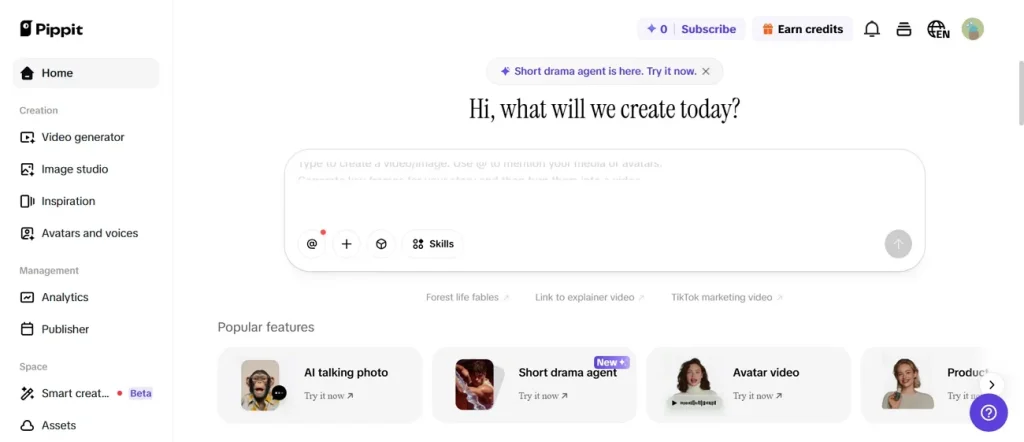
Pippit AI video generator works through an AI-powered creative engine that analyzes your input and builds structured video content automatically. It processes linked images or prompts and extracts key information for script and scene creation. The system then uses multiple AI models to generate visual avatars, captions, and transitions.
Key Features of Pippit AI
- Video Agent: Uses uploaded reference videos or examples to guide AI in matching style, pacing, and structure
- Branding System: Maintains consistent color and styles across all generated media for a strong brand identity.
- Long Input: Supports up to 5000 characters of text input, allowing detailed prompts for better video generation control.
- Voice Sync: Matches generated voiceovers with visuals, ensuring natural timing and smooth audio delivery.
- Model Support: Supports 4 advanced AI models like Seedance 2.0 and others for high-quality video generation.
How Pippit AI Works: Easy Guide
The Pippit AI generator simplifies video creation through smart automated AI processing. Thus, adhere to the given guide to understand how each step actually works to generate videos:
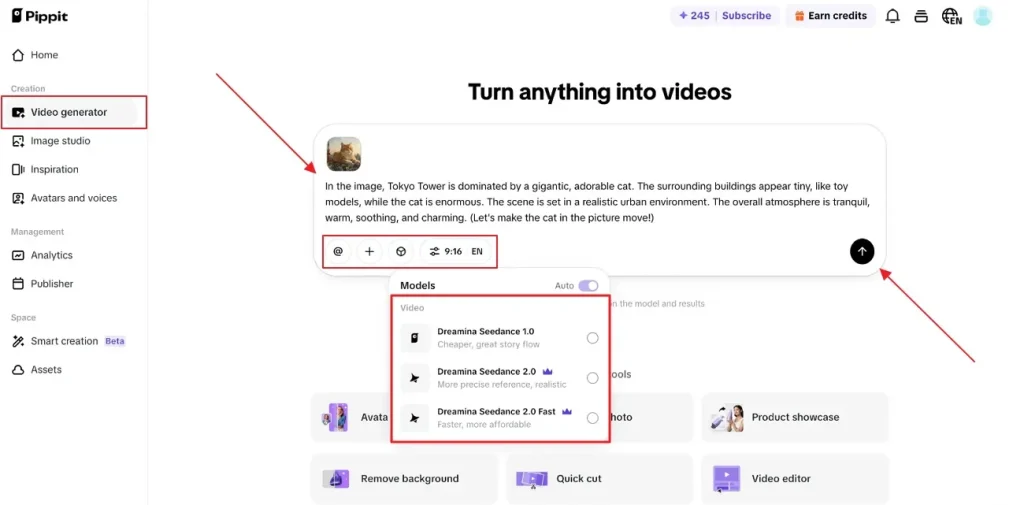
Step 1. To initiate, open the authentic webpage of Pippit AI and choose the Video Generator section. After that, describe your script in the given Text Box and select the preferred AI model. Next, adjust the Aspect Ratio and Video Language by using the provided options. Once all the settings are done, opt for the Arrow option to proceed.
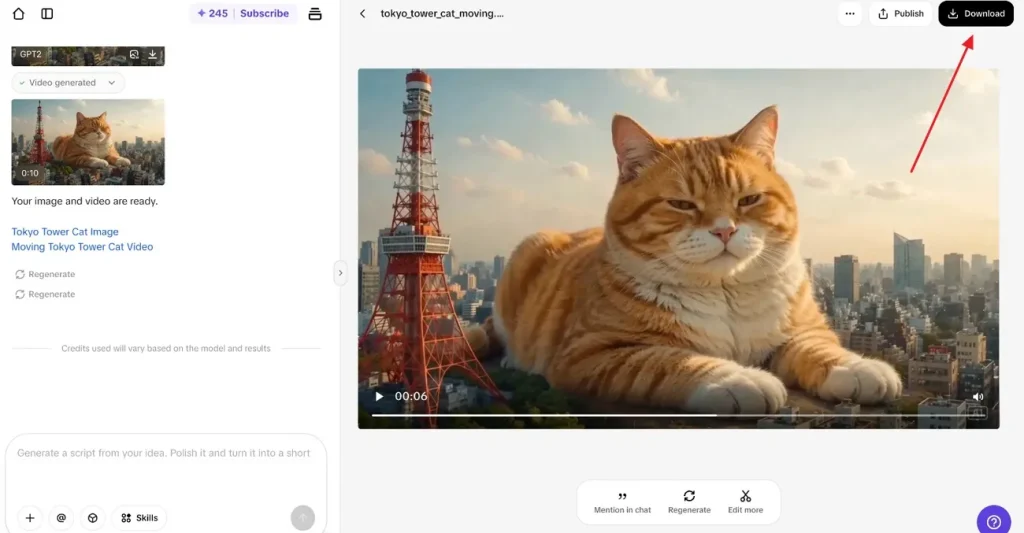
Step 2. The tool automatically generates your AI video according to your idea, previews it, and then click the Download button to export it.
Is Pippit AI Safe?
When evaluating “Is Pippit AI safe?”, it is important to understand how it handles user data and content. The platform operates under the CapCut ecosystem, but still collects and processes uploaded media and information. It is suitable for general marketing and creative work when used responsibly. However, users should avoid sharing sensitive personal or private business information on any AI platform.
Pros and Cons of Pippit AI
A fair review always covers what works well and what falls a little short. Hence, below are the major pros and cons of this Pippit AI free AI video generator:
Pros
- AI organizes content into logical scenes for storytelling and marketing videos.
- Generates multiple video variations at once to test different creative styles.
- Adds dynamic animation to still images, enhancing engagement impact for social media.
Cons
- Supports only up to 60-second video generation per clip.
- Data processing practices may concern users with strict privacy needs.
- Not ideal for teams that need cinema-level control over every frame.
Part 2. Why Creators Prefer MagicLight AI Over Pippit AI
While the Pippit AI video maker works well for quick clips and simple social posts, it hits limits on length and control. These limitations push users toward a better alternative. To overcome these issues, MagicLight AI emerges as a powerful alternative. This AI innovation supports up to 12,000 characters, which enables long-form storytelling projects. Plus, it offers multi-layer scene editing for detailed cinematic storytelling control.
Unlike the Pippit AI video editor, the tool can generate cinematic videos up to 50 minutes. Users can access its 12 advanced AI models, including Seedance 2.0, Veo 3.1, and Kling for precision output. For expressive voiceover generation in videos, MagicLight AI integrates ElevenLabs-powered voice technology for realistic narration. Its story-to-video workflow supports multiple languages, voice options, storyboard controls, and detailed creative customization for better results.
Key Features
- Image to Video: Converts static images into dynamic video scenes for product showcases, storytelling, and creative previews easily.
- Character Library: Provides a searchable character library with editable AI personalities, including age, voice, and traits options.
- Style Variety: Offers diverse visual styles, including Disney, Pixar, Ghibli, anime, cinematic, and realistic rendering options.
- Voice Options: Includes 37 voiceovers with cloning support for realistic multilingual narration and character voice creation.
- Storyboard System: Creates editable storyboard previews with detailed micro step control for precise cinematic workflow planning.
Complete Step-by-Step Guide for AI Video Creation for Better Results
Adhere to the given guide below to learn the AI cinematic and realistic video generation process with MagicLight AI:
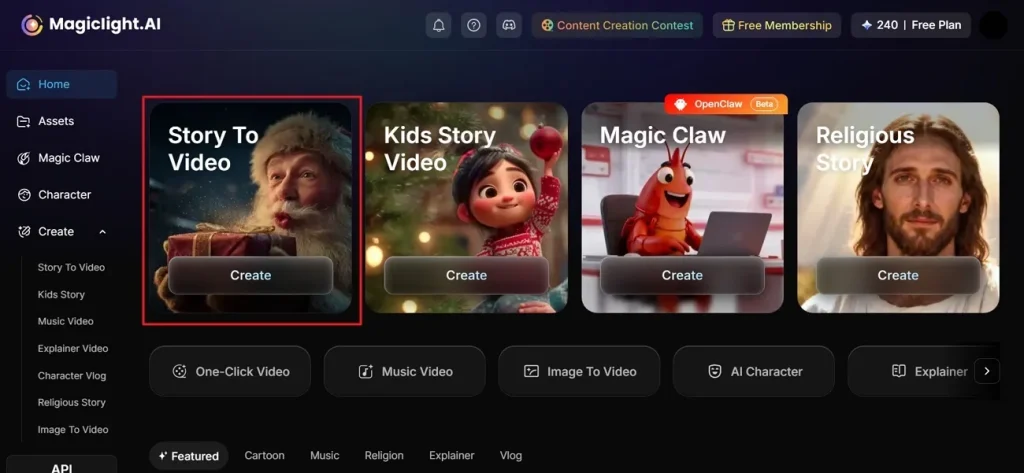
Step 1. Start a New AI Video Project
Visit the official website of MagicLight AI and choose the Story to Video tool from the main screen.
Step 2. Adjust the Core Story Settings
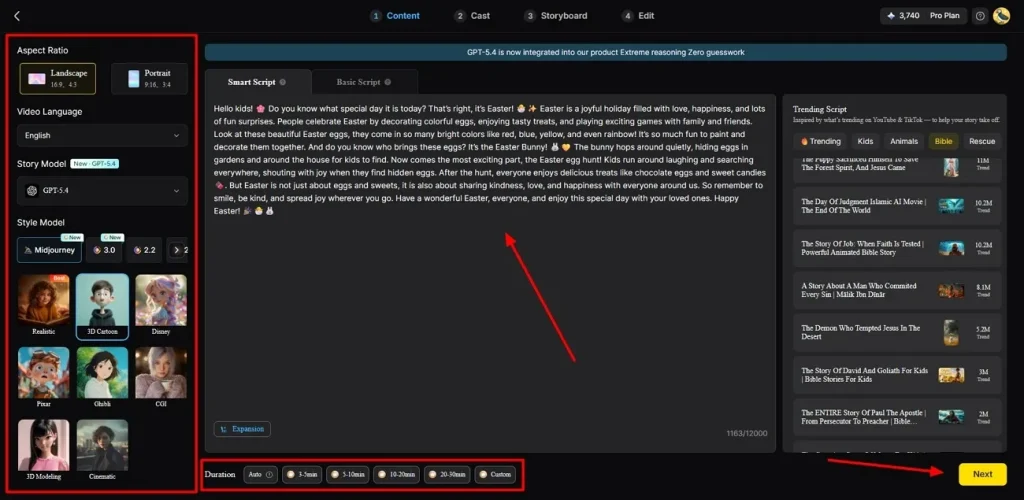
Upon accessing it, type your story idea in the Text Box and select the Video Language option from the left panel. By using its prebuilt functions, adjust the Aspect Ratio and choose a preferred AI Story Model such as GPT-4 as per video demand. Next, select the desired Style Model and adjust the Video Length, then opt for Next.
Step 3. Preview Generated Scene Flow
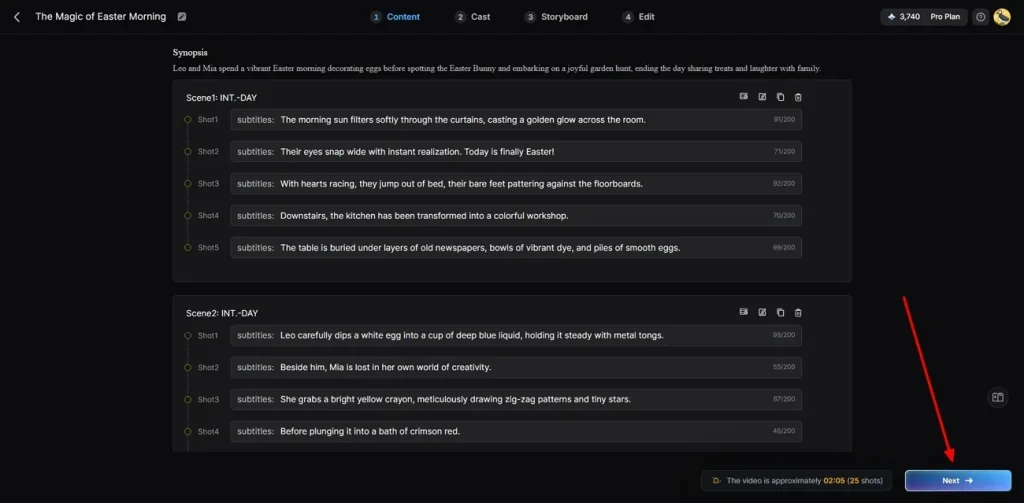
MagicLight AI generates a complete scene structure and a video summary for user preview checking. If all scenes look correct and aligned with the idea, proceed by clicking the Next button.
Step 4. Select AI Story Characters
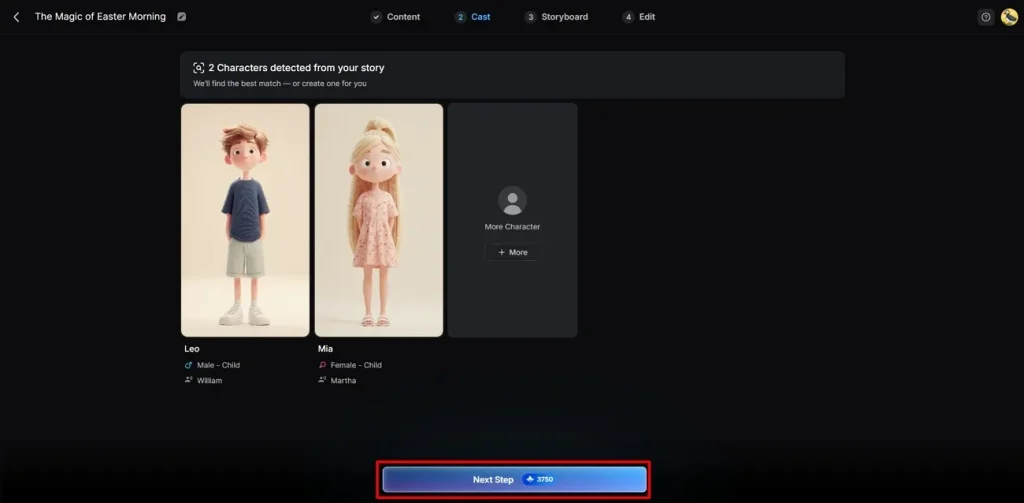
Moving forward, the tool recommends characters based on story theme and selected visual style preferences. Select the given one that fits the narrative properly, or add another by clicking More Character. After selection confirmation, opt for the Next Step button to continue the video creation workflow process.
Step 5. Edit Character Appearance Settings
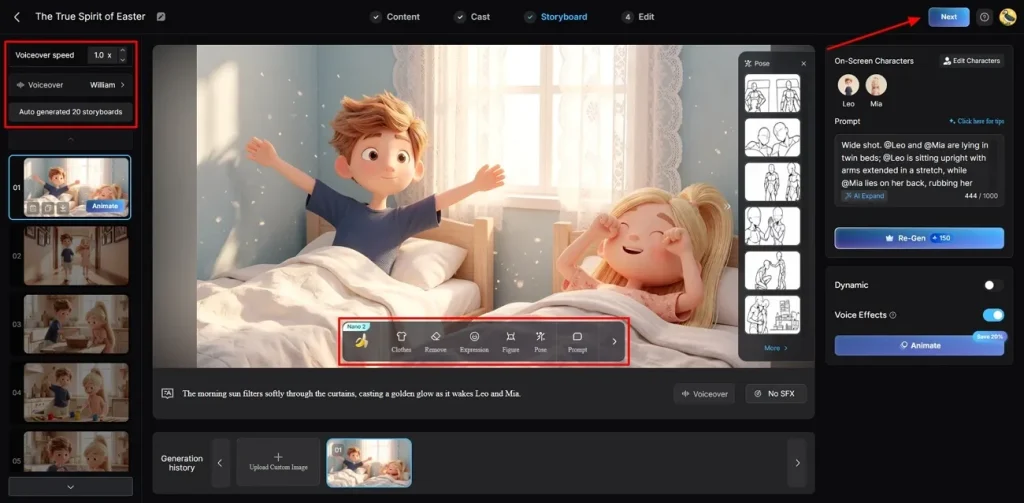
Within the storyboard, customize the Voiceover Speed and the generated video frame one by one. Furthermore, you can change expressions, poses, and full character appearance without complex editing. Next, choose the preferred Voiceover and click Next to continue.
Step 6. Add Subtitle and Audio Styles
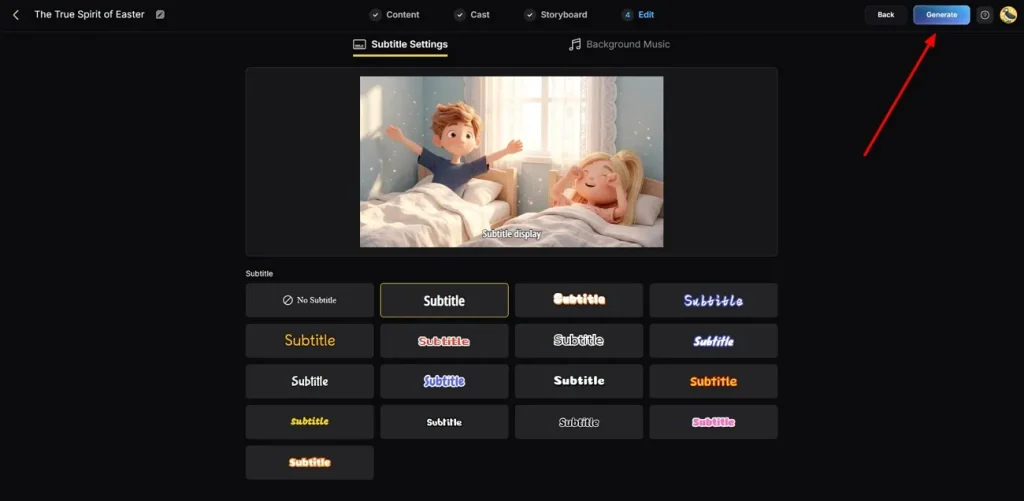
At this stage, go to the Subtitle Settings to add captions and improve accessibility for your AI video. Now, choose Background Music that matches the tone, mood, and emotional style of the video. When these settings are completed, opt for the Generate button.
Step 7. Export the Generated Video
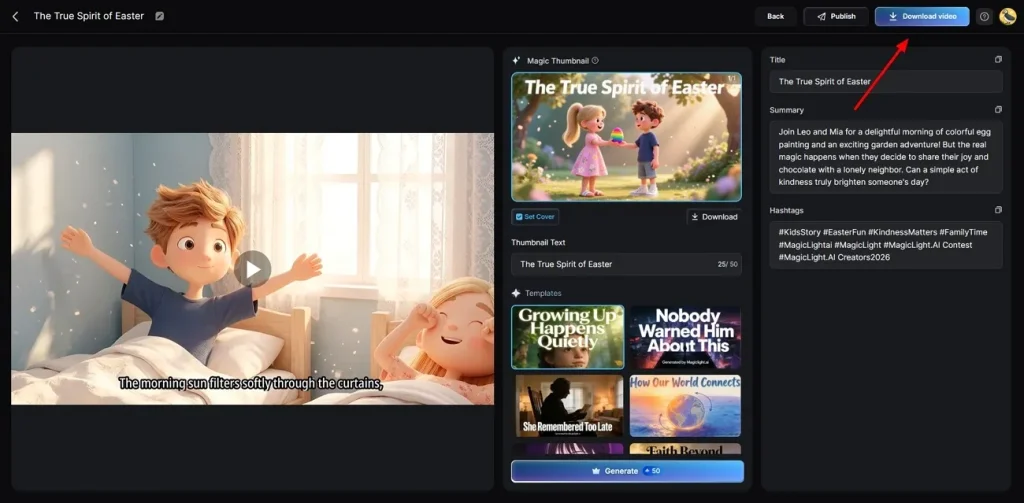
Once your AI video is generated, watch it and add Thumbnail text and Hashtags. If everything looks perfect, opt for the Download Video button to save the video on your device.
Part 3. MagicLight AI vs Pippit AI: Which One Is Better?
Both tools work differently, and the right choice depends on what you actually need. So, go through the comparison below and see how Pippit AI lyrics generator truly performs:
| Feature | Pippit AI | MagicLight AI |
| Video Length | Up to 60 seconds | Up to 50 minutes cinematic |
| Scene Control | Limited editing control | Micro step storyboard control |
| Character Consistency | Inconsistent across scenes | Stable across long videos |
| Script Capacity | 5000 characters limit | Up to 12,000 characters support |
| AI Models | 4 basic models | 19 advanced AI models |
| Storyboard System | Simple auto-generation | Editable micro step storyboard |
| Image Animation | Basic motion effects | Advanced cinematic image animation |
| Video Creation Mode | Link or prompt input | Chat, template, one-click |
Conclusion
To conclude, this review has covered everything you need to know before picking a video tool. Pippit AI works well for quick and simple marketing content, but falls short on length and control. Many creators need a tool that handles longer and more detailed video projects. Therefore, MagicLight AI steps in as the smarter and more powerful choice for modern creators.
FAQs on Pippit AI
1. Can Pippit AI edit videos?
Yes, Pippit AI lets you edit videos after they are generated automatically. Users can adjust captions and layouts using its prebuilt editing tools. However, the editing options are basic and may not suit advanced video creators.
2. Is Pippit AI good for beginners?
Pippit AI is very beginner-friendly with simple tools and templates. New users can easily create videos without advanced editing knowledge required. On the other hand, MagicLight AI guides beginners better with a full story-to-video workflow and tutorials.
3. What are the limitations of the Pippit AI free plan?
The free plan adds a watermark to all videos you export from it. It also limits the number of credits you can use every single week. In contrast, MagicLight AI offers a more generous free plan with fewer creative restrictions overall.
4. What are the best alternatives to Pippit AI?
Several alternatives exist, but MagicLight AI stands out for long video creation. It supports longer videos, better control, and cinematic quality outputs overall. Many creators prefer it for professional, scalable, and flexible video creation.
5. Is Pippit AI safe?
Pippit AI is generally safe for normal video creation usage purposes. It follows standard data handling practices within the CapCut ecosystem. Users should avoid sharing sensitive data and use the official platform only. For superior data privacy controls, MagicLight AI is highly recommended.





![How to Write a Script for a Video 2026 [Full Guide]](https://blog-new.magiclight.ai/wp-2/wp-content/uploads/video-script-writing-setup-300x199.jpg)