


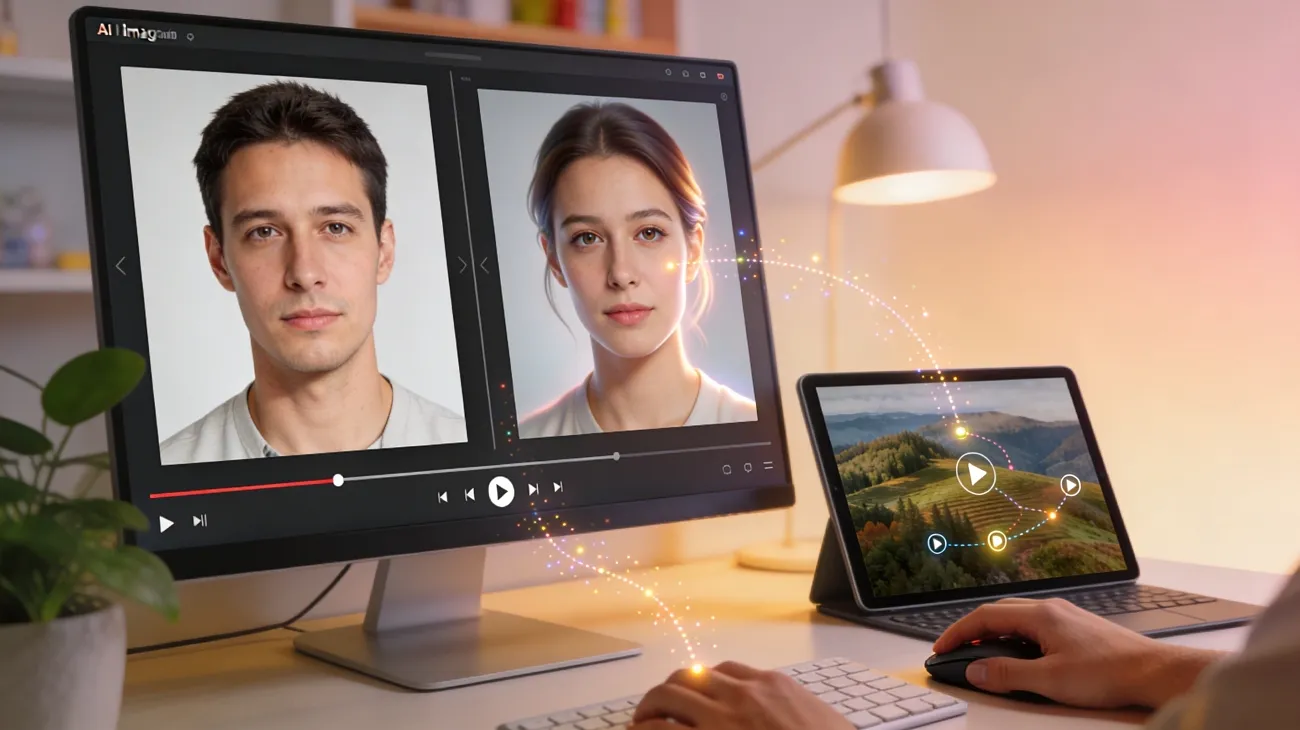
A social media creator scrolls through their gallery and realizes a favorite photo could become a captivating animation. Static images often fail to capture attention in today’s fast-moving digital world, where motion content performs far better across platforms. Learning how to animate a picture opens creative possibilities, allowing ordinary photos to transform into eye-catching visuals with movement, effects, and storytelling elements.
Thanks to modern AI tools and beginner-friendly software, the process no longer requires advanced design skills or complex editing knowledge. With the right approach, anyone can turn a simple image into an engaging animated scene ready for social media or other creative projects.
Part 1. How to Animate a Picture Online: Easy Steps For Beginners
Creating engaging videos often requires multiple tools, editing skills, and significant time to learn how to animate a photo. Magiclight.AI simplifies this process by offering an all-in-one platform that generates animated videos with artificial intelligence. The tool enables users to transform ideas, written scripts, or even static images into visually consistent videos with smooth motion and transitions.
One of its most notable capabilities is the image-to-video feature, which can convert a single photo into a lively animated scene while maintaining visual accuracy and natural movement. In addition, Magiclight AI provides story-to-video generation and AI character creation, helping creators quickly build narrative-driven content. With prompt-based controls and pre-designed templates, the platform makes video production accessible even for beginners who have little or no editing experience.
Key Features Offered By Magiclight
- Magiclight AI integrates advanced video generation models like Sora and Veo 3, allowing creators to produce realistic and high-quality animated videos.
- The platform enables users to choose the desired video duration and resolution. Whether creating short-form clips or longer videos, creators can optimize quality according to their needs.
- The tool supports multiple image formats, allowing users to upload existing visuals and transform them into animated scenes.
Step-by-Step Guide to Animating a Picture with Magiclight AI
After exploring the main capabilities of this platform, the next step is learning how to animate a picture using Magiclight AI. The following simple steps will help you convert a static image into an animated video.
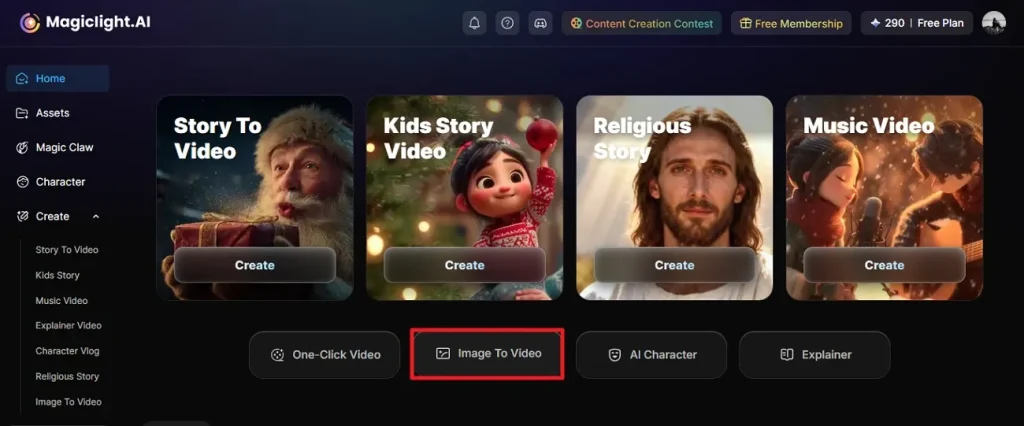
Step 1. Open the Image-to-Video Tool
Begin by launching the platform in your web browser. From the main interface, select the Image to Video feature to start the animation process.
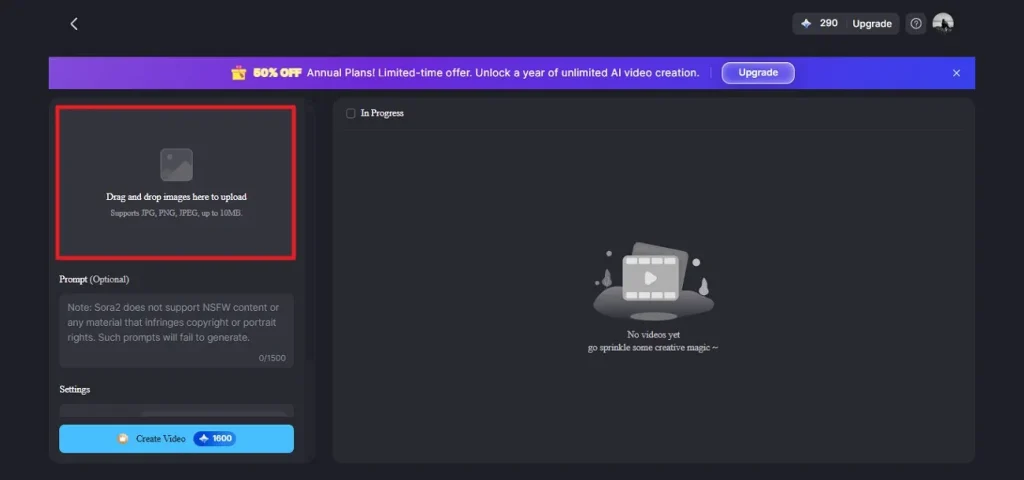
Step 2. Upload Your Image
Once the feature opens, import the picture you want to animate. Click on the Drag and Drop Image Here to Upload option and add the image to the workspace.
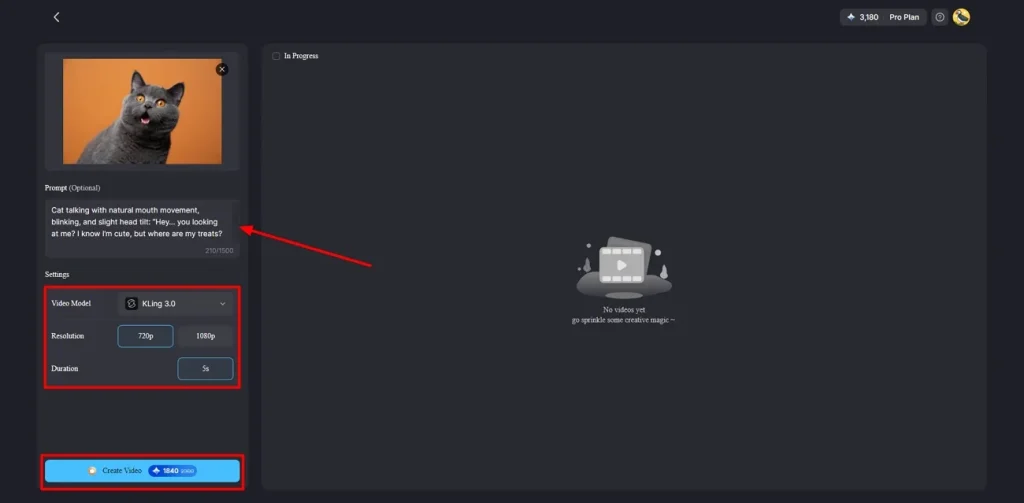
Step 3. Add Prompt and Configure Video Settings
Next, enter a text prompt describing the animation in the provided field and choose the desired AI model from the dropdown list. Then set the preferred duration and resolution before pressing the Create Video button to generate the animated result.
Part 2. How to Animate A Photo on iPhone Using Magiclight.AI App?
Magiclight: AI Video Generator is an all-in-one AI-powered video creation app designed to transform ideas, scripts, and images into fully animated videos with minimal effort. Built for iPhone users, it combines automation with creative control, allowing users to generate videos and learn how to create animated pictures. The app supports text-to-video workflows, character consistency, and advanced video editing tools within a single interface.
Whether for storytelling, marketing, or educational use, it enables creators to produce polished videos without traditional editing complexity. Moreover, users can use the app to create AI characters of their choice along with other visual content.
Key Features
- Magiclight AI allows users to choose from different aspect ratios depending on the platform they are creating content for. This helps optimize videos for formats like vertical Shorts, square social media posts, or standard widescreen videos.
- The app integrates various advanced AI models that help generate videos with different visual styles and levels of realism. Users can select the most suitable model based on the type of content they want to create.
- This app can generate video content in multiple languages, making it useful for global audiences. This feature helps creators produce videos for different regions without needing manual translation or additional tools.
Steps for Animating Photos into Videos with the Magiclight App
Having learned about this app in detail, let us now explore the steps to learn how to animate a picture on an iPhone using the Magiclight app:
Step 1. Open App Input Requirements
To initiate, launch the application and tap on the + icon located at the bottom. Next, input the basic text script and select the Aspect Ratio. Select the Video Language and Story Model from the options provided. Press the Next button after choosing the style model.
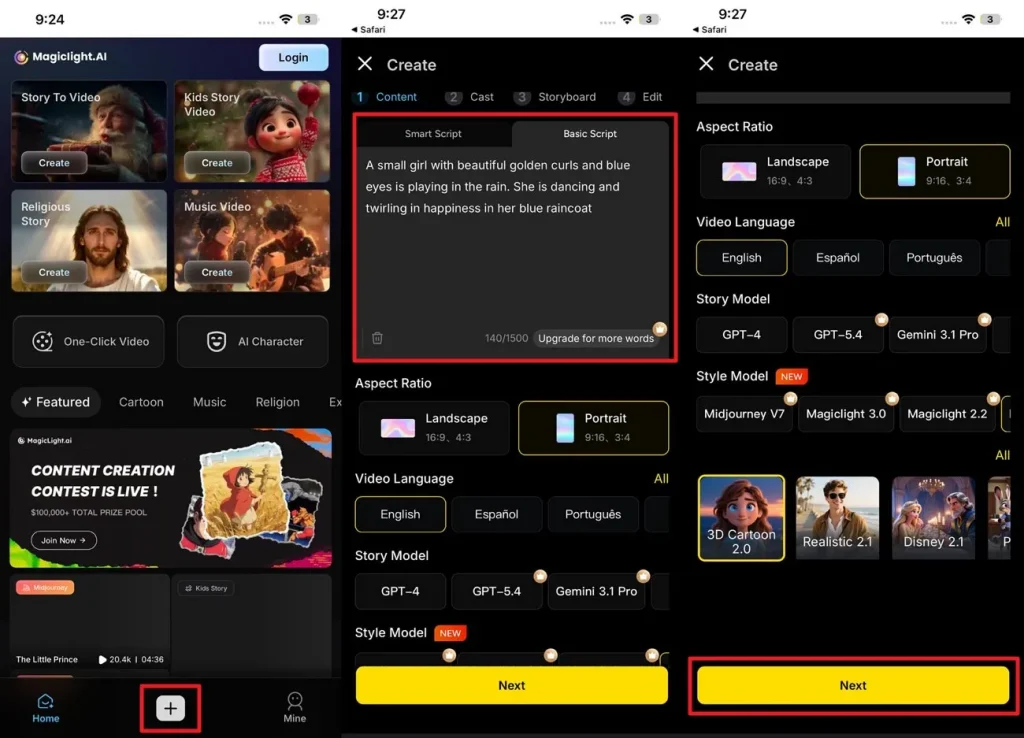
Step 2. Choose Character and Animate
Moving forward, select the character based on your text input and press the Next Step option. Now, tap on the Animate option located at the toolbar below. Select the Animation Model from the options provided and tap on Confirm.
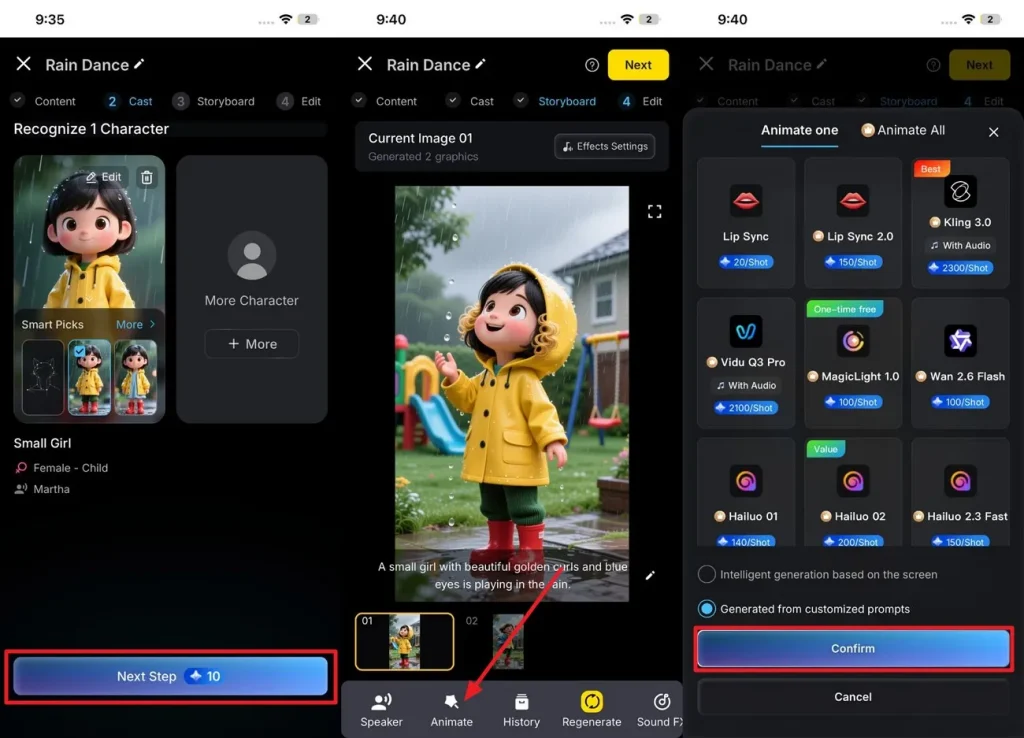
Step 3. Enter Animation Prompt
Now, input the animation text prompt and press the Confirm button at the bottom. Preview the results and add subtitles if needed.
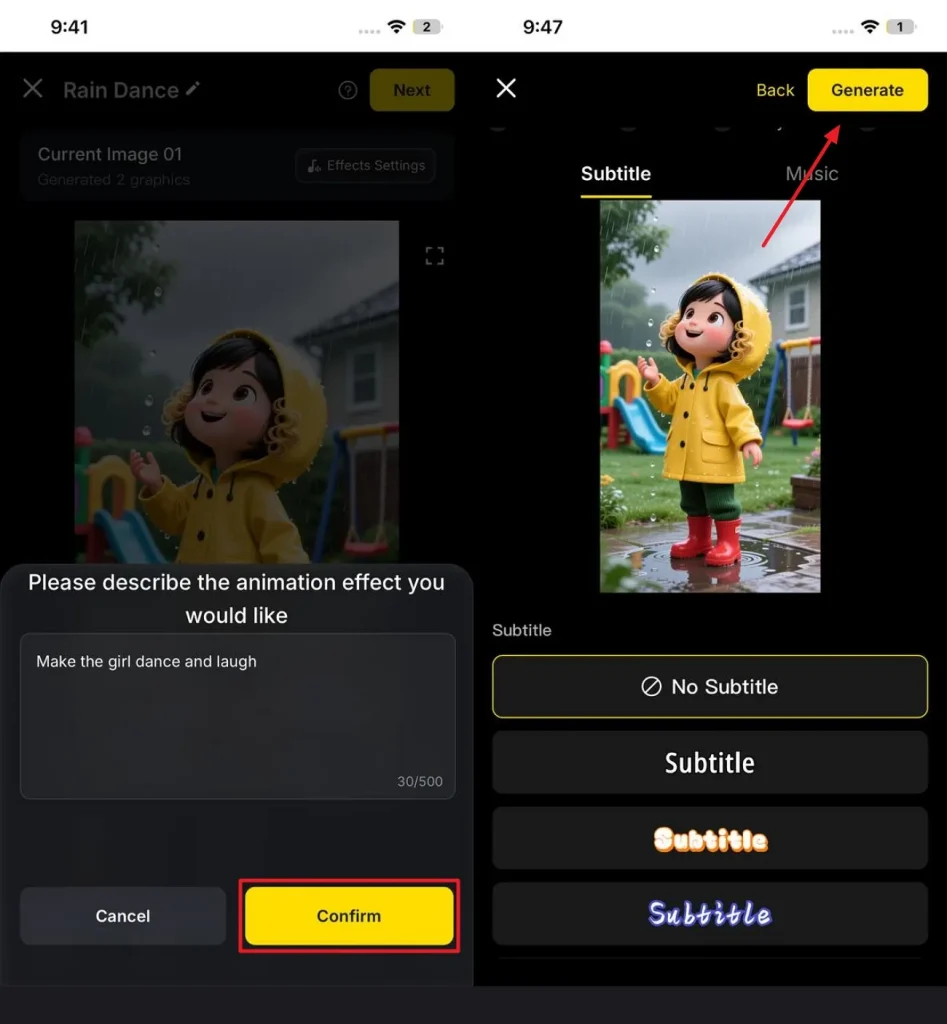
Step 4. Confirm Settings and Generate
Next, choose Ratio and Resolution and press the Generate button to save the animated video to your iPhone. Once the video is generated, press the Download Video button to save it to your phone.
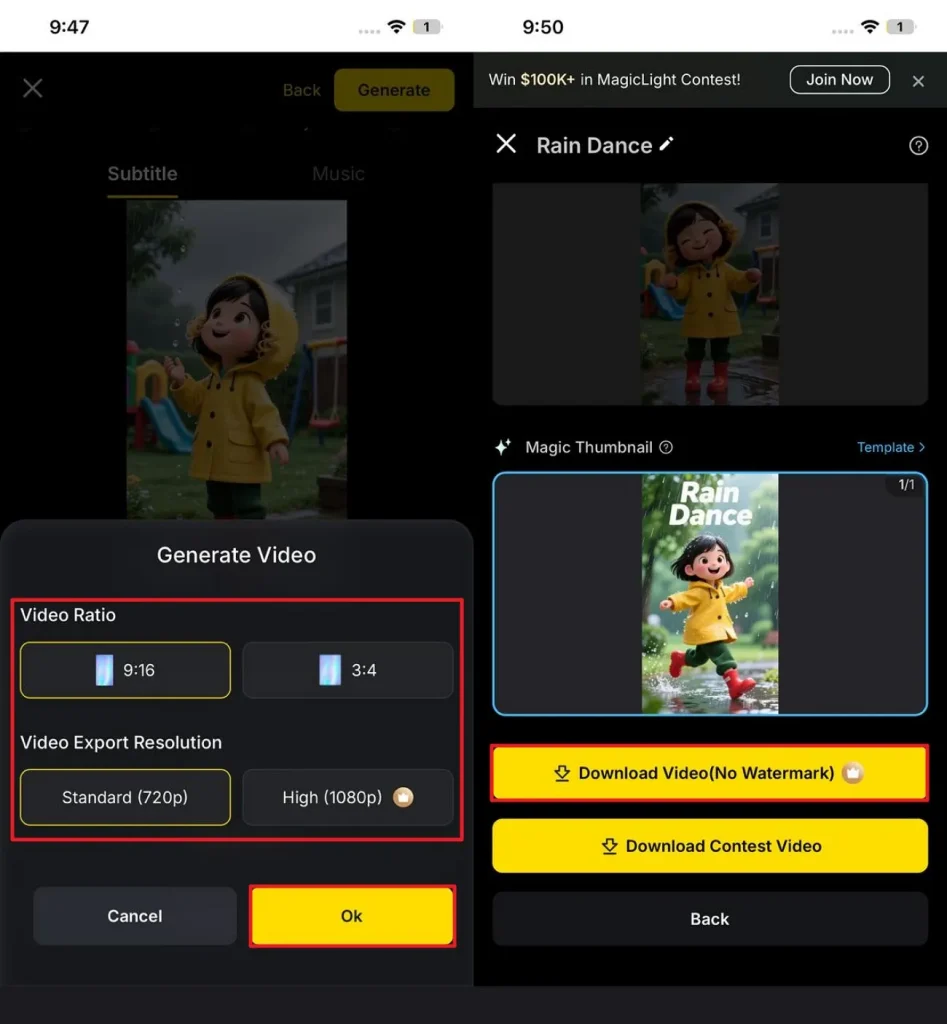
Part 3. Why Magiclight.AI Stands Out for Animating Pictures With AI Tools
For creators exploring how to create animated pictures, choosing the right AI platform can make a significant difference in both quality and workflow efficiency. Magiclight.AI stands out by combining powerful automation with beginner-friendly controls. Below are some key reasons why it is a preferred tool for AI-powered picture animation:
- Advanced AI Video Models: Magiclight.AI integrates powerful AI models that generate smooth motion and realistic animations from static images.
- Image-to-Video Technology: Its dedicated image animation feature converts a single photo into a dynamic scene with natural movement.
- Prompt-Based Customization: Users can control animation style, motion, and storytelling simply by entering descriptive prompts.
- Flexible Video Settings: The platform allows adjustments for duration and resolution, helping optimize animated visuals for different platforms.
- Beginner-Friendly Interface: With simple controls and ready-made templates, users can animate pictures without advanced editing skills.
Part 4. Common Mistakes to Avoid When Learning How to Animate a Picture
While exploring how to make animated pictures, beginners often overlook certain details that affect the final animation quality. Avoiding these common mistakes can help create smoother and more engaging animated visuals.
- Using Low-Quality Images: Starting with blurry or low-resolution images often leads to poor animation results. High-quality images help AI tools generate clearer motion and better visual details.
- Adding Too Many Effects: Excessive motion, transitions, or visual effects can make the animation look cluttered. Keeping movements simple usually produces smoother and more professional results.
- Writing Unclear Prompts: Vague prompts may cause the AI to generate random or inconsistent animation styles. Clear and descriptive prompts help guide the animation process more accurately.
- Selecting the Wrong Animation Style: Choosing a style that doesn’t match the image content can reduce visual appeal. Matching the animation style with the subject creates more natural results.
- Ignoring Video Settings: Skipping resolution or duration settings can produce videos that are not optimized for platforms. Adjusting these settings ensures better quality and compatibility.
Conclusion
To sum it up, this article provided a detailed guide on how to animate a picture using a modern AI tool. From understanding the basics to following step-by-step instructions, animating photos has become easier than ever. Choosing the right platform plays an important role in achieving high-quality results. Among available options, Magiclight.AI stands out for its powerful image-to-video technology, flexible settings, and beginner-friendly workflow for creating engaging animated visuals quickly.
Frequently Asked Questions
1. How to animate a picture AI free?
You can animate a picture for free using AI tools like Magiclight.AI, which offers a beginner-friendly interface and prompt-based controls. It allows users to convert static images into engaging animated videos without advanced editing skills.
2. What is the best tool to animate a picture in 2026?
In 2026, Magiclight.AI is one of the top tools for animating pictures due to its advanced AI models, image-to-video technology, and flexible customization options. It supports multiple formats and produces professional-quality animations efficiently.
3. What app is used to animate photos?
Apps like Magiclight.AI, along with other AI animation platforms, are commonly used to animate photos. They allow users to add motion, transitions, and effects to static images to create dynamic visuals.
4. What is the difference between photo animation and video editing?
Photo animation focuses on turning still images into moving visuals using AI or motion effects. Video editing involves arranging clips, trimming, adding effects, and enhancing pre-recorded footage. Animation is about creating motion from static content, whereas editing refines existing videos.
5. What should you look for in a tool to animate a picture?
When choosing a tool, consider ease of use, AI-powered animation features, multiple format support, and customizable settings. Magiclight.AI meets all these criteria, offering high-quality animations, prompt-based controls, and beginner-friendly templates.



![How to Write a Script for a Video 2026 [Full Guide]](https://blog-new.magiclight.ai/wp-2/wp-content/uploads/video-script-writing-setup-300x199.jpg)