


Many platforms like Vheer AI video generator help people turn simple ideas into polished content. In 2026, creators and small teams rely on this platform to plan projects and manage everything together. They combine chat features and cloud storage, so your research and final files stay neatly linked.
With built‑in generators, you can make videos, images, and written content without switching between many different apps. This guide explains how Vheer AI video generator works, if it suits your needs, and introduces a strong alternative.
Part 1. What is Vheer AI Video Generator?
An innovative online tool, Vheer AI Image to Video Generator, transforms one photo into a cinematic moving scene. It turns simple images into engaging clips without needing extra reference pictures or complex editing skills. Vheer AI allows you to create short clips and longer sequences in MP4 and WEBM up to 1080p. The platform focuses on smooth motion transitions, so camera and subject movements feel natural.
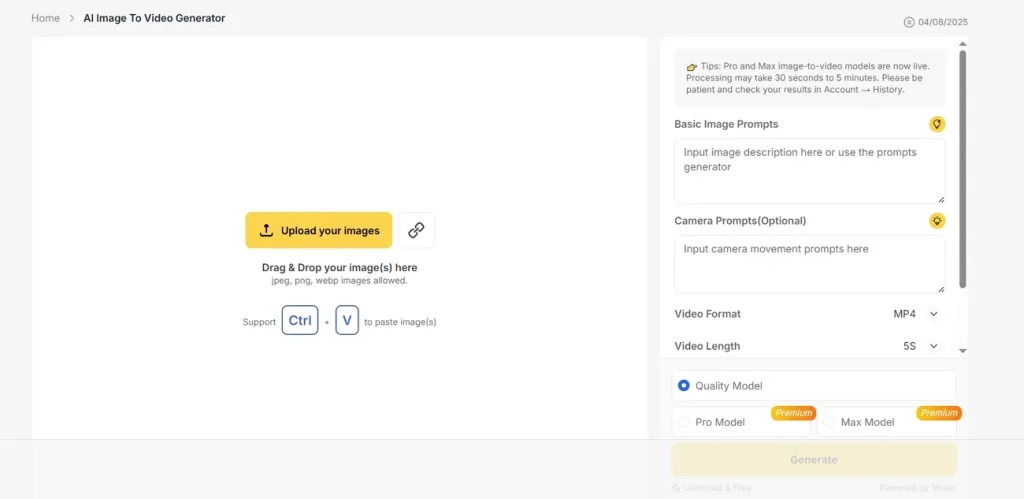
Each video can take a few minutes, because generating fluid animation needs more processing than a single image. This balance of quality and automation makes it useful for creators, marketers, and beginners.
Key Features
- You can adjust video length, frame rate, resolution, and export format very easily.
- Vheer offers multiple AI models that change visual tone, motion style, and overall look.
- All generated videos are exported without watermarks, with no forced logos or brand overlays.
Pros
- Helpful motion suggestions are generated automatically from each uploaded image.
- You can create videos instantly without accounts or setup steps.
Cons
- Clips are usually 4 to 5 seconds, limiting deeper storytelling.
- Lacks customization controls for creators needing advanced adjustments.
Part 2. How to Use Vheer AI Video Generator
Now that you understand what this tool does, you may wonder how to apply it in real projects. To keep things simple, follow the clear steps below to get the most from Vheer AI video generation:
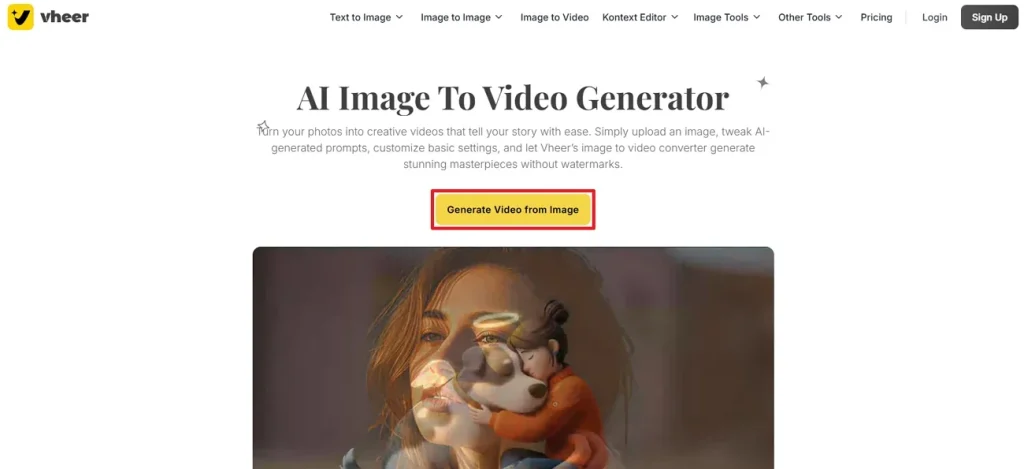
Step 1. Once you enter the AI image to video tool, press the Generate Video from Image button to enter the interface.
Step 2. Next, press the Upload Your Image button or click the Image URL option to upload the image. Afterward, type the description in the Basic Image Prompts section and select an appropriate Video Format and Video Length.
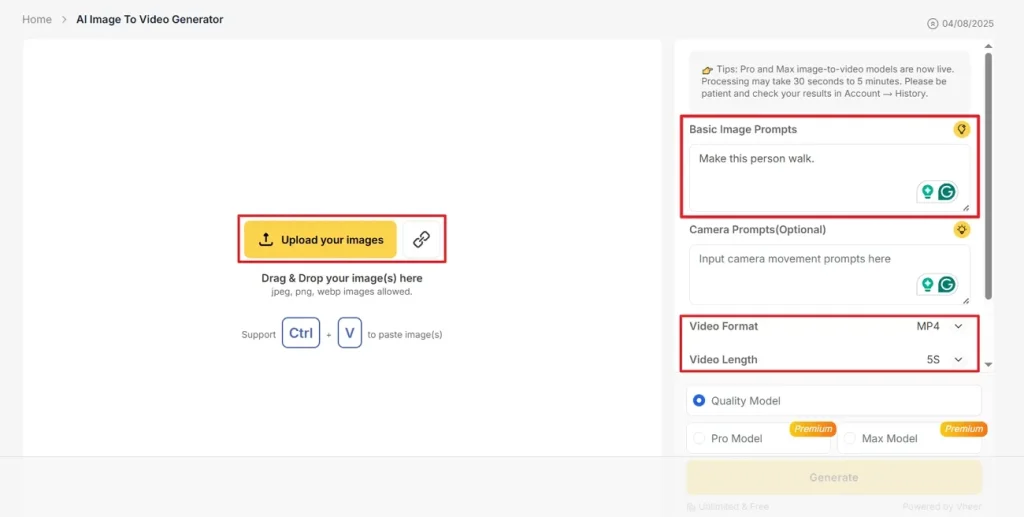
Step 3. After that, scroll down the editing panel and choose an appropriate Video Frame Length and Video Dimension. Next, select a suitable video generation model and click the Generate button.
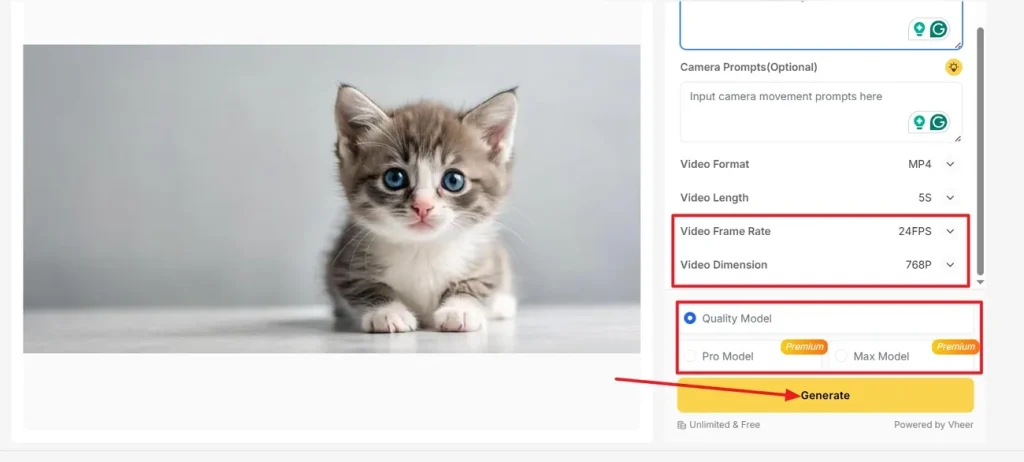
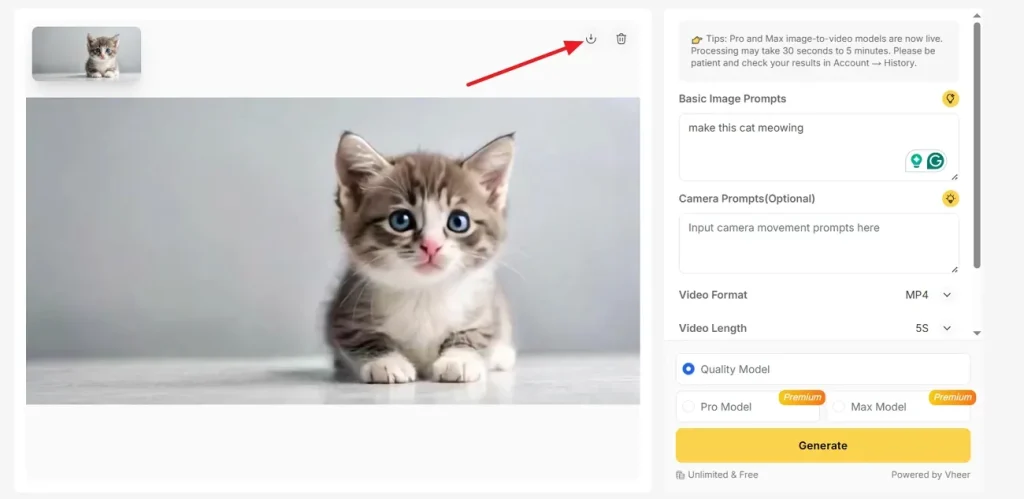
Step 4. Once the final video is generated without a watermark, press the Download button to save the final video. If any adjustments are required, enter the new description and regenerate the video.
Part 3. Best Alternative to Vheer AI Video Generator
After using Vheer AI Video Generator, many creators want longer, more controlled videos from simple text prompts. This is where Magiclight.AI comes in, built specifically for long‑form videos and stable narrative structure. It keeps characters consistent from shot to shot, so faces, clothing, and proportions stay visually reliable. Background details and style stay consistent across scenes, using 19 video background models for flexible storytelling settings.
With natural prompts, you guide actions, camera moves, and scene energy in over 30 supported languages. Magiclight.AI can generate full stories with video, voice, captions, and audio in 1080p resolution. It also supports long videos up to 50 minutes and offers more than 20 unique visual looks.
How to Use MagicLight.AI to Generate Long-Form Videos
Having introduced an innovative Vheer AI Image to Video Generator alternative, follow the steps below to see how it works:
Step 1. Start a New Project
First, select the Story to Video generation tool and choose an appropriate Aspect Ratio and Duration for your video. Next, choose a Video Language, select a Story Model, and pick an appropriate Style Model. Afterward, press the Smart Script tab and write a script for your video. This will automatically optimize your script by using AI. Once done, press the Next button to continue.
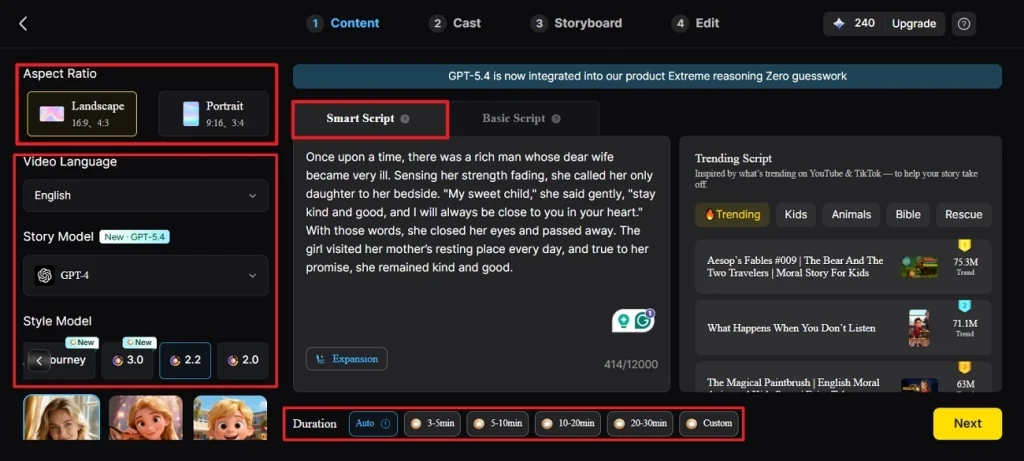
Step 2. Check the Synopsis Breakdown
After that, review the complete scene and Synopsis breakdown in detail and make any adjustments on the stop if needed by using the Control on the top. Once the scene layout is finalized, press the Next button to move forward.
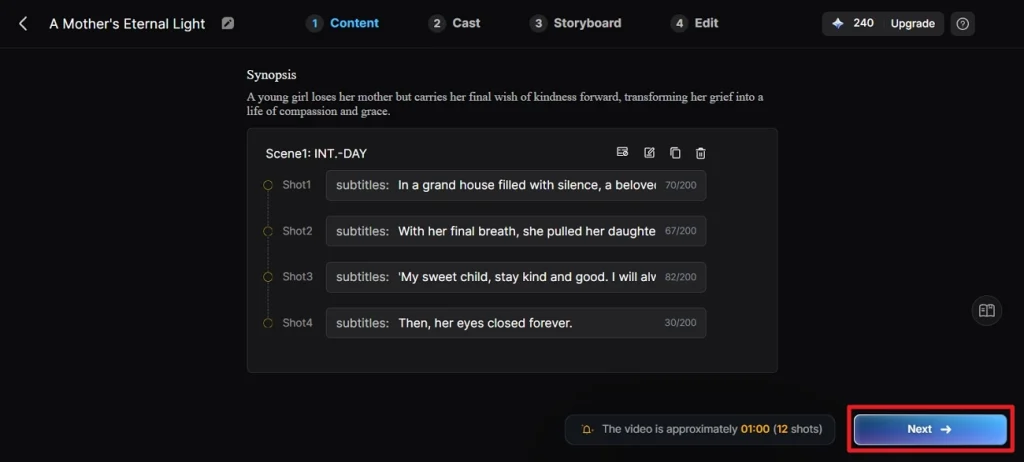
Step 3. Choose a Character For Video
Once the tool analyzes your script, it will detect characters and show you the available options for the video. Press the More option to explore more characters, or if the character is finalized, simply click the Next Step button.
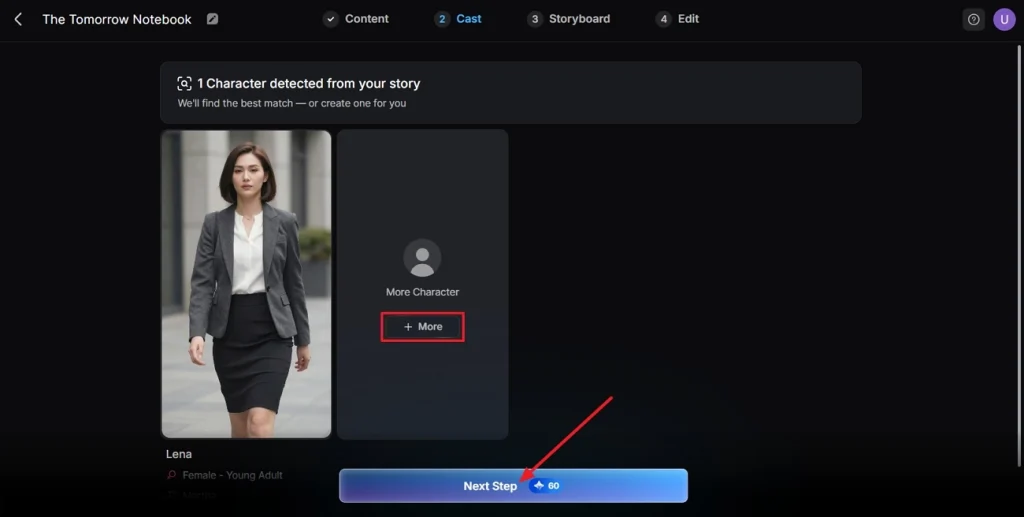
Step 4. Review or Edit The Storyboard
Next, review all the scenes in the generated Storyboard carefully. If any adjustments are needed in the Clothes, Expression, or Poses, make them by using the controls below. Once the Storyboard is finalized, click the Next button.
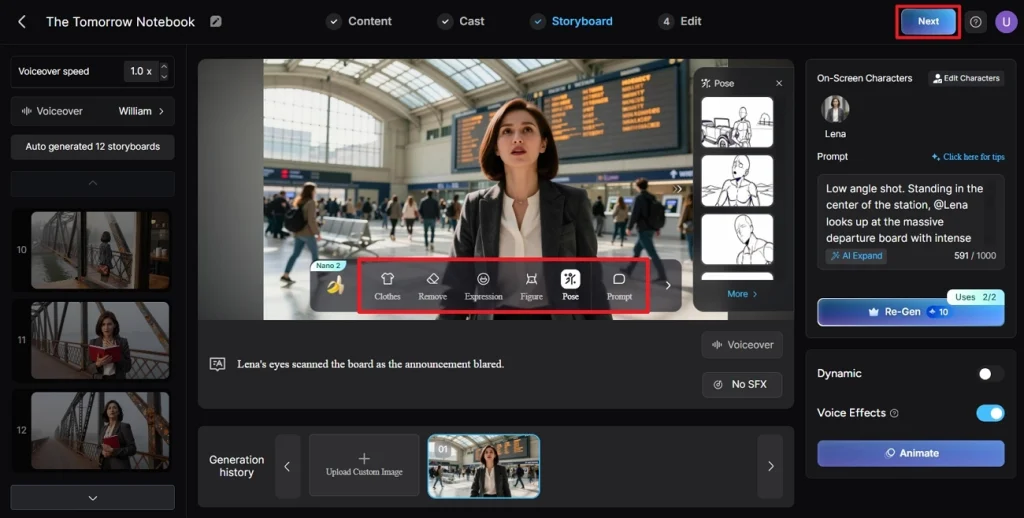
Step 5. Select Subtitles Style if Needed
After that, if your video includes dialogues, choose a Subtitle style from the options given below. Once the subtitles are finalized, finally click the Generate button.
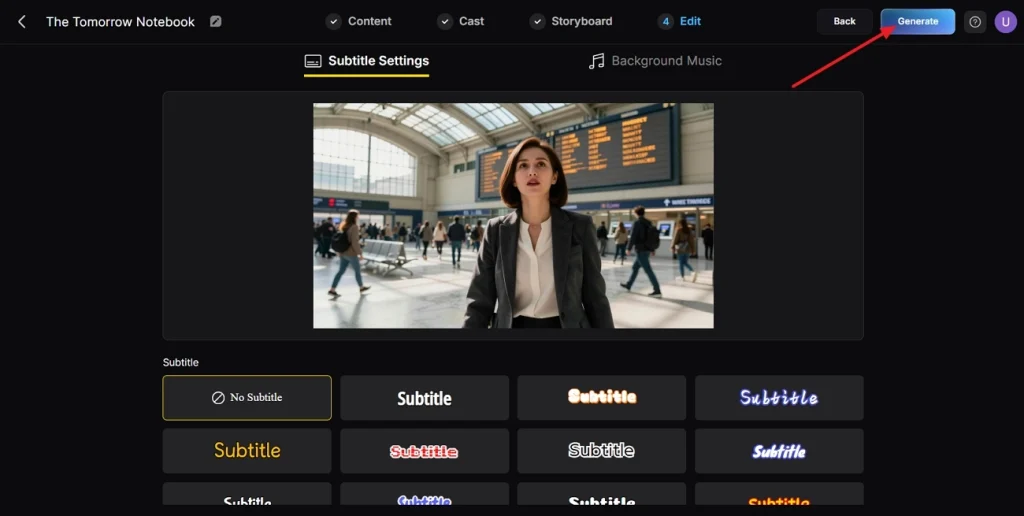
Step 6. Download The Final Video
When the tool generates the video, play the video and review the Cover, Thumbnail, and Hashtags. Once the video is finalized, click the Download Video button to generate the video.
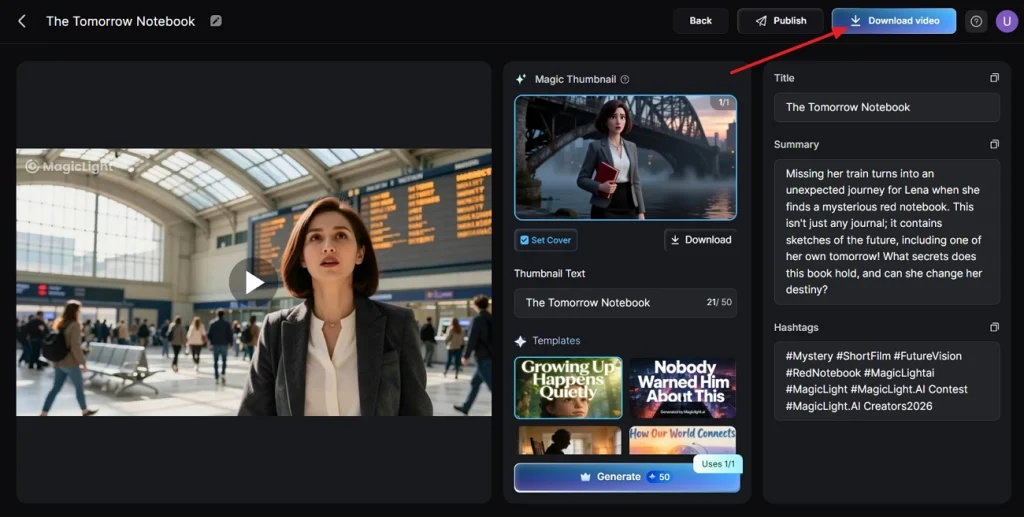
Part 4. Comparison Table Between Vheer AI Video Generator and Magiclight.AI
Some people, after using Vheer AI Video Generation, start wondering how it compares with Magiclight.AI. They want to know if Vheer is still enough for quick clips or if Magiclight.AI offers more value. So, check out the table below to compare both online platforms side by side:
| Aspect | Vheer AI | Magiclight.AI |
| Input Formats | Image uploads like JPG, PNG, WebP for video | Text prompts, scripts up to 1500 words, plus media uploads inside different video tools |
| Output Formats | Exports MP4 or WebP/WEBM, with videos going up to 1080p | Exports full videos as MP4; long‑form tools target 1080p output |
| Languages (Video) | No voice support | Supports for 30+ languages in storytelling. |
| Max Video Length | Short clips, 5 or 10 seconds per clip | Long‑form content up to 50 minutes per video |
| Generation Focus | Emphasizes smooth motion transitions and cinematic effects | Builds multi‑scene, story‑driven videos with stable characters |
| Styles/Looks | Several AI models and cinematic effects | Offers 20+ visual looks for different channels |
Conclusion
In the end, we examined Vheer AI Video Generator, its key strengths, and where it starts to fall short. We also looked at Magiclight.AI, which is built for longer and consistent story‑driven videos. If you need stable characters, unified backgrounds, and complete episodes, Magiclight.AI is the better choice because it keeps everything in one place.
FAQs on Vheer AI Video Generator
1. Is Vheer AI Video Generator free?
Yes, Vheer AI Video Generator is free to use with its standard quality model, but you need a paid plan to unlock Pro and Max models for video. This means basic users can experiment without cost, while professionals pay for better quality outputs.
2. Is Vheer AI totally free?
Vheer is not “totally” free at every quality level, yet its basic tools are free to access. For most people, the free model of Vheer AI Image to Video Generator gives better value for basic short clips and simple animations.
3. What is the best alternative to Vheer AI Video Generator?
The best alternative to Vheer for serious projects is Magiclight.AI if you want long videos instead of short clips. It can generate multi‑scene stories up to 50 minutes with multiple AI voice options and rich narration support.


![How to Write a Script for a Video 2026 [Full Guide]](https://blog-new.magiclight.ai/wp-2/wp-content/uploads/video-script-writing-setup-300x199.jpg)