



A video script must communicate clearly as the video plays. Viewers should understand each point immediately without interpreting unclear lines or connections between scenes. The words should sound natural when spoken and work smoothly with visuals, captions, and transitions.
If you are learning how to write a script for a video, start by defining the target audience, main message, and pace. These decisions shape the structure, level of detail, and timing. Clear wording matters, but it cannot compensate for weak planning.
Part 1. How to Write a Video Script for Beginners
A first draft that reads well on paper often runs twice the length a finished video needs. Learning how to write a video script means cutting toward one message rather than expanding around it.
What Every Video Script Must Contain
Before writing individual lines, focus on 5 core elements that keep your video clear, engaging, easy to follow, and purposeful throughout:
- An Opening Worth Staying For: Get into the subject early. Put the useful part first, whether that is a question, a problem viewers recognize, or the outcome they want to see.
- One Main Idea: Know what the video is really about before writing around it. Extra details are useful when they support that point; side topics usually pull attention elsewhere.
- Words That Work When Spoken: Say each line as you write it. Awkward phrases tend to show themselves straight away. If you trip over a sentence, trim it or swap in words you would normally use in conversation.
- A Job For Every Scene: Each scene should move the video somewhere. It might explain a step, show evidence, introduce a character, or demonstrate what the narration is describing.
- One Thing To Do Next: End with the action that matters most. Ask for the click, signup, download, purchase, or reply instead of packing several requests into the final few seconds.
Length follows from those decisions rather than preceding them. A script that respects all 5 typically lands between 130 and 150 words per finished minute of narrated video.
Overview of MagicLight AI
MagicLight AI uses a script-first workflow that moves written material into video production. You can paste in as many as 12,000 characters at once. MagicLight AI then splits the writing into scenes and generates the video around them, adding the pictures, voices, captions, and music. Before exporting, you can review the storyboard and change how a character moves, looks, or reacts, as well as how long individual scenes last.
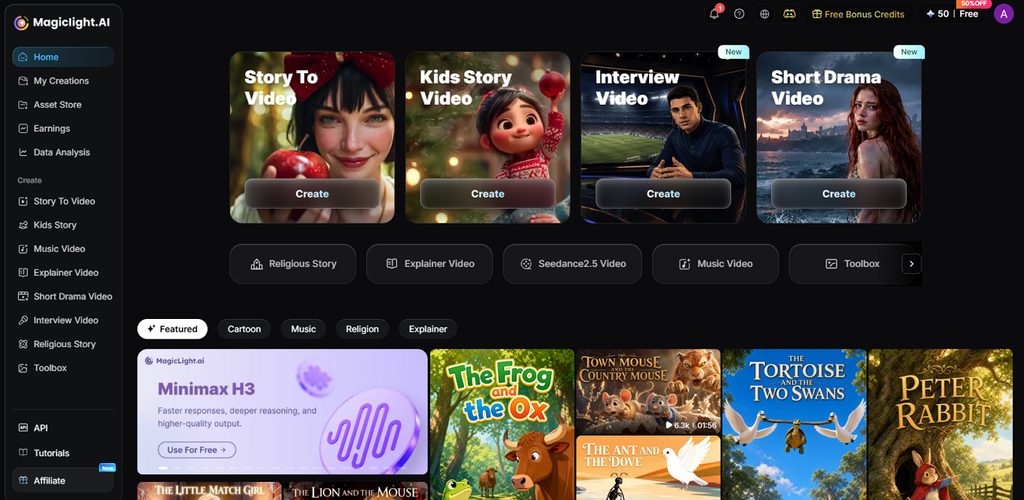
Long-form support sets it apart from generators designed mainly for short clips. A single project has room for as much as 50 minutes of video. There are 37 voices to work with, along with different visual styles, aspect ratios, and export quality up to 1080p. So the same workspace can handle anything from a short social post to a lesson, story, explainer, or longer YouTube video.
Key Features for Script Writing
Learning how to create a video script becomes easier with the right tools, and these MagicLight AI features support that process:
- Story Model Selection: MagicLight AI includes 14 story models for different writing needs, including GPT-6 Astra for creative planning and script development, alongside models geared toward narrative structure and visual storytelling.
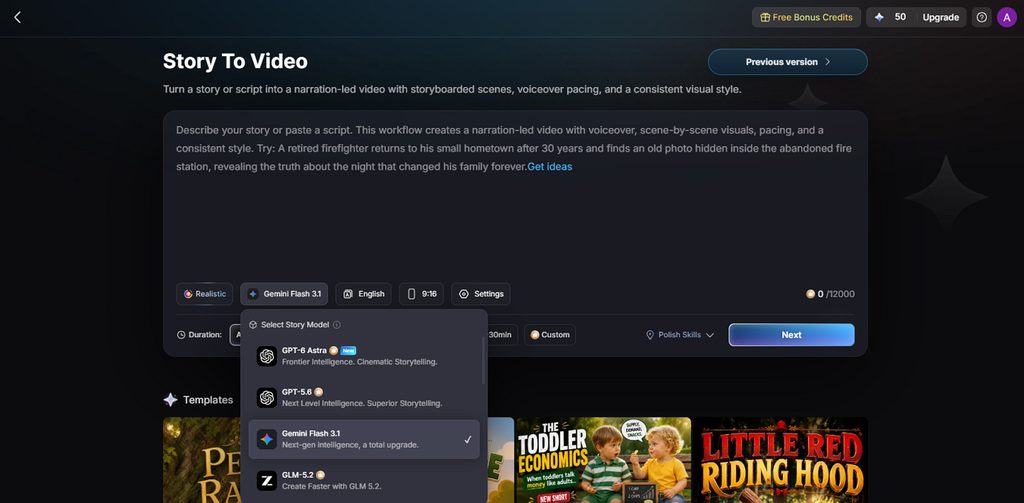
- Multilingual Narration and Subtitles: The same script can be narrated and subtitled in 11 languages, making one written version easier to adapt for different audiences.
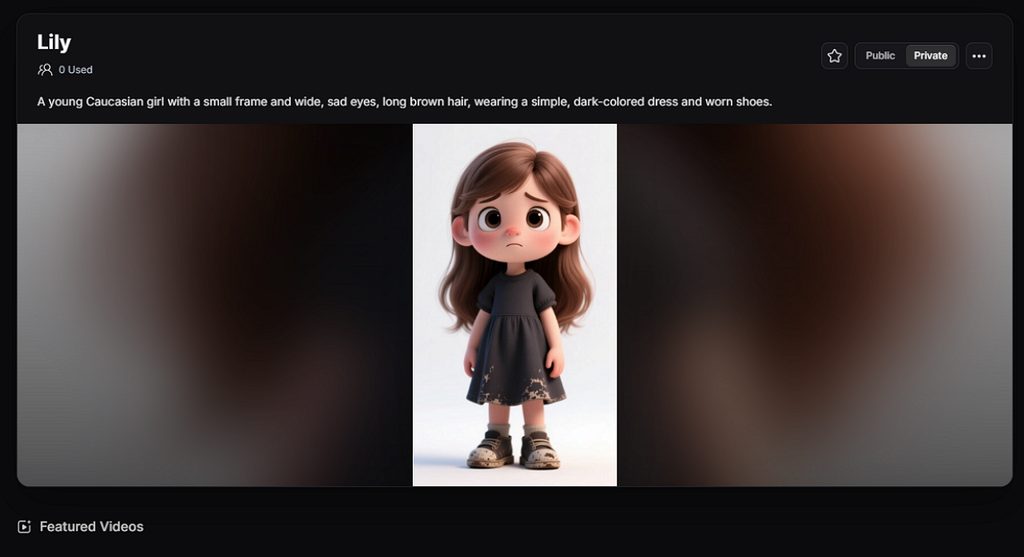
- AI Character Creation: Characters described in 1000 characters prompt or generated from a photograph are saved and reused, keeping one cast consistent across a series.
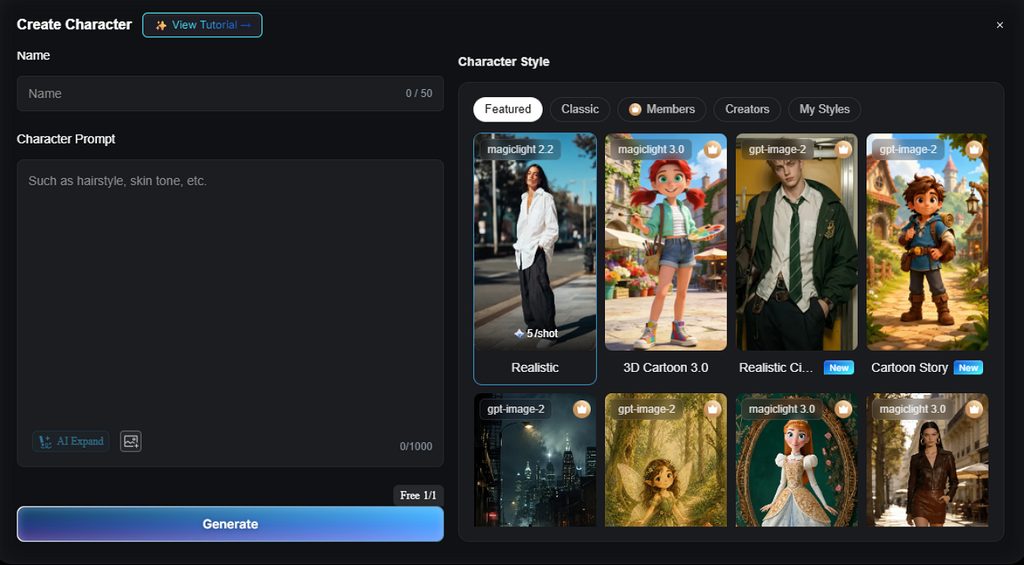
- Voiceover and Subtitles. Narration draws on 37 voices, a recurring presenter can be cloned, and captions arrive in one of 16 preset styles.
- Nano Storyboard Editing: Generated scenes remain editable before rendering, with controls for timing, camera angles, visual prompts, expressions, and more than 50 character poses for fine-tuning each shot.
User Reviews
- After several months with MagicLight, I can say the platform feels well cared for. Image and video generation are smooth, and support is responsive and personal. You don’t feel ignored as a user.” - Spiderman batman Catwoman
- “I started using Magiclight AI two months ago and what I feel is that the app is awesome. Although the interface could be a bit more intuitive, the overall functioning is top-notch.” - Vivek
- “Magiclight is one of the first Ai platforms I used and one of many I tried , and to be honest whether you are a beginner or an expert I really recommend you try it out , with its many features such as high regenerating images and many animating tools…” - Muhammad Ali
From Content to Edit: The Full Workflow
Knowing how to make a video script starts with a clear workflow. MagicLight AI’s Story to Video takes you through the steps from planning to final editing.
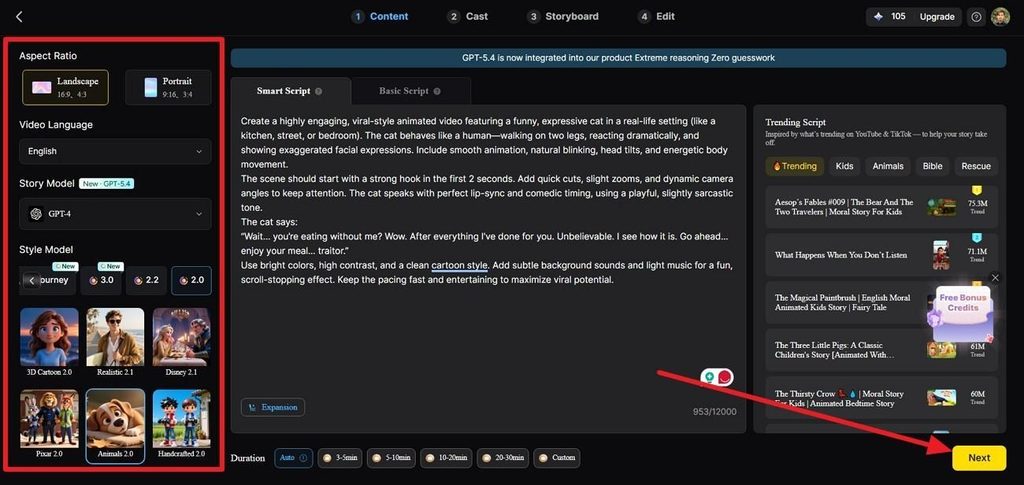
Step 1. Add Your Script
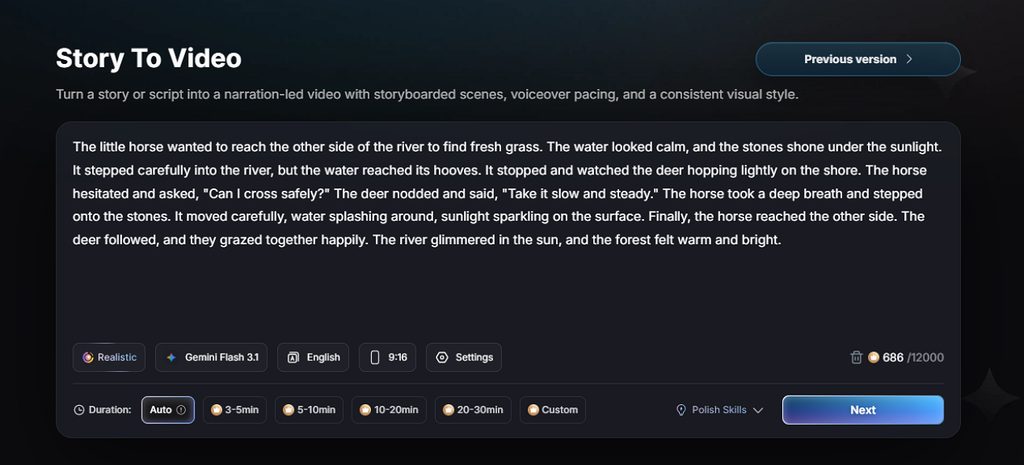
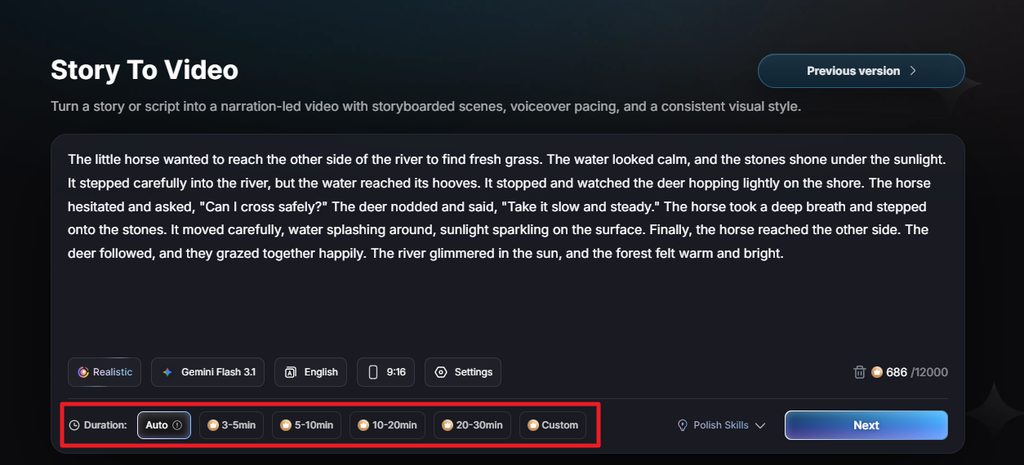
Add your prompt, set the aspect ratio, video language, story model, and style model. Then select the Duration and press Next.
Step 2. Check the Script Structure
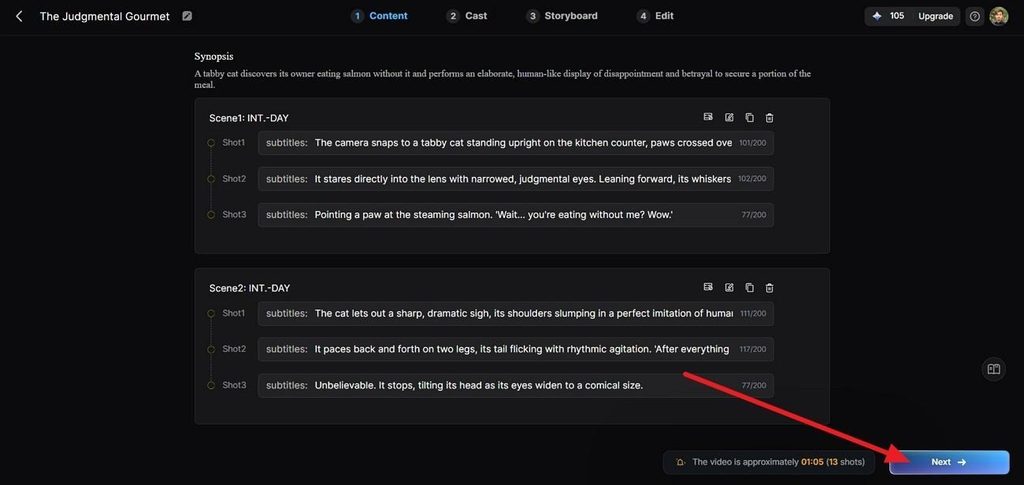
Review the generated Synopsis, Scenes, and Shots, revise any shot descriptions that need improvement, then select Next to continue.
Step 3. Set Up the Cast
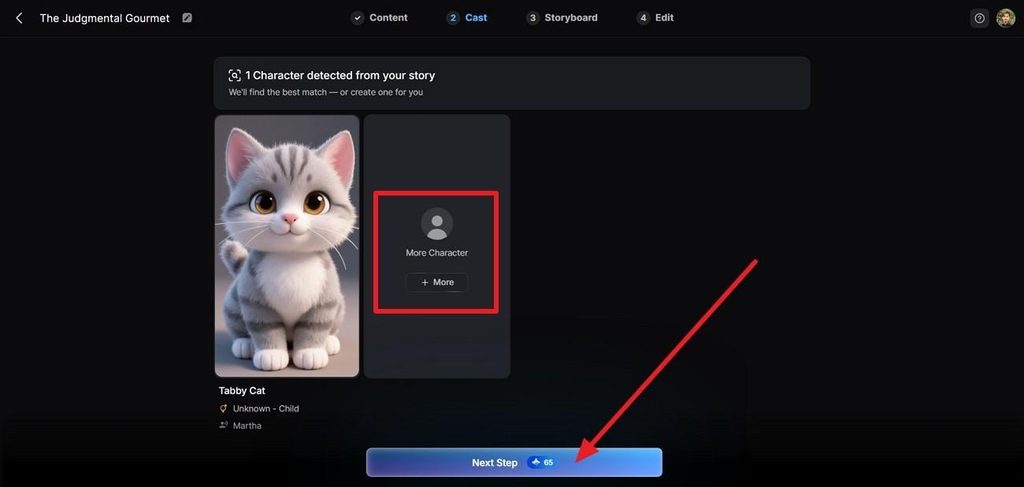
In the Cast tab, check detected characters, keep or replace existing choices, or use + More to add another character.
Step 4. Refine the Storyboard
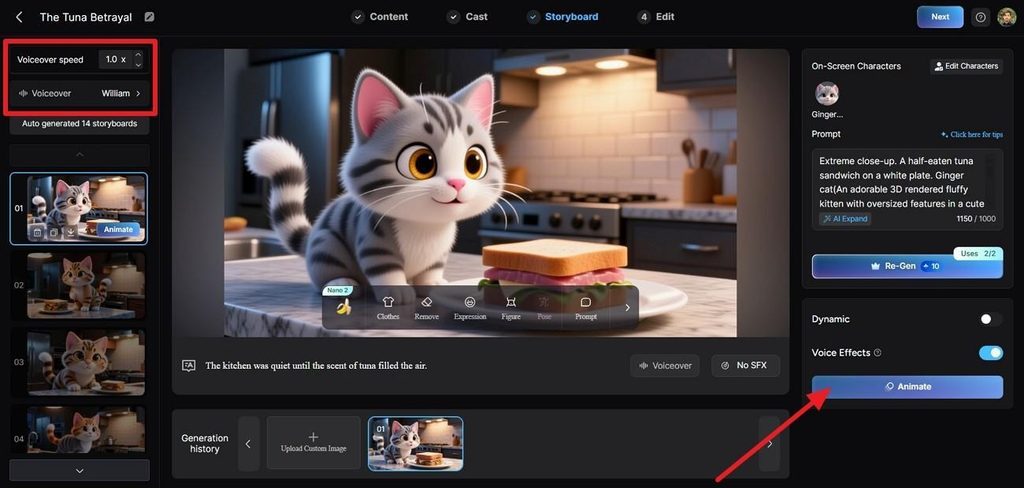
Choose a storyboard frame, then modify its prompt, expression, figure, pose, and voiceover settings before selecting Animate to proceed.
Step 5. Set Subtitles and Music
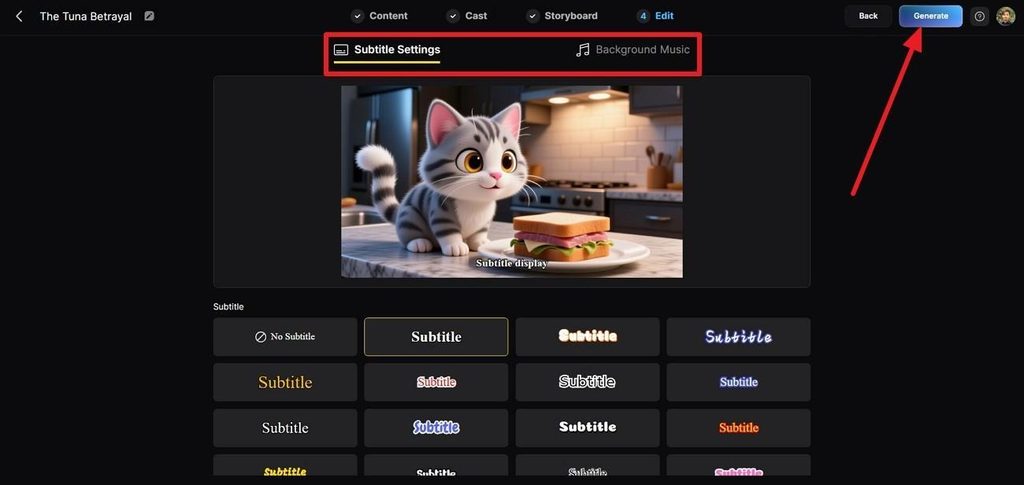
Enter Edit, select your preferred subtitle appearance, configure the soundtrack under Background Music, and click Generate.
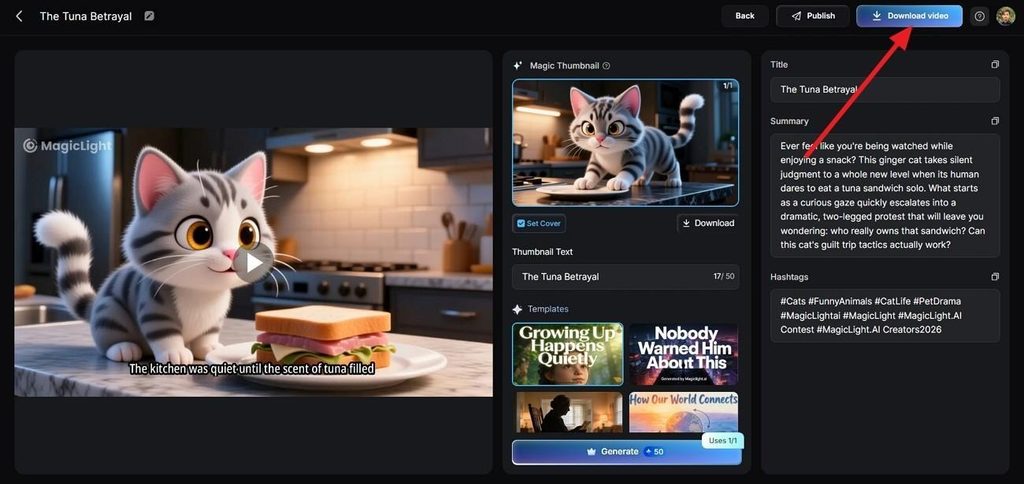
Step 6. Review and Export
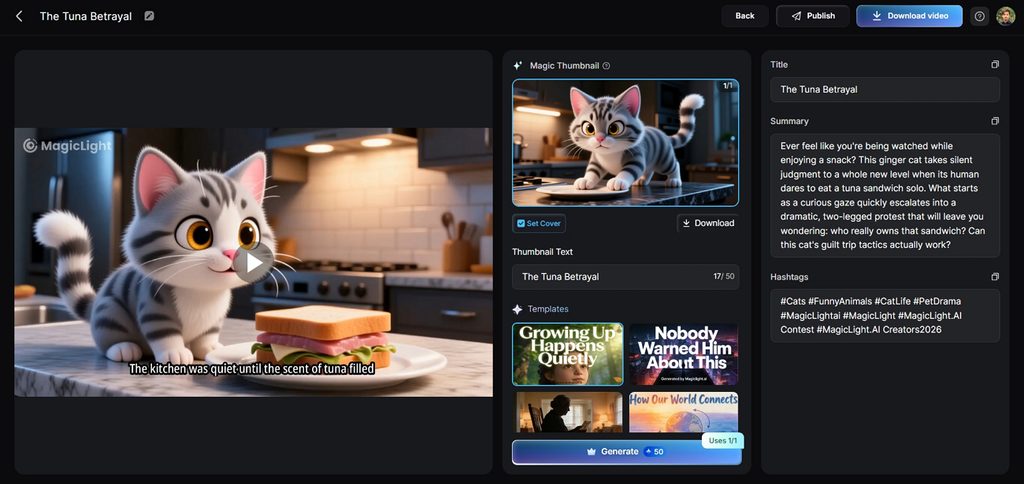
Preview the completed video, revise its Magic Thumbnail, title, summary, or hashtags, then choose Publish or Download Video as needed.
Part 2. Why Choose MagicLight AI to Write a Video Script
Plenty of tools are video prompt generators, and rather few treat the script as the working document. That distinction decides how much of your writing survives, which is the practical test when working out how to make a script for a video.
1. Script Remains the Starting Point
A completed script does not have to be rewritten as a collection of visual prompts before production. MagicLight AI can preserve existing scene breaks, interpret the text scene by scene, and create a storyboard around it. That gives writers a clearer route from approved copy to visuals without recreating the script for another format.
2. One Cast Across Every Scene
Characters can be saved and reused across scenes and projects, helping maintain a consistent cast. Ready-made characters and visual assets are also available through the MagicLight AI Asset Store, reducing setup work for episodic stories, branded series, or videos built around recurring characters.
3. Length That Matches the Writing
Clip generators stop between 5 and 30 seconds, so a 3-minute script arrives as fragments needing assembly. Runtime here extends to 50 minutes in a single project. The finished video therefore matches the length of what was actually written, with no stitching stage in between.
4. Finishing Handled in the Same Place
Narration, captions, and a cover image usually mean a second application and another export cycle. All 3 are applied before download at 720p or 1080p, so the file that arrives is publishable rather than raw material waiting on an editor.
Conclusion
A video script does not need to sound clever on the page; it needs to work when someone watches it. Keep the main point easy to catch, avoid a slow opening, and say the lines out loud before you settle on them. Once the writing is done, how to create a script for a video becomes a production job. MagicLight AI is worth considering here as an AI scene generator, which can move into scenes, voices, and the finished video in one place.
FAQs on How to Write a Script for a Video
1. How do I write a script for a video?
Pick the person you are talking to and decide what they should take away from the video. Write the lines as you would actually say them, rather than dressing them up for the page. Get to the interesting part early, give each scene something useful to do, and speak the whole script once before you sign it off.
2. Is there a fast instruction on how to make a script for a video?
The quickest route to how to make a script for a video is a 3-line outline covering hook, substance, and close. Expand each line into spoken sentences, then cut anything that sounds written rather than said.
3. Which is the best AI video tool to create a video script?
MagicLight AI suits writers best, since it expands a rough idea into a structured script and then produces the video from it. Prompt-based tools handle video script creation less directly.




![6 Best Free AI Video Generators [Compared]](https://blog-new.magiclight.ai/wp-2/wp-content/uploads/ai-video-generation-workflow-300x196.png)