


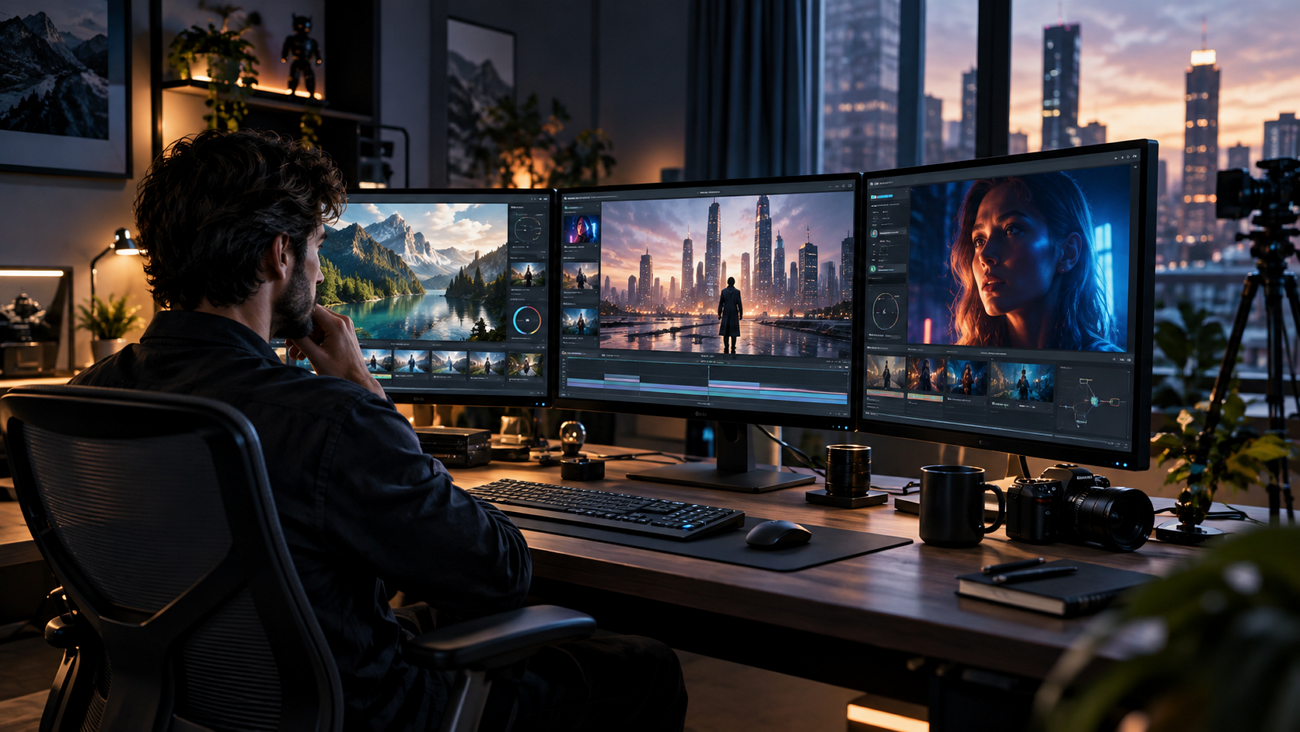
One feature sets Veo 3 apart from most hot ai video generators and changes how prompts are written there. Sound is created alongside the visuals, so leaving audio out means missing half of what the model offers. Google’s guidance treats a strong prompt as a set of clear parts. Effective Veo 3 prompts can cover subject, action, scene, camera, and audio, while dialogue formatting varies across current Google guidance.
Part 1. 20 Best Veo 3 Prompt Examples by Category
Every Veo 3 clip has a short window to make its point, with 8 seconds as the working limit. The best Veo 3 prompts use that time as one complete beat rather than a fragment. Each prompt starts at the moment that matters, without spending those limited seconds building up to it.
The 7 Elements Google Names
Strong prompts come from giving each detail a purpose. Google separates them into the following 7 elements that shape every shot:
- Frame Subject: Who or what holds the frame, described with enough detail to remain consistent.
- Physical Action: What the subject actually does, expressed with a clear verb rather than left implied.
- Scene Setting: Where the action happens, including details that make the location feel specific.
- Camera Direction: Camera movements can be combined, including pans, dollies, tracking shots, orbit, or tilts.
- Visual Treatment: How the finished shot should look, whether anamorphic, documentary, animated, or high contrast.
- Sound Direction: Describe dialogue clearly, with sound effects and ambiance written separately; quotation marks are optional.
- Negative Elements: Google treats these as a separate negative-prompt technique, not one of seven required prompt elements.
1. Dialogue and Character Scenes
Native audio is a major Veo feature, but quotation marks are not required for dialogue. Google Cloud guidance recommends using a colon after the speaker’s action, while audio details can be written clearly in separate sentences to keep sound layers distinct.
Name: barista-cafe-customer-dialogue.mp4
Alt: barista serving coffee to customer
- A barista behind a busy counter looks up mid-pour. She says, "Same as yesterday?" SFX: espresso hiss, low cafe chatter. Warm morning light, handheld medium shot.
- Two engineers face a whiteboard covered in diagrams. One says, "We are solving the wrong problem." SFX: marker squeak, distant office hum. Fluorescent light, static wide shot.
- An older man sits in a workshop holding a worn tool. He says, "My father made this one." SFX: sawdust settling, faint radio. Golden side light, slow push in.
- A hiker stops at a ridge and turns to camera. She says, "Four hours up, worth every one." SFX: wind, distant birds. Overcast daylight, shoulder-height tracking shot.
2. Product and Commercial Shots
Product shots leave little room for excess detail. Specify the material, lighting and one camera movement, then let sound add texture the visuals cannot carry alone. The prompts below show how Veo 3 handles that balance while making use of its advantage over silent video generators:
Name: black-watch-product-closeup.mp4
Alt: black wristwatch on stone display
- A matte black watch rotates slowly on a stone plinth. SFX: soft mechanical tick, studio room tone. Rim lighting from the left, macro lens, shallow depth of field.
- Coffee pours into a ceramic cup on a linen surface. SFX: liquid pouring, gentle ceramic contact. Morning window light from the right, slow dolly right, no music.
- A running shoe compresses on wet asphalt then releases. SFX: rubber against water, one footfall. Overcast daylight, high-speed macro, shallow focus on the sole.
- A perfume bottle catches refracted light against a coral backdrop. SFX: faint glass resonance, quiet room tone. Studio lighting, slow orbit, background falling to bokeh.
3. Cinematic Establishing Shots
Establishing shots shape the mood before anything else happens. Strong Google Veo 3 prompts define the camera and visual style clearly instead of relying on the word cinematic. The examples below put that approach into practice, with lens behavior doing the work:
Name: desert-highway-wide-shot.mp4
Alt: vehicle crossing remote desert highway
- A rain-soaked city street at night, neon reflected in standing water. SFX: distant traffic, steady rainfall. Anamorphic wide shot, slow forward dolly, deep blue grade.
- A desert highway stretches toward a heat haze at midday. SFX: wind across open ground, faint engine approaching. Static wide lens, high contrast, bleached color palette.
- Fog moves between pine ridges at first light. SFX: birdsong beginning, low wind. Aerials drift forward, cool blue tones warming as the sun clears the trees.
- An empty theater auditorium with a single work light burning. SFX: room reverb, faint electrical hum. Locked-off wide shot, deep shadow, warm practical light.
4. Nature and Ambient Soundscapes
Ambient work lets audio lead rather than support the picture. Sound effects written as separate sentences give the model room to build a layered soundscape. Strong Veo 3 prompts for landscape work therefore name 3 distinct sounds.
Name: rocky-coast-ocean-waves.mp4
Alt: waves crashing against rocky coast
- Slow-motion surf collides with dark basalt at the shoreline. SFX: water impact, receding gravel, gulls overhead. Low afternoon sun, camera fixed and unmoving.
- Snow falls through bare branches in a silent forest. SFX: muffled ambiance, occasional branch creak. Overcast flat light, slow vertical tilt upward.
- A river runs over shallow stones in summer. SFX: moving water, insects, distant leaves. Dappled sunlight through canopy, handheld low-angle shot.
- Wheat moves in wind across an open field at dusk. SFX: rustling stalks, low wind, no music. Golden hour backlight, slow tracking shot at waist height.
5. Action and Movement
Movement reads better when the prompt says exactly what happens instead of describing it loosely. When prompting Google Veo 3, place a clear action after the subject and use a verb that captures the physical motion. The following prompts show that structure in action:
Name: cyclist-rainy-mountain-road.mp4
Alt: cyclist riding on wet mountain road
- A cyclist leans hard into a wet corner and accelerates out. SFX: tire spray, chain tension, breathing. Overcast light, tracking shot alongside at wheel height.
- A dancer drops to the floor and rolls upright in one motion. SFX: fabric movement, one floor impact. Warehouse light through high windows, circling handheld cameras.
- A blacksmith strikes hot metal three times in rhythm. SFX: hammer on steel, forge roar, quenching hiss. Firelight from below, close static shot.
- A goalkeeper dives left and parries the ball wide. SFX: boot contact, crowd reaction, glove impact. Floodlit stadium at night, slow-motion side angle.
Part 2. Best Way to Turn Veo 3 Prompts to AI Video
A good prompt to video can nail one 8-second clip, but a collection of them does not automatically create a connected video. Characters, voices, and storylines can change between shots. That is where a Google Veo 3 prompt library reaches its limit when the goal is a complete video rather than separate scenes.
MagicLight AI takes that structure further with Veo 3.1 among 19 other AI-models and a script-based workflow. Google-style scene descriptions slot into its storyboard, while narration, captions, and consistent characters carry across scenes. The result can also run for up to 50 minutes instead of ending after eight seconds.
Turning a Prompt Set Into a Finished Video
That longer format starts by bringing separate prompts into one continuous Story to Video workflow. The process runs through the following stages, with the storyboard carrying most of the weight because any misread scene can be corrected before generation begins:
Step 1. Enter Your Prompt
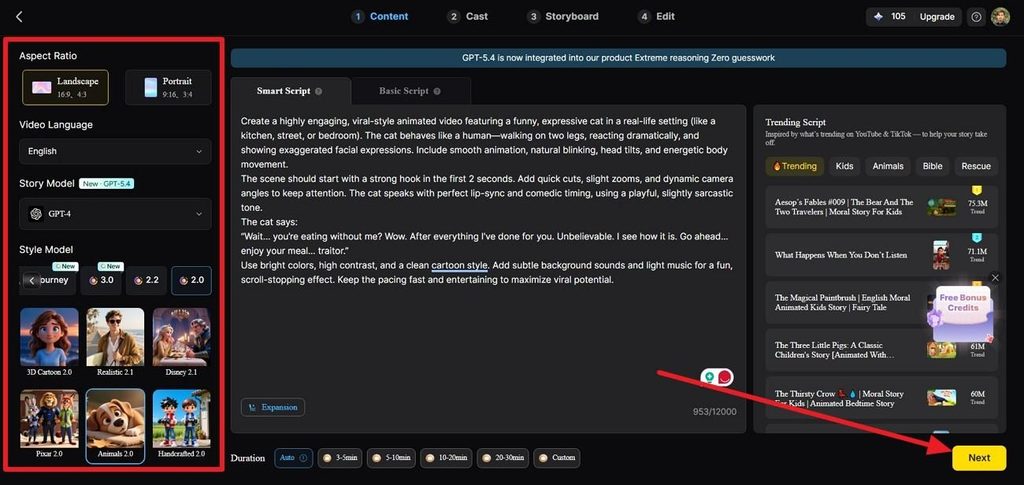
Add your prompt in the Smart Script prompt box. Select the language, aspect ratio, story model, style model, and duration, then press Next.
Step 2. Review the Scene Breakdown
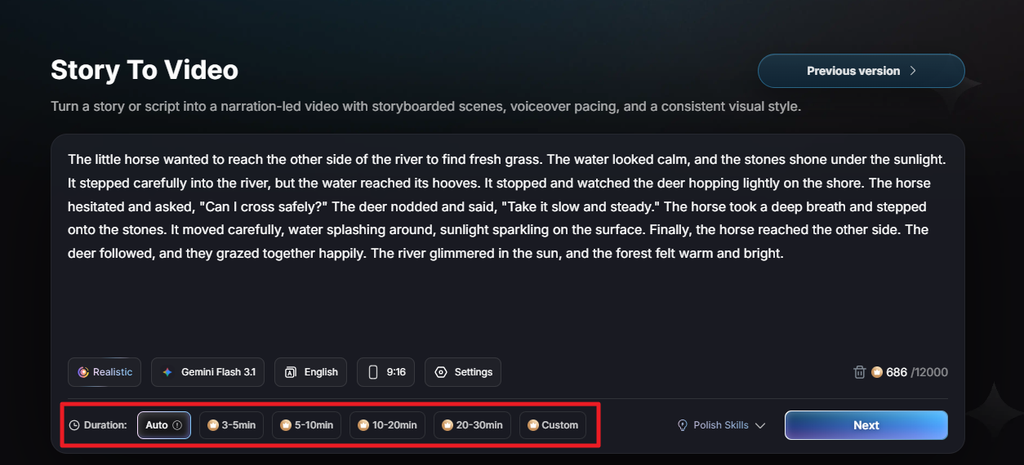
Check the generated Synopsis, Scenes, and Shots to see how MagicLight AI separates the script. Edit any shot description where the action, camera, or setting needs changing and press Next.
Step 3. Set the Characters
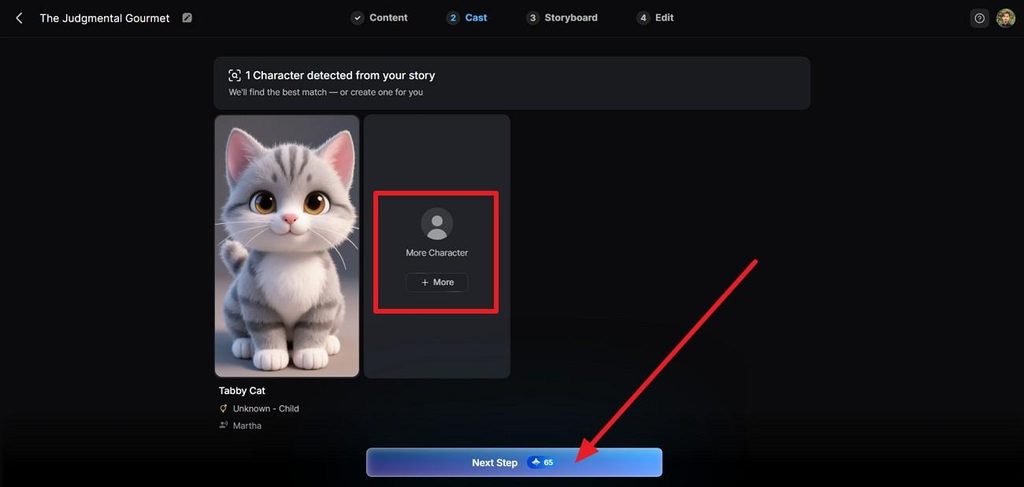
In Cast, review and customize the character and if you want to add another one, press More. After that select Next Step.
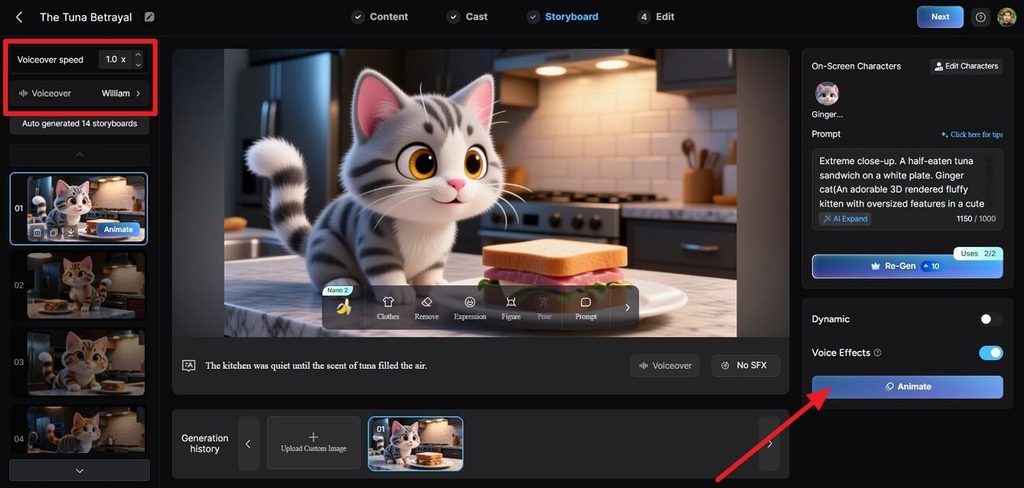
Step 4. Adjust the Storyboard Prompts
Select a storyboard frame and edit its prompt to match the intended scene, action, and visual direction. Change the expression, figure, pose, or voiceover where needed, then choose Animate.
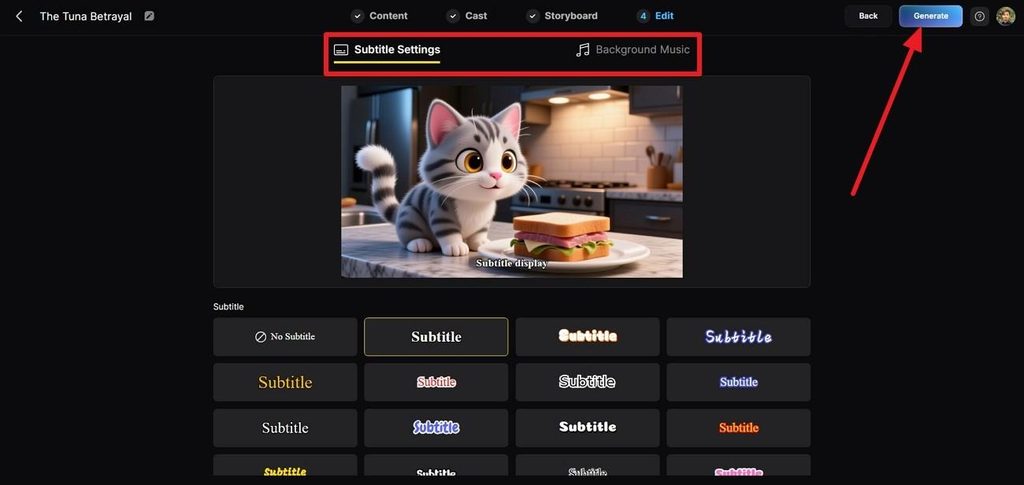
Step 5. Add Subtitles and Music
Go to Edit and select the subtitle appearance. Choose the soundtrack under Background Music, check it alongside the voice and scene audio, then click Generate.
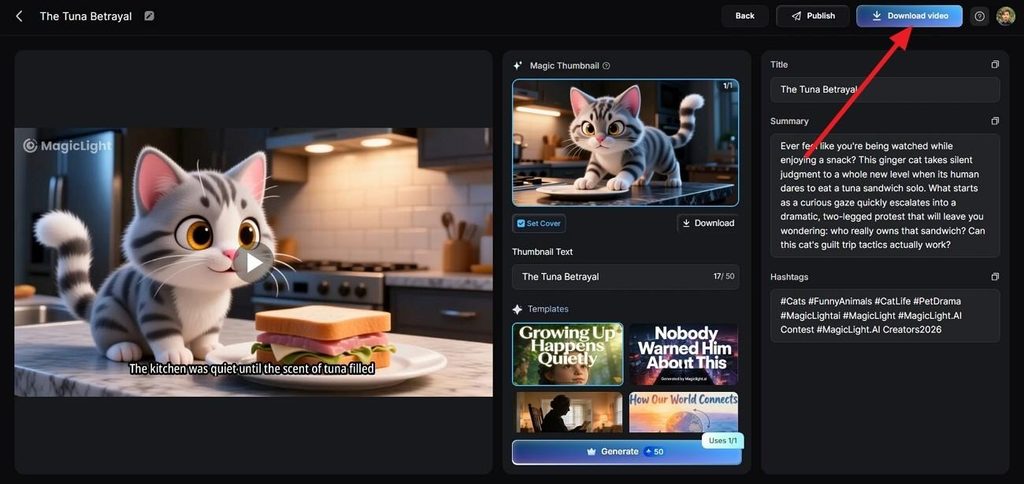
Step 6. Review and Export the Video
Watch the complete sequence and check how the individual prompts flow from one scene to the next. Update the Magic Thumbnail, title, summary, or hashtags, then select Publish or Download Video.
Conclusion
Effective prompting comes from separating the subject, action, camera, style, and audio instead of crowding everything together. A Veo 3 prompt also works better with quoted dialogue and clear direction. For videos beyond 8-second scenes, MagicLight AI provides a practical way to connect those prompts into one longer video.
FAQs on Veo 3 Prompts
1. What core elements should every Veo 3 prompt include?
Google names the subject, action, scene, camera, visual style, audio, and negative prompt. Not every element is needed each time, though anyone learning to prompt AI Veo 3 output should understand all seven before dropping any.
2. What videos can Veo 3 prompts create?
Dialogue scenes, product shots, establishing shots, nature footage, and action beats all work within 8 seconds. Longer narrative pieces need assembly elsewhere, which MagicLight AI handles by generating from a script instead.
3. What is a good negative prompt for Veo 3?
List the unwanted elements as plain nouns rather than writing instructions. Google's own example excludes a wall and frame simply as “wall, frame” instead of “no wall,” since prohibitive phrasing performs worse.
4. Can I reuse the same Veo3 prompt on other AI video generators like MagicLight AI?
The visual structure transfers cleanly, covering subject, action, camera, and style. Audio syntax is Veo-specific, so narration inside MagicLight AI comes from its own voice library rather than the prompt text.
![How to Write a Script for a Video 2026 [Full Guide]](https://blog-new.magiclight.ai/wp-2/wp-content/uploads/video-script-writing-setup-300x199.jpg)
![6 Best Free AI Video Generators [Compared]](https://blog-new.magiclight.ai/wp-2/wp-content/uploads/ai-video-generation-workflow-300x196.png)