Best photo enhancer online tools can improve images in several useful ways. Some increase resolution, while others remove noise, blur, or faded details from photos. Upscaling adds more pixels, while restoration repairs damaged or unclear image details better.
Different photos need different tools depending on their quality, size, and main problems. Free plans also vary in watermarks, credits, output limits, and available upscale levels. This guide compares 6 tools to help you choose the right photo enhancer.
Part 1. How to Choose the Best Photo Enhancer Online
Choosing the best photo enhancer requires checking important features before uploading your image. Let's look at key factors that help you avoid limits and poor results. These checks make choosing the right tool for your photo easier:
- Upscale Ceiling: Larger upscale options help small photos reach higher resolutions without becoming soft or unclear.
- Watermark Rules: Free exports may carry visible marks, making them less suitable for professional client projects.
- Repair Features: Noise, blurry details, and faded faces often require different enhancement models for better results.
- Signup Credits: Some platforms work instantly, while others require accounts and charge credits for every enhancement.
Watermarks often cause problems because clean-looking results may become unsuitable for published or professional use. Checking all 4 factors first quickly removes weak options and makes your choice easier.
Part 2. 6 Best Photo Enhancement Tools to Try
Opting for the best online photo enhancer depends mainly on what your image needs most. Most tools repair and enlarge photos, while others help turn improved images into content.
1. MagicLight AI
Best For: Creators improving photos before generating polished visual content.
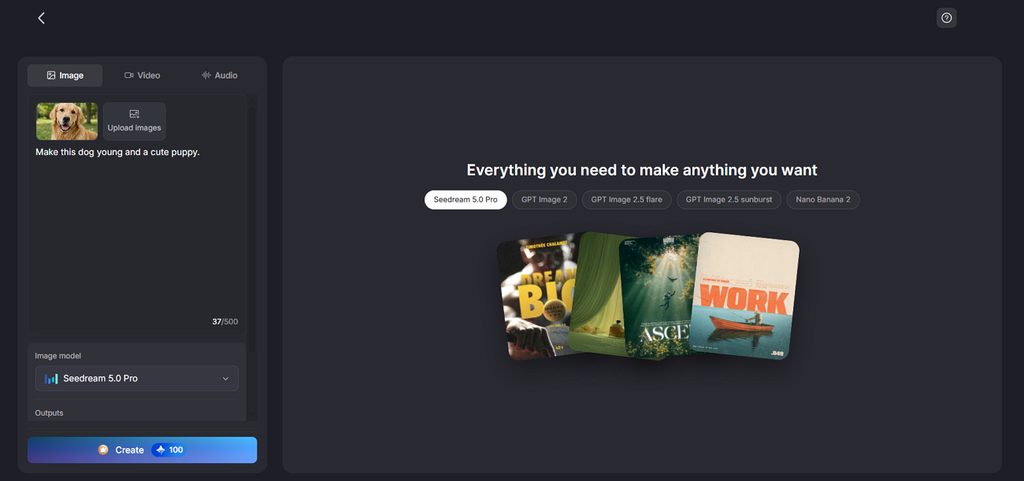
MagicLight AI provides a dedicated AI image generation facility for creating and refining visuals. It can also turn a polished image into a video using simple text instructions. Users upload their image and describe the movement, scene, or action they want to generate.
Prompts support up to 500 characters, giving users room to describe movement clearly enough. No second image or complicated editing timeline is required during the creation process either. This simple workflow suits anyone wanting to animate photos after improving their visual quality.
Key Features
- Image Upload Formats: Upload JPEG, PNG, or WEBP images sized up to 20MB each. Multiple common formats make bringing existing photos into projects simpler.
- Image to Video: Add up to 5 reference images for stronger visual direction overall. Prompts allow 1500 characters for describing scenes, actions, and movement.
- Reference Image Support: Include up to 10 reference images when creating new visuals. These references help guide appearance, composition, details, and overall visual direction.
Pros
- Supports multiple reference images for more controlled photo results.
- Accepts common image formats with generous 20MB upload limits.
Con
- Repeated image enhancement uses credits every time, making you keep an eye on it.
2. Upscale.media
Best For: Sellers needing cleaner product photos for stores and marketplaces.
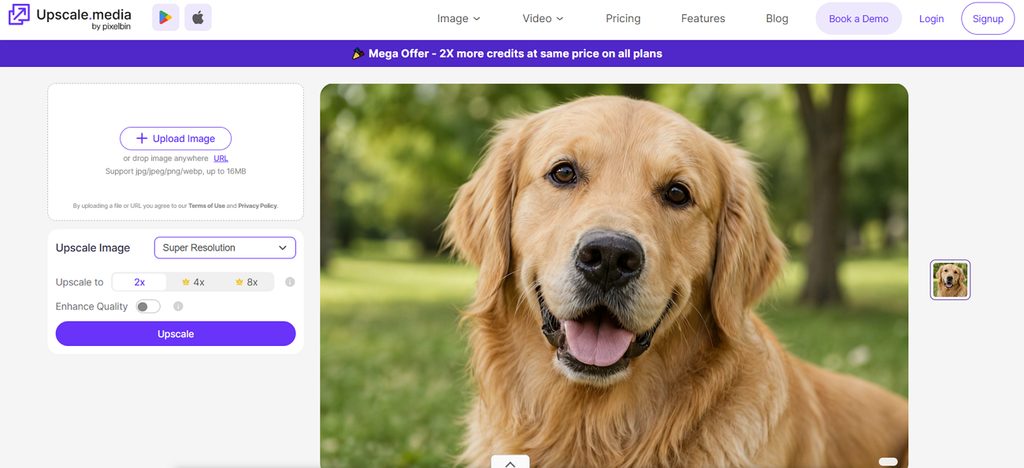
This best photo enhancer online can enlarge small images while rebuilding missing visual details. Upscale.media focuses on increasing resolution while keeping textures, edges, and important details clear. Its focused workflow works particularly well for product photos, prints, and older images.
Key Features
- JPEG compression artifacts disappear while finer textures and edges become noticeably cleaner after processing.
- Facial details gain better definition through automatic restoration designed specifically for portrait images.
- Hazy photographs receive stronger contrast and improved visibility across distant objects and backgrounds.
Pros
- Guest users can process photos without creating an account first.
- Watermark-free downloads keep finished photos ready for commercial projects.
Cons
- Guest usage provides fewer processing credits than registered accounts.
- Large source images face stricter limits at higher enlargement settings.
3. Fotor
Best For: Social creators regularly polishing portraits before publishing them online.
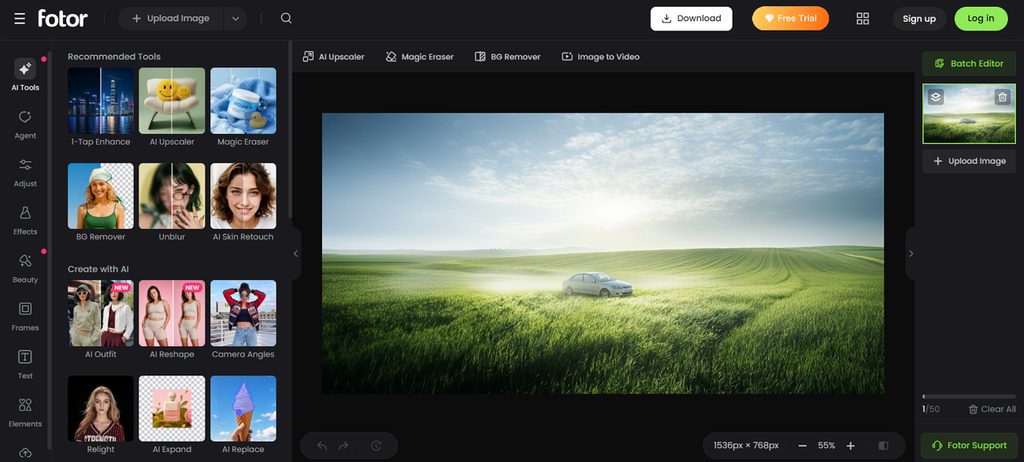
Fotor is a best photo enhancer that can handle image problems beyond simply increasing resolution. This platform combines automatic enhancement with editing controls for correcting photographs within one workspace. It suits users who regularly fix portraits, social posts, and everyday photographs before sharing.
Key Features
- Automatic exposure correction balances dark shadows and bright highlights throughout poorly lit photographs.
- Pixelated sections become smoother as AI reconstructs missing details within low-quality digital images.
- Old photograph restoration repairs faded areas, scratches, and damaged details within aging pictures.
Pros
- Face detection targets facial areas while preserving natural-looking features.
- HEIF and HEIC support accommodates photos captured on newer phones.
Cons
- Broader editing workspace feels excessive for quick enhancement tasks.
- Some advanced AI functions require credits after limited usage.
4. Remini
Best For: Families restoring blurry portraits and older scanned photographs.
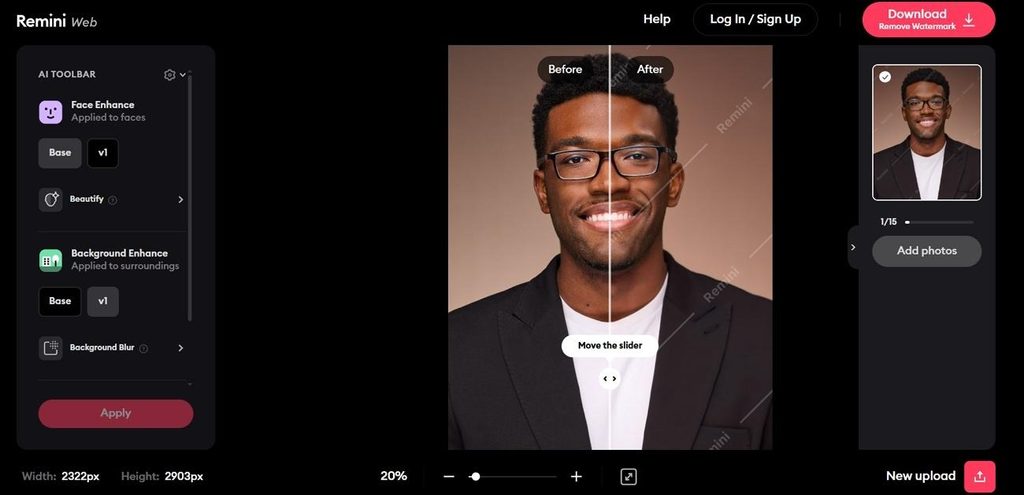
Remini approaches the best photo enhancer online differently by focusing heavily on facial restoration. Its AI rebuilds details in blurry portraits, faded photographs, and damaged family pictures automatically. The tool can also improve surrounding objects and scenery instead of enhancing faces alone.
Key Features
- Face Glow smooths imperfections while brightening eyes and teeth within portraits naturally.
- Auto Color adjusts faded tones and restores more natural-looking colors across photographs.
- Background Enhance sharpens clothing, objects, landscapes, and smaller details surrounding photographed subjects.
Pros
- Motion blur correction helps recover photographs affected by shaky cameras.
- Denoising cleans visible grain from poorly captured low-light photographs.
Cons
- Enlargement reaches only 2x, limiting significantly larger final prints.
- Generative AI Photos remain available only through mobile devices.
5. Let's Enhance
Best For: Print designers preparing low-resolution artwork for large physical formats.
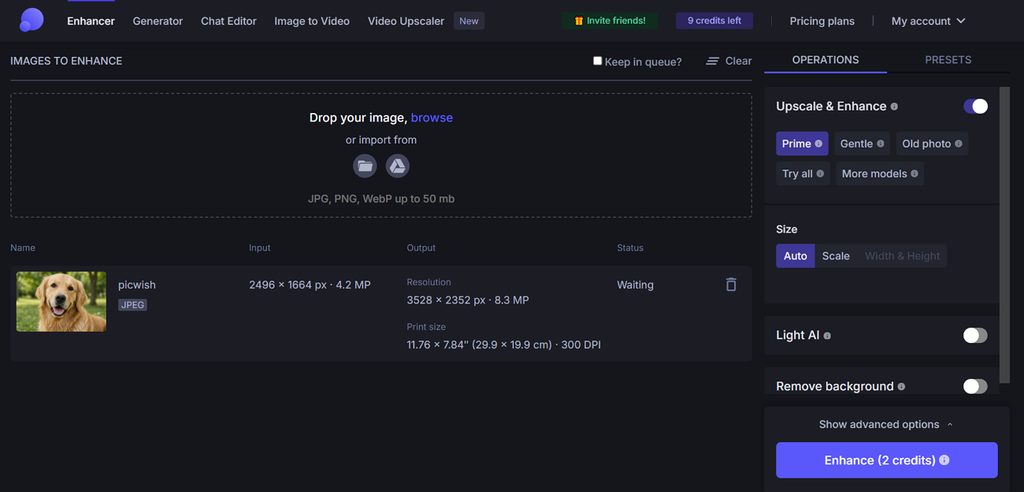
For print-focused work, the best photo resolution enhancer needs control beyond basic sharpening. Let's Enhance combines specialized restoration models with high-resolution output designed for demanding projects. Different processing modes handle small originals, damaged photographs, and images containing delicate details.
Key Features
- Light AI corrects highlights, shadows, white balance, and contrast automatically.
- Background removal creates transparent PNGs or clean white product backgrounds.
- Strong upscaler targets blur, pixelation, and noise below 2.5MP inputs.
Pros
- Batch processing handles up to 20 photographs within one run.
- 300 DPI output supports photographs prepared specifically for professional printing.
Cons
- Free processed images carry watermarks until users purchase access.
- Browser-based workflow lacks dedicated mobile applications for phone-first editing.
6. VanceAI
Best For: Photographers fixing varied image problems through specialized online tools.
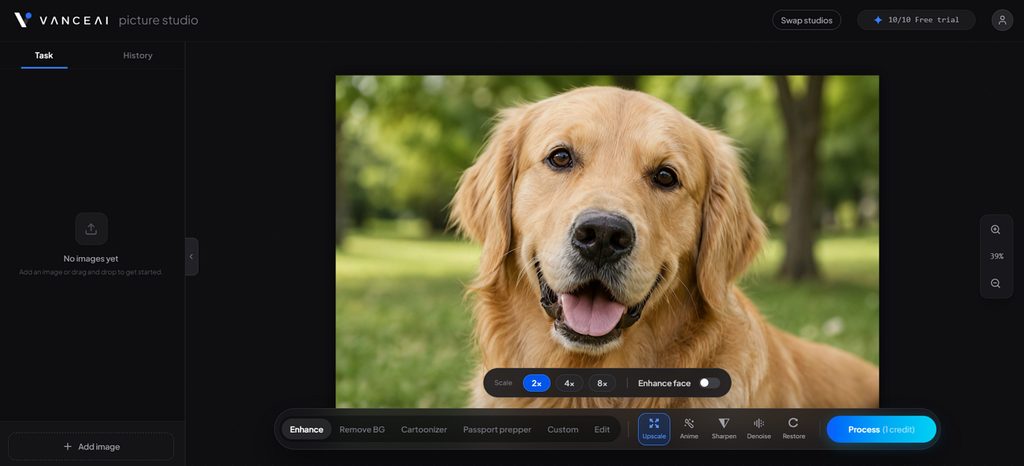
VanceAI brings the best online photo enhancer functions into separate tools for targeted fixes. Its DCNN models analyze skin, fabric, foliage, and metal before applying suitable corrections. Users can handle sharpening, restoration, denoising, and enlargement without relying on one model.
Key Features
- Different sharpening models handle motion blur, lens blur, and soft images separately.
- Online upscaling enlarges photographs by 2x, 4x, or 8x directly.
- AI Photo Restorer removes scratches, stains, and damage from aging photographs.
Pros
- Portrait Retoucher smooths skin while preserving important facial details naturally.
- AI Colorizer adds realistic colors to old black-and-white photographs.
Cons
- Processing several photographs can consume available online credits.
- Separate enhancement tools require switching workflows for different photo problems.
Compare All Photo Enhancement Tools
Choosing the best photo enhancer online depends on output limits, watermarks, and enhancement needs. Look at the table below to compare important differences across all 6 tools:
| Tool | Max Upscale | Free Tier | Watermark | Best At |
| MagicLight AI | Enhance images with text prompts | Free credits available | None | AI image enhancement and creation |
| Upscale.media | Up to 8x | Free limited use | None | Increasing photo resolution |
| Fotor | Up to 4x | Limited AI credits | None | Editing and enhancing photos |
| Remini | Up to 2x | Limited free use | None | Restoring faces and old photos |
| Let's Enhance | Up to 16x | Limited free credits | Yes, free output | Preparing images for large prints |
| VanceAI | Up to 8x | Limited free credits | None | Fixing varied photo quality problems |
Part 3. Why Take Enhanced Photos Further with MagicLight AI
The best photo enhancer improves image quality, but your finished photo can offer more. Let's explore how MagicLight AI can take enhanced photos beyond basic image improvement:
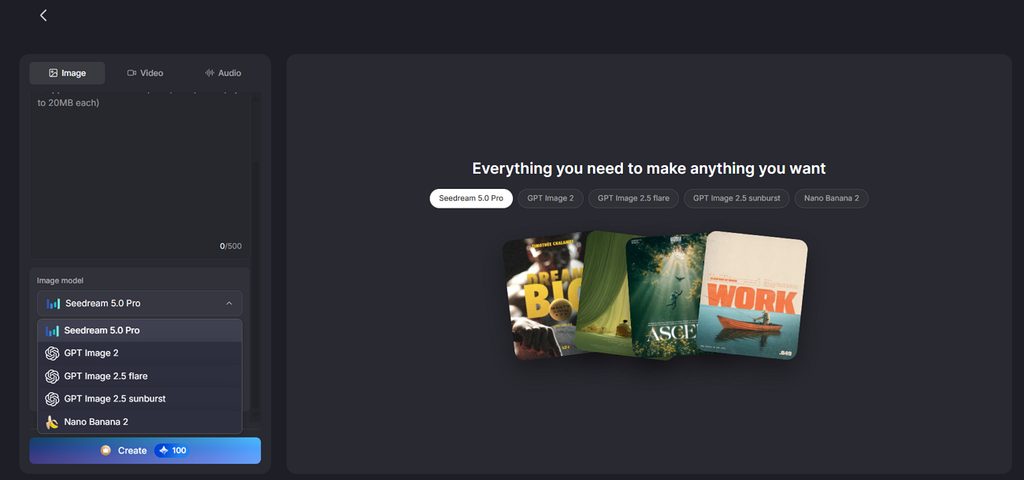
- Create with 5 Image Models: MagicLight AI offers 5 image models for taking enhanced photos into new visual directions. Options include Nano Banana 2, Seedream 5.0 Pro, and GPT Image models, letting users test different results within one platform.
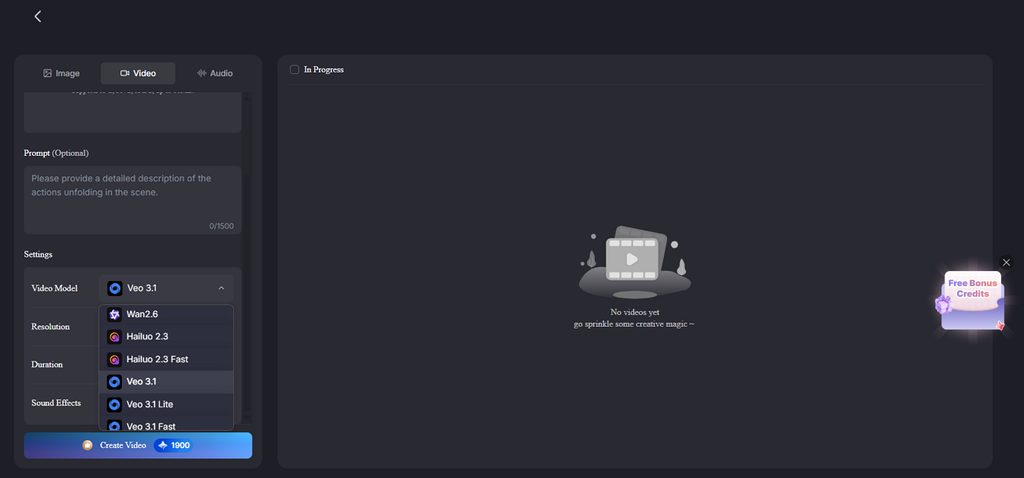
- Animate Photos with 20 Video Models: Enhanced images can move into video using 20 available generation models, including Kling 3.0 and Veo 3.1. Veo 3.1 can also add sound effects, helping turn a polished still into a more complete scene.
- Build Consistent Image Sets: Reference images can guide later generations using the same characters, appearance, and visual direction. This makes enhanced photos useful for connected campaign graphics, illustrations, and story scenes that need visual consistency.
Guide to Take an Enhanced Photo into a Video with MagicLight AI
An AI image animator can turn results from the best online photo enhancer into videos. Follow the steps below to animate your enhanced photo with MagicLight AI online:
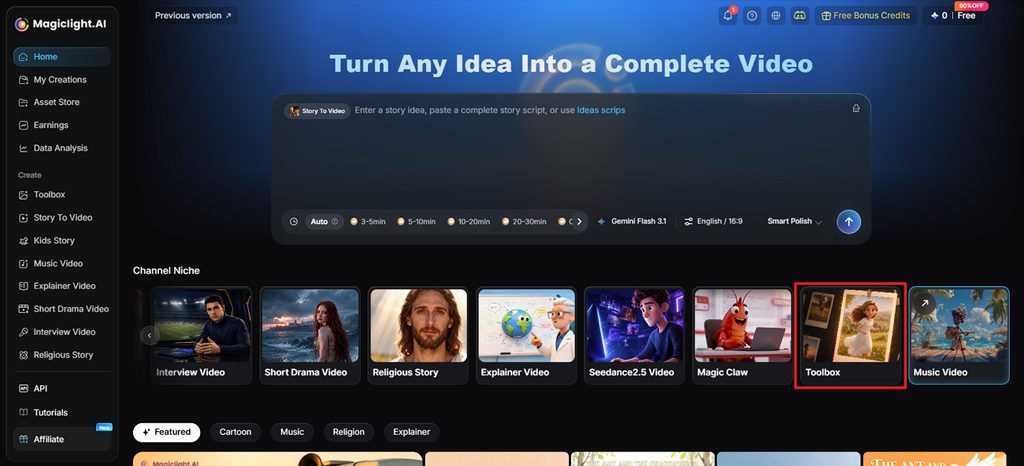
Step 1. Open MagicLight AI Image to Video
Visit MagicLight AI and select Toolbox to open the Image to Video workspace.
Step 2. Add and Animate Your Enhanced Photo
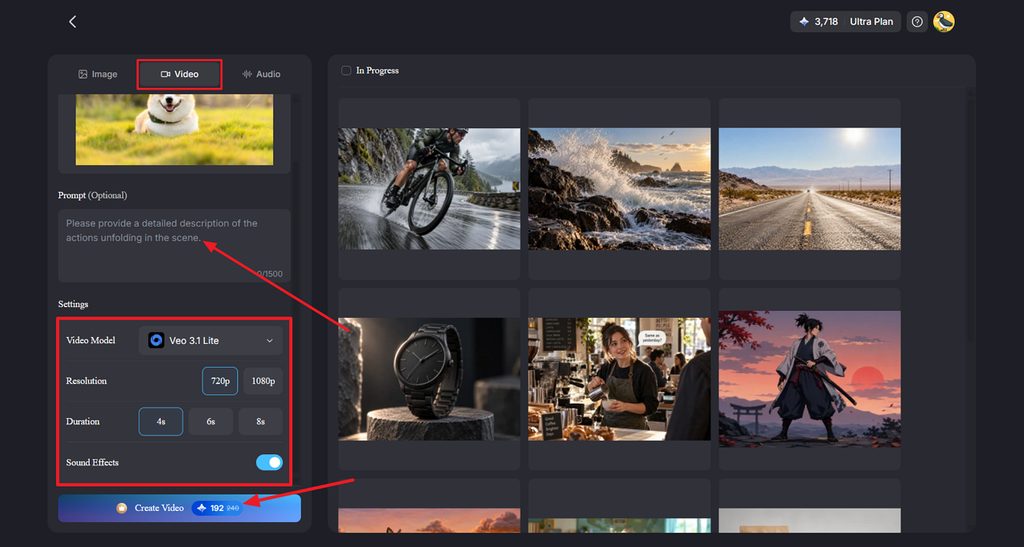
Select the Video tab, then upload or drag your enhanced photo into the workspace. Enter a prompt in the Prompt section describing the movement, scene, and camera action you want. Pick a Video Model from the 20 available choices, then set the Resolution and Duration. Enable Sound Effects when supported by the selected model, then press Create Video.
Step 3. Review and Save Your Video
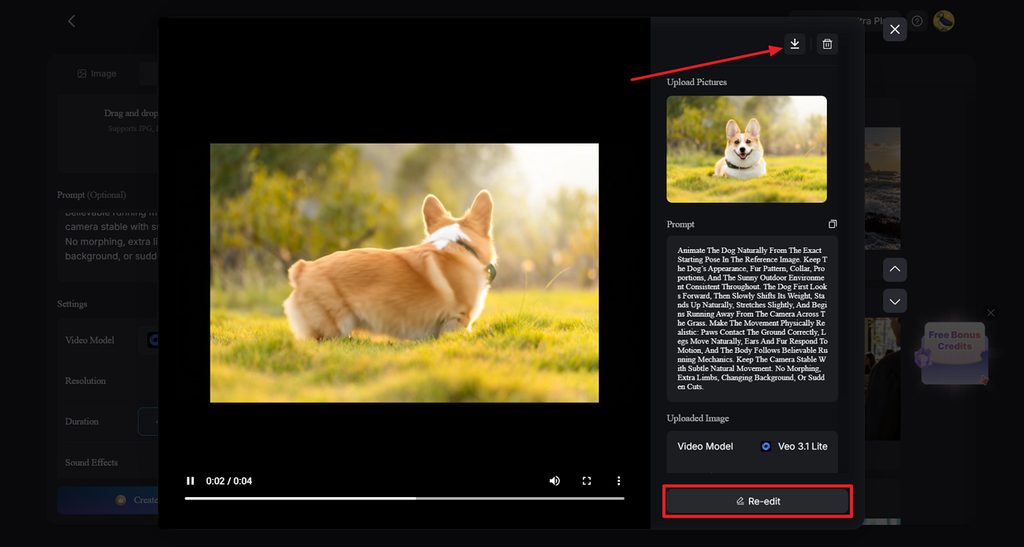
Play the generated video and check whether the motion matches your intended result. Select Re-edit if you want to adjust the settings or instructions. Once the video looks right, click the Download icon at the top to save it.
Conclusion
In conclusion, the best photo enhancer online depends on the specific problems affecting your photos. Upscale.media enlarges images, while Remini focuses more closely on restoring faces and older photographs. Let's Enhance supports larger prints, while Fotor and VanceAI provide broader editing and repair options. MagicLight AI takes improved photos further by creating new visuals and animated video content afterward.
FAQs on Best Photo Enhancer Online
1. What does an online photo enhancer improve?
Photo enhancers can improve resolution, remove noise, sharpen details, and restore damaged faces. Each tool handles these problems differently depending on its models and available enhancement features.
2. Can AI make a blurry photo clearer?
AI can reduce moderate blur and recover visible details, especially within faces and portraits. MagicLight AI can then turn the clearer photograph into engaging animated visual content afterward.
3. What is the difference between upscaling and photo enhancement?
Upscaling increases image dimensions, while enhancement repairs blur, noise, colors, and damaged details. The best online photo enhancer may combine both processes for clearer, larger image results.
4. Can I animate an enhanced photo with AI?
MagicLight AI can animate an enhanced photo using written prompts describing movement and actions. Users can select different video models and create motion without traditional timeline editing software.
5. What can I do with a photo after improving its quality?
Improved photos can support social posts, campaigns, presentations, prints, or other creative projects. MagicLight AI also turns them into videos or references for creating related visual content.