


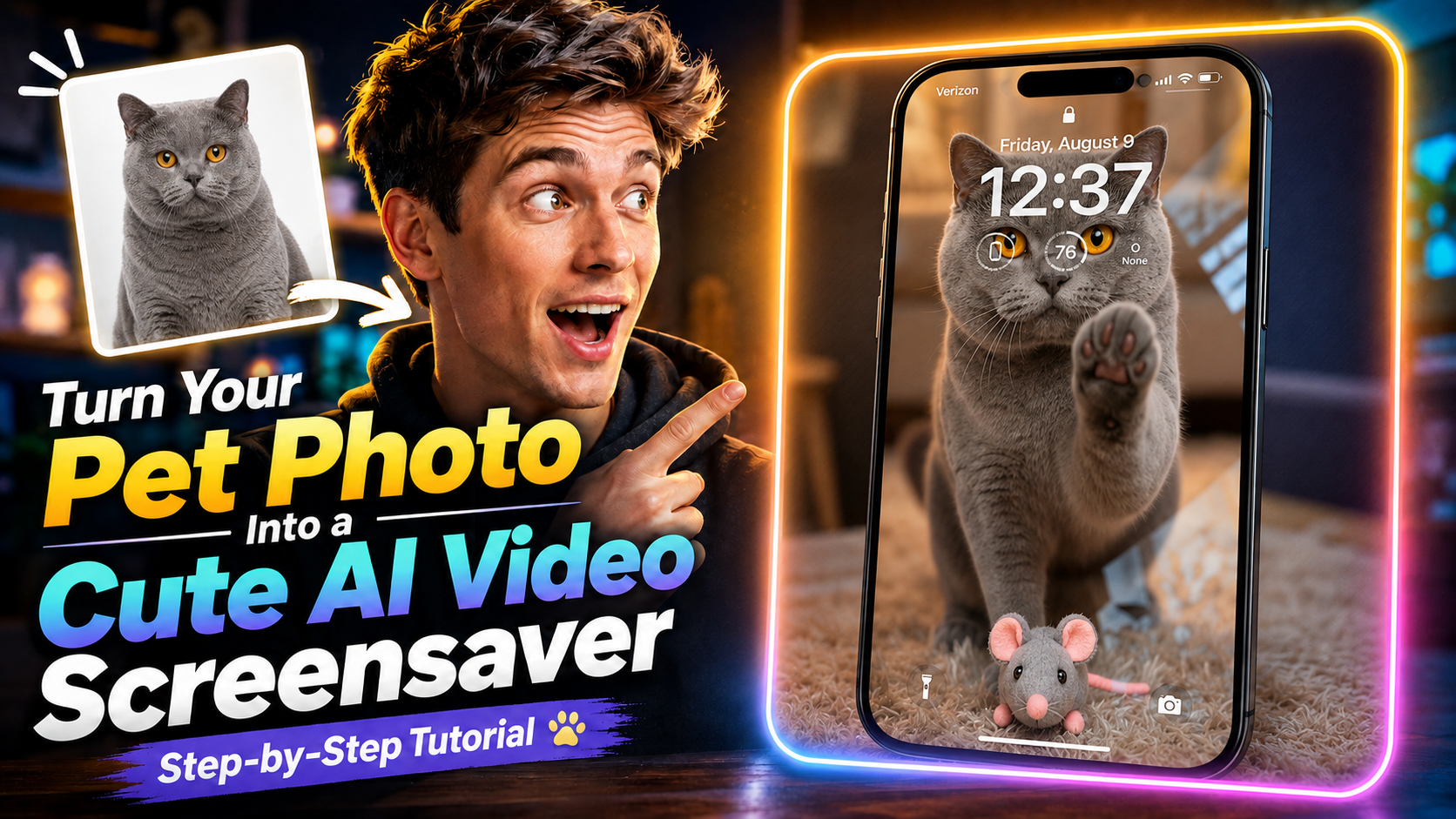
제일 아끼는 펫 사진을 움직이는 귀여운 스크린세이버로 만들고 싶다면, Magiclight에서 사진 한 장으로 짧은 영상을 만들 수 있어요. 과정이 길지 않습니다.
이 튜토리얼에서는 펫 사진을 올리고 Seedance 2.5를 고른 다음, 따로 자르지 않고 스크린세이버 느낌의 영상을 만드는 방법을 알려드려요.
전체 영상을 한 번 본 다음, 아래 프롬프트를 복사해서 우리 아이 사진으로 바로 해보세요.
완성되면 이런 영상이 나와요
사진 속 펫이 움직이는 짧은 영상이 만들어집니다. 귀여운 스크린세이버로 쓰기 좋고, 그냥 소장하거나 공유해도 좋아요.
시작할 때 필요한 건 선명한 펫 사진 한 장뿐입니다.
1. Magiclight에서 Generate Video 열기
Magiclight.ai에 들어가 Toolbox를 눌러 주세요.
도구 목록에서 Generate Video를 선택하면 영상 생성 화면으로 이동합니다.
2. 펫 사진 올리기
움직이게 만들고 싶은 펫 사진을 업로드하세요. 얼굴과 털이 잘 보이는 사진을 고르면 결과물이 훨씬 안정적이에요.
3. Seedance 2.5 선택
모델에서 Seedance 2.5를 고르세요.
이 튜토리얼에서 정적 펫 사진을 스크린세이버 스타일 영상으로 바꿀 때 쓰는 모델입니다.
4. 프롬프트 넣기
아래 프롬프트로 고양이의 동작, 표정, 배경, 마지막 구도를 잡아 주세요.
프롬프트
이 프롬프트는 영어 그대로 복사해서 붙여넣는 게 가장 잘 나옵니다. 번역하지 마세요.
Fixed camera, single continuous take. A cat is in a warm, cozy real home living room with a softly blurred background. A perfectly transparent glass sheet sits flush with the lens, so the cat feels like it is right on the other side of the screen. The glass starts clear.
The cat looks directly into the camera as if noticing someone outside the screen. After a brief pause, it turns, walks a short distance, picks up a small cute toy in its mouth, and carries it back. The toy can be a plush mouse, tiny plush heart, or yarn ball.
The cat comes close to the glass and gently places the toy down in front of it, like offering a gift to the viewer. Then it lifts one front paw and lightly touches the glass once, with soft realistic paw-pad contact. After that, it lowers the paw, stays close behind the toy, and looks at the camera with a sweet, expectant expression. Finally, it leans a little closer and gives one soft blink, holding the gaze for a moment.
Realistic, warm, healing, intimate. No phone frame, no UI, no text, no subtitles, no camera movement, no cuts, no cartoon style, no 3D animation feel, no human hands, no automatic effects.
Strict order: look at camera → turn away → pick up toy → carry it back → place toy down → touch glass once → look at camera → lean closer → blink.
5. 영상 생성하기
Generate를 누르고 Magiclight가 영상을 만들 때까지 기다리세요.
생성이 끝나면 귀여운 펫 스크린세이버 영상을 바로 미리 볼 수 있어요.
지금 Magiclight에서 바로 해보세요
순서는 이거예요. Generate Video를 열고, 펫 사진을 올리고, Seedance 2.5를 고르고, 프롬프트를 붙인 다음 Generate를 누르기.
제일 좋아하는 사진으로 한 번 돌려 보세요. 우리 아이가 움직이는 모습이 보입니다.